Invoices & Receipts
For: Coaches, Team Admins
An invoice is the payment record for your team’s event registration fees. It is created when you initiate payment on the Payment Options page and follows your team through the payment process until it is either paid or cancelled.
Viewing Your Invoices
You can reach your invoices in two ways:
- From the Commerce page, click the Invoices tab. This lists all invoices you have created with your account.
- From the Payment Options tab, click an Open Invoice or Paid in Invoice button in the team table to jump directly to a specific invoice.
The invoice list shows each invoice’s number, status, number of line items, total amount, issue date, due date, and paid date. Click View to open the full invoice.
By default, cancelled invoices are hidden. Toggle the Show Cancelled switch in the list header to include them.
What an Invoice Contains
Header Information
The top of the invoice shows:
- Invoice number and status badge
- The issuing organization (your region) with its address and billing contact
- The payee (bill-to) information — your name, organization, and contact details
While the invoice is in Draft status, you can edit the bill-to information by clicking Edit Invoice in the action panel.
Line Items
An invoice can contain three types of line items:
| Type | Description |
|---|---|
| Level Payment | One line per team. Shows the team name/number, the event level, the amount per team, and the quantity |
| Donation | An optional voluntary donation to your region, shown as a separate line |
| Extra Items | Optional add-ons configured by your region (such as shirts or lunch orders), shown per team |
The invoice footer shows the subtotal, any discounts applied (including coupon codes), and the total due.
Delivery or Local Collection
If your invoice includes a physical set — for example a Challenge or Explore Set on a new team’s formation invoice — a Deliver my set toggle appears on the invoice while it is in Draft, switched on by default along with a delivery fee and a shipping address field. Untick it if you’d rather collect the set in person: the set stays on your invoice, but the delivery fee and the shipping address requirement are both removed. Your region will let you know where and when to collect it. This choice is locked once the invoice is finalized, so set it the way you want before finalizing.
Invoice Status
| Status | What it means |
|---|---|
| Draft | Being set up. Editable; not yet ready for payment |
| Active | Finalized and ready for payment. Payment options appear |
| PO Received | Your region has recorded a purchase order against the invoice. Your team is unblocked and may compete, but the money is still owed |
| Paid | Payment has been recorded. Shows the paid date |
| Shipped | A paid order that included a physical item has been sent, or is ready to collect |
| Cancelled | Voided. No further payments can be accepted |
Note: PO Received is set by your region, not by you, and it is the one status that offers you no payment options of its own. If your invoice is in this state, the next move belongs to whoever is processing the purchase order; your region marks it Paid once the money arrives.
Making a Payment
Finalizing an Invoice Before Paying
A draft invoice must be finalized before payment. On the invoice page, click Finalize and Pay (or Finalize Invoice if the total is $0.00 after discounts).
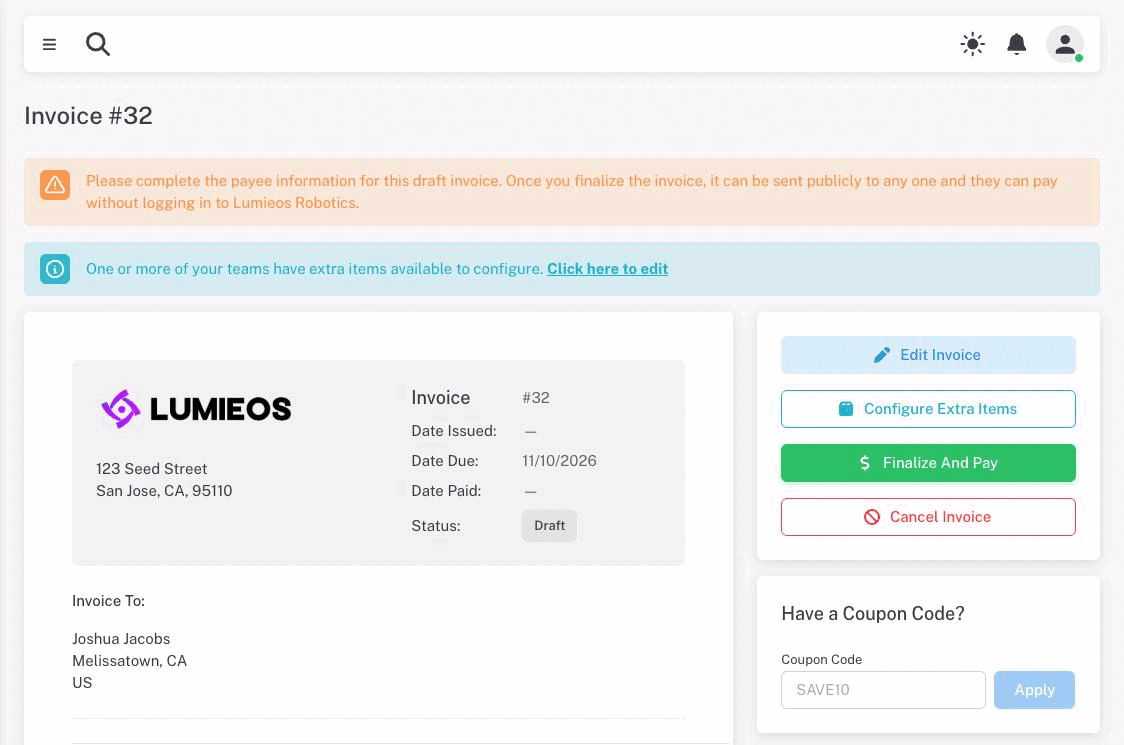
A confirmation dialog reminds you that finalization is not reversible. Once you confirm:
- The invoice moves from Draft to Active
- The issue date is recorded
- Payment options become available on the invoice
If the invoice total is $0.00 due to coupons or full discounts, the invoice is automatically marked Paid and no further payment is needed.
One thing can block finalizing: if the invoice carries a delivery charge for a physical item, you need a complete shipping address first. Finalize is refused with “A complete shipping address is required before this invoice can be finalized.” Either add the address, or turn off Deliver my set to collect in person and remove the charge.
Paying Online
When an invoice is Active and your region supports online payment (PayPal, Stripe, Yoco, or a custom portal), a Pay with [Provider] card appears on the invoice page.
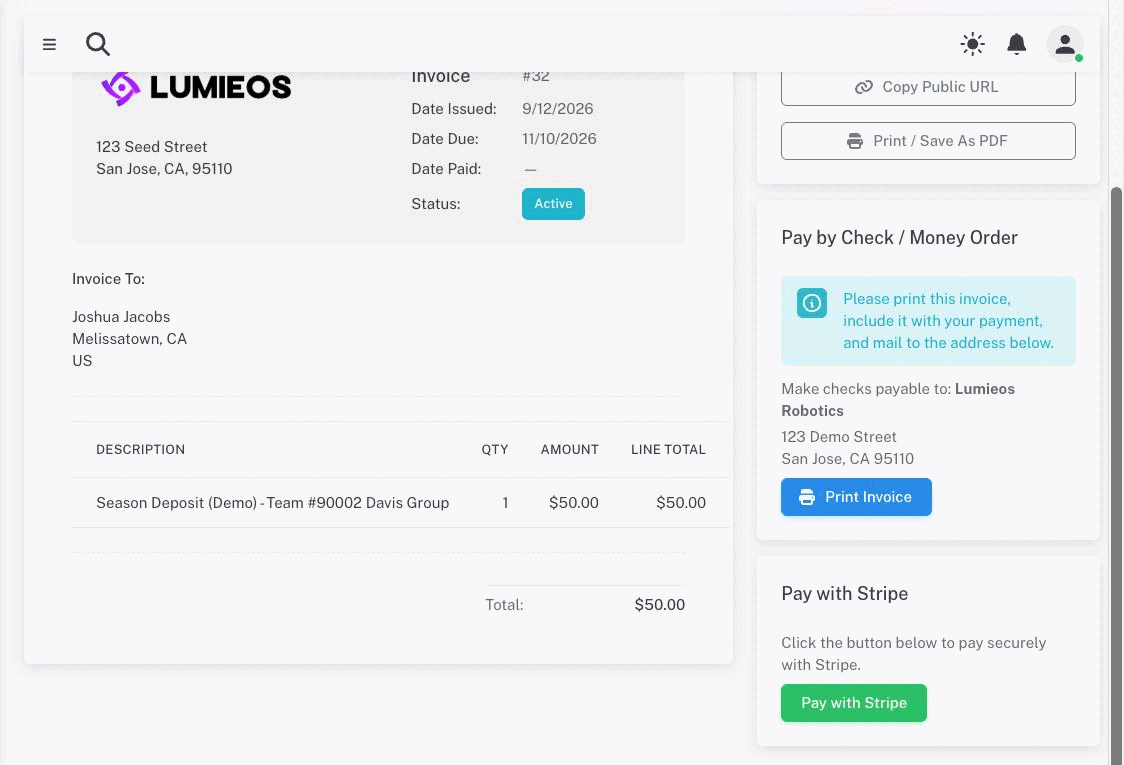
- Click Pay with [Provider Name].
- You are redirected to the payment provider’s secure checkout page.
- Complete the payment on the provider’s site.
- You are returned to Lumieos, and the invoice status updates to Paid automatically.
For PayPal, a confirmation dialog appears when you return to verify the transaction was successful. If something goes wrong, the dialog shows an error message and the invoice remains Active so you can try again.
Paying by Other Methods (Check, Bank Transfer, Custom Portal)
For paper checks or EFT/bank transfer, your region will show payment instructions on the invoice page. These typically include a mailing address or bank account details. After you have submitted payment through the external method, your region’s staff will manually mark the invoice as paid.
EFT / bank transfer has one extra step worth knowing about. The card shows the banking details and a reference to quote, and below them an Upload Proof of Payment control. Making the transfer does not update the invoice on its own — upload your receipt or screenshot so your region can match the payment and mark it paid. Once uploaded, the card shows a Proof Uploaded chip and the date, and you can replace the file if you need to.
If your region uses a custom payment portal, the payment card will link you to that portal where you complete the process externally.
Warning: Payments made through a custom portal do not update the invoice automatically. It stays Active until someone at your region reconciles the external payment by hand. That is expected — do not pay a second time because the status has not changed.
Coupon Codes
If your region provides coupon codes, a Have a Coupon Code? card appears on the invoice while it is in Draft or Active status. Enter your code and click Apply to add the discount. Applied coupons are listed on the invoice and reduce the total. While the invoice is still Draft you can remove one again by clicking its chip.
If a code is refused, the message says why — the commonest are that it has expired, has already been used the maximum number of times, has already been applied to this invoice, belongs to a different team, or does not apply to anything on this particular invoice.
Note: Coupon codes cannot be used on invoices collected by an event host rather than by your region.
Sharing an Invoice
After an invoice is finalized, anyone with the public link can view and pay it — no Lumieos login required. To share:
- On the invoice page, click Copy Public URL in the action panel.
- Send the copied URL to whoever will be paying.
The public invoice view shows the same payment options so the payer can complete checkout directly.
Cancelling an Invoice
If you need to start over — for example, because you selected the wrong teams — you can cancel a Draft or Active invoice:
- Open the invoice.
- Click Cancel Invoice in the action panel.
- Confirm in the dialog.
Cancellation is permanent. If the invoice was Active, no further payments can be accepted for it. Create a new invoice from the Payment Options page if you still need to pay.
Any manual coupon code you had applied is released when you cancel, so you can use it again on the replacement invoice.
Note: Cancelling is also how you correct a mistake after finalizing. Once an invoice leaves Draft you can no longer edit its teams, line items, or billing details — cancel it and create a new one.
Downloading or Printing
Click Print / Save as PDF above the invoice to open your browser’s print dialog, where you can either print the invoice or save it as a PDF to send on — useful when a school needs a copy to process payment. The invoice page includes print-specific styles that hide navigation and other screen elements, leaving just the invoice document, along with any payment instructions and banking details. This can serve as a receipt after the invoice is marked paid.
The button appears once the invoice has been finalized; draft invoices cannot be printed.