Roster Management
For: Coaches, Team Admins, Mentors
The Roster tab shows everyone currently associated with your team — coaches, students, and other adults. From here you can see each member’s compliance status, invite additional coaches, manage formation team members, and upload required documentation.
Your Roster
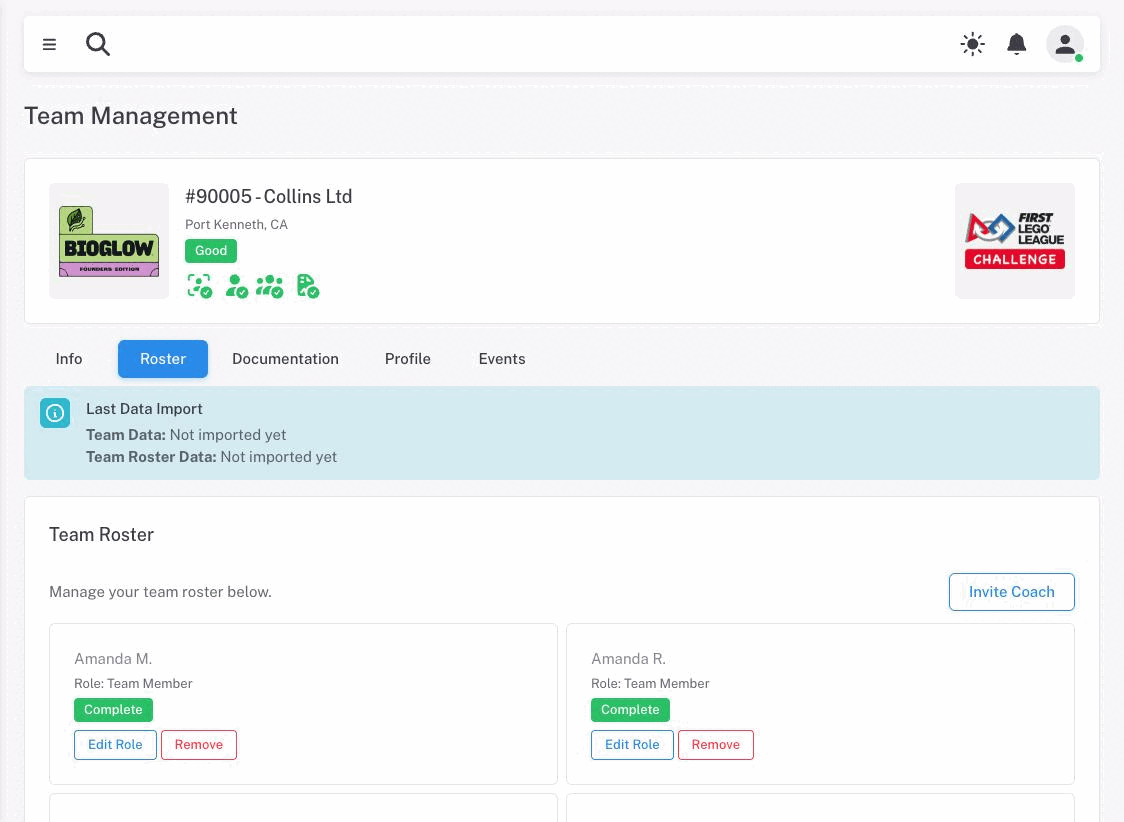
Open the Roster tab from your team management page to see the current roster. Each member appears as a card showing:
- Name — displayed as first name and last initial
- Role — the member’s role on the team (Coach, Team Admin, Student, etc.)
- Status — a color-coded badge indicating whether the member has completed all required steps
Members are sorted alphabetically. The roster refreshes automatically after any action you take.
For teams whose data comes from FIRST reports, the Info and Roster tabs include a notice showing when team data and roster data were last imported. This helps you understand if a recent change in FIRST has not yet appeared here — imports can take up to two business days to sync.
The Info tab also shows an Import history card listing the changes recent imports actually applied to your team — data updates with their before and after values, and any team-status changes an import triggered — so you can see exactly what a sync changed.
Team Stats
After a season ends, the roster may display summary statistics showing how many members are in each role. These are post-season figures and are read-only.
Member Roles
Roles are assigned based on how the member was added to the team. For teams registered through FIRST, roster data comes from the national database. For formation teams, roles are assigned when members are added manually.
The default roles in the system are:
| Role | Description |
|---|---|
| Team Admin | The person who registered the team with FIRST (also called “purchaser”). Must be 18 or older. Has a Lumieos account. |
| Coach | The primary lead coach. Must be 18 or older. Has a Lumieos account. |
| Co-Coach | A secondary coach. Must be 18 or older. Has a Lumieos account. |
| Adult Mentor | An adult volunteer supporting the team. Must be 18 or older. Has a Lumieos account. |
| Student Coach | An older student in a coaching or mentorship role. Ages 14–18. Does not have a Lumieos account. |
| Student Mentor | An older student supporting the team. Ages 14–18. Does not have a Lumieos account. |
| Team Member | A standard student participant. Age range varies by program. Does not have a Lumieos account. |
Your region may configure additional roles or customize role names. The roles displayed on your roster reflect what your region has set up for the current season.
Adult Roles and Lumieos Accounts
Roles marked as “user roles” (Team Admin, Coach, Co-Coach, Adult Mentor) are linked to Lumieos accounts. These members sign in to Lumieos and must accept any required agreements through their account settings.
Student Roles
Students do not have Lumieos accounts. Their roster entries come from FIRST report imports (or are added manually on formation teams) and show a status based on whether their consent form has been accepted.
Adding and Removing Members
Inviting Coaches
If your region allows coach invites, an Invite Coach button appears at the top of the Roster tab. This button is disabled if the team has already reached its maximum number of coaches.
To invite a new coach:
- Click Invite Coach.
- Enter the coach’s first name, last name, and email address.
- Select their role from the dropdown.
- Click Send Invite.
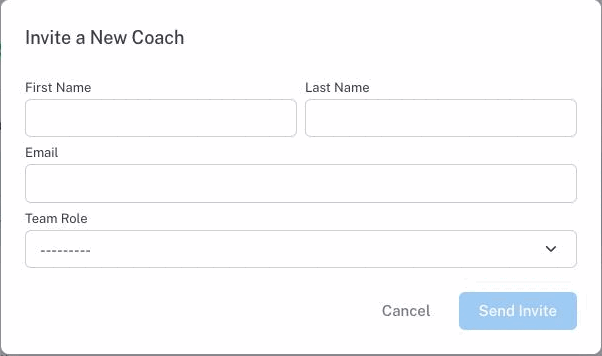
All four fields are required before Send Invite becomes available. The Team Role list only offers roles that still have a free spot, so a role already at its limit simply will not appear.
If the person already has a Lumieos account, they get an in-app notification; if not, they get an email walking them through creating one. Either way they land on their Join a Team tab, where they accept or decline.
They appear on your roster with a Pending Invite status until they accept. Once they accept and complete any required steps, their status updates to Complete.
Note: While an invitation is outstanding, your whole team sits at Pending Lumieos Invites status — and that overrides any other status the team would otherwise show. If a team is stuck there, either the invitee needs to accept, or you need to delete the invitation.
Common reasons an invitation is refused, with the message you will see:
| Message | What to do |
|---|---|
| ”This email address has already been invited.” | They already have a pending invitation, or are already on the roster. |
| ”There are no more available spots for the selected role.” | The role is full. Remove someone from it first, or pick another role. |
| ”The requested email address is attached to an account, but not verified. The user will need to verify the account to be invited.” | Ask them to verify that address in their own account settings, then invite again. |
| ”Invites are disabled for this season.” | Your region has not enabled coach invites. Contact your region partner. |
You can remove a pending invite by clicking Remove on their roster card, as long as they are not linked to the national database. Members locked to the national database show a Locked button instead and cannot be removed from the roster here.
Formation Teams: Adding Members
Formation teams (teams registered directly through Lumieos rather than through FIRST) have an Add Member button on the Roster tab.
To add a member to a formation team:
- Click Add Member.
- Enter the member’s first name, last name, and select their role.
- Optionally enter their birth month and year.
- Click Add Member.
Formation team members can also be edited after adding. Click Edit on their roster card to update their name, role, or birth date.
Age ranges are checked. A birth year entered for a participating team member is checked against the age range for the team’s program — FIRST LEGO League Challenge and Explore have different ranges, and the exact ages vary by region. A birth year outside the range is rejected with a message naming the years that are accepted, so mistakes are caught at signup rather than at an event. Coaches and team admins are not age-restricted.
Removing Members
Members who are not linked to the national database have a Remove button on their roster card.
Warning: Remove takes effect immediately. There is no confirmation step, and removing a member cannot be undone from here — you would have to invite or re-add them.
Members linked to the FIRST national database show a Locked indicator and cannot be removed from the roster in Lumieos. To remove these members, the change must be made in the FIRST system and will appear here after the next data import.
On a team your region created through Lumieos, you also cannot remove the last remaining coach — that is refused with “Cannot remove the last coach from a formation team.”
For a member who signs in to Lumieos, only their role is editable here; their name and personal details belong to them and are changed from their own account settings. The button on those cards reads Edit Role rather than Edit.
Compliance Requirements
Each member’s status badge shows where they stand with required compliance steps. A member must reach Complete status for the team to be in good standing.
Member Status Values
| Status | Meaning |
|---|---|
| Complete | The member has met all requirements and is in good standing. |
| Pending Invite | The member has been invited but has not yet accepted their Lumieos invite. |
| Awaiting Screening | The member needs to complete background screening through FIRST. |
| Missing State Requirements | The member needs to complete state-mandated fingerprinting, training, or the BCIA 9018 form. This can take time to appear in FIRST reports after completion. |
| Pending FIRST Agreements | The member needs to accept required agreements in the FIRST national system (Youth Protection Program). |
| Pending Lumieos Agreements | The member needs to accept required agreements in Lumieos under their Account Settings. |
| Not With FIRST | The member no longer appears on the FIRST roster. |
| Incomplete | This season is missing a required role assignment. Contact support to resolve it. |
| Error | Something is wrong with this member’s record. Contact your region partner. |
On a team your region created through Lumieos rather than importing from FIRST, the wording drops the FIRST references — those members show simply Complete or Pending Agreements.
Youth Protection Program (YPP)
Coaches and other adult members must complete the Youth Protection Program through FIRST. This includes background screening and acceptance of FIRST agreements. A coach counts as screened only when the FIRST report shows both the YPP agreement signed and the screening verdict Satisfies YPP Requirements — a signed agreement on its own is not enough. Until YPP is complete, a member’s status will show Awaiting Screening or Pending FIRST Agreements.
Because Lumieos relies on data imports from FIRST, updates to YPP status may take up to two business days to reflect here after being processed by FIRST. Do not send screening documentation directly to your regional partner — it must be processed through FIRST first.
Consent Forms (Students)
Student members require an accepted consent form. For FIRST-registered teams, student consent form status comes from FIRST report data and cannot be changed in Lumieos.
Where your region collects agreements itself, you complete them from the Documentation tab rather than from the roster card — see Tracking agreements.