Scorekeeper — Quick Card
Device: the scoring laptop, with the arena display on a second screen or projector · Ask: the head referee
Your job: run the match clock, make sure every played match has a score, post scores, and drive the arena display.
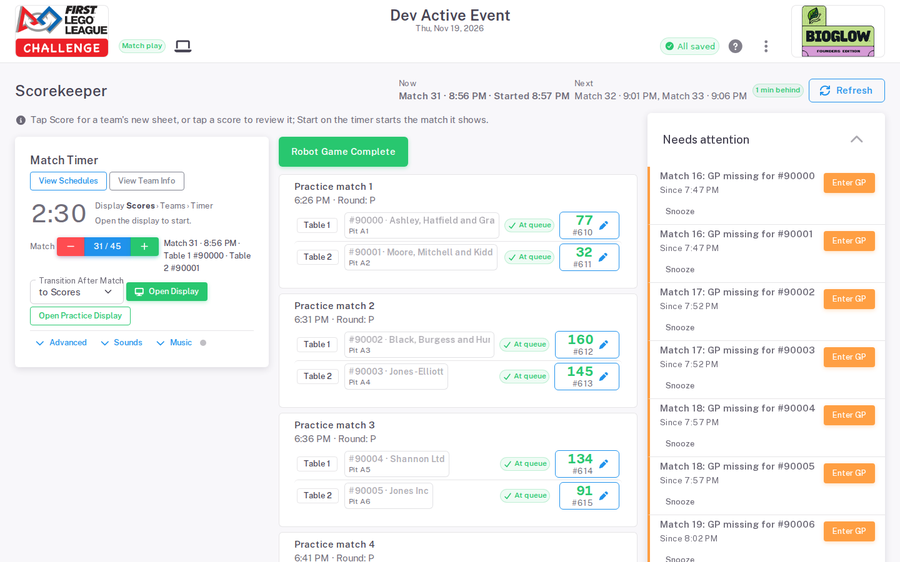
Set up (before the first match)
- Open Scorekeeper from the event-day menu on the laptop. Use Chrome or Edge.
- Open the arena display and drag it to the second screen. Make it full screen.
- Do a sound test through the venue speakers.
- Turn off notifications on the laptop and close every other timer.
- If the venue runs an Aethon music server, open Music under the timer, turn on Control Aethon music from this laptop, and enter its hostname (not an IP address), the match column and the between-match column. Aethon numbers columns from 0. This laptop remembers them. Chrome may ask once to allow access to the local network: allow it. The music then also pauses while a ceremony is live and resumes when it ends.
Each match
- Check the attention list: if the tables for the next match are still missing scores from their previous match, you see a warning when you press Start. You can still start.
- Start the match on the timer. The match number comes from the schedule.
- When the sheets arrive, the match’s scores appear. Chase any missing ones with the referee at that table.
Paper backup
If a referee tablet fails, score the paper sheet from the keyboard: number keys pick an option, Enter or Tab moves to the next one, and you get a summary before you save.
If…
| Situation | Do |
|---|---|
| Timer already open in another tab | Close the other tab, or press Take over on this one. |
| The display window closed mid-match | The match keeps running. Open the display again; it catches up. |
| No sound | Check the laptop’s volume and output device, then run the sound test again. |
| The music doesn’t change, or a red or amber message appears beside Music | The match is not affected, so carry on. The current song may be the last one, so check the hostname and columns under Music now. The next match event tries again. |
| Two scores for one team | Tell the head referee. |
| A score went in under the wrong team | Open the result and choose Move or swap, then pick the team and match it belongs to. A slot with a posted score swaps the two sheets. The team’s initials are cleared, so ask the right team to initial it. |
| Wi-Fi drops | The timer and display keep running. Scores catch up when Wi-Fi is back. |
Ceremonies: before the opening and closing ceremonies, press Prepare ceremonies and Check sound in the console’s Ceremonies section, set Music volume for the room, review the Team photos if the ceremony introduces the teams (it can’t go live until you press Mark reviewed), and take over from the emcee’s tablet if it goes offline. See the Ceremonies card.
Never run two timers, on this laptop or another, at the same time. Between the morning and afternoon sessions, close the morning timer and display windows before opening the afternoon ones.