Event Day: Referee and Scorekeeper
For: Scorekeepers, Referees, Head Referees, Game Announcers
On event day, the scorekeeper runs the match timer and checks every score from a laptop, referees score from a tablet at their table, the head referee rules on flags and scores from a phone, and the game announcer calls teams to the field. This page covers those screens and the arena displays.
Scorekeeper console
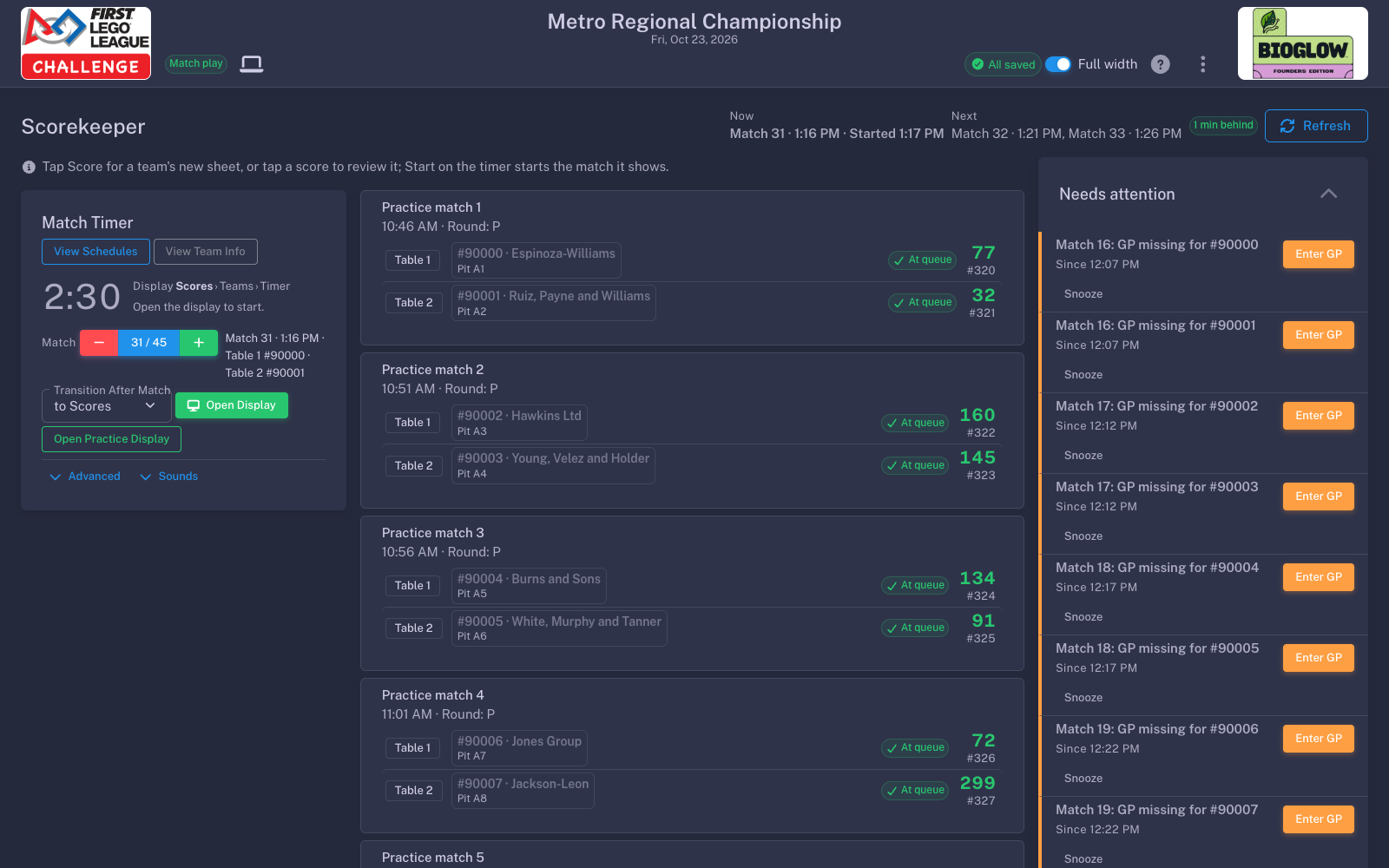
The console opens at full width with two panes: the match timer on the left, and every match on the right. What needs attention is listed beside them. The Full width switch in the header is remembered on this computer.
On a laptop, hide the attention column with the chevron on its card. A Needs attention button in the header, showing the count, brings it back. The choice is remembered on this computer.
Match timer
The Match Timer card keeps everything in one compact block:
- Clock and steps: the clock sits beside a Scores › Teams › Timer indicator showing what the display is on. The previous and next arrows move the display a step.
- One action at a time: only the button for the next step is shown: Start, Abort, Reload & Hide Scores, or Waiting while the 10-second wait runs.
- Match counter: the current match number follows the schedule, and the line under it names the match, its time and the teams at each table. When the schedule has moved on, Use match N sets the number for you.
- Display: pick what happens after a match in Transition After Match, beside Open Display and Open Practice Display.
- Advanced: holds the remote-control focus box (only once a display is open) and the box for teams to hide.
- Sounds: holds the volume sliders.
When you press Start, Lumieos checks the tables that match uses. If a team’s score from the previous match on one of those tables is missing, a warning names the table and the team. The match starts anyway, so the arena never waits on the warning.
Needs attention
The attention list shows missing scores, replays, missing GP scores, devices (such as referee tablets) with scores that failed to save or are still unsent, and teams with two active scores for one round. Each item has an action that opens the right sheet or result. Snooze hides an item for 10 minutes. Items clear on their own once they are fixed.
Match list and shortcuts
Each match is a grid with one row per team: the table, the team (with its pit and shirt colour on a small line under the name), its queuing status, and its score. A team with no score yet shows a Score button. Once it is scored, the score becomes a button with a pencil and the result number underneath: tap it, or anywhere on the team’s row, to edit that result, see its history, mark it as a replay or delete it. If a team has two active scores for one round, tap the one you want. Earlier results for the team, such as a replayed or deleted sheet, appear as chips with a history icon below the score; tap one to view it.
Press ? to see the keyboard shortcuts: j and k (or the down and up arrow keys) move between teams, g goes to the current match, Enter opens the selected team, e opens keyboard entry, h shows the history, a acts on the top attention item and r refreshes. Shortcuts pause while you type in a text field and while a dialog is open.
Post score, replays and Delete
Mark as replay and Post score show an Undo button for about 10 seconds. Delete asks first. A deleted score sheet leaves the rankings and can be restored from its History, which shows who changed what and when, score overrides with their reasons, and the team’s agreement.
Keyboard entry for paper sheets
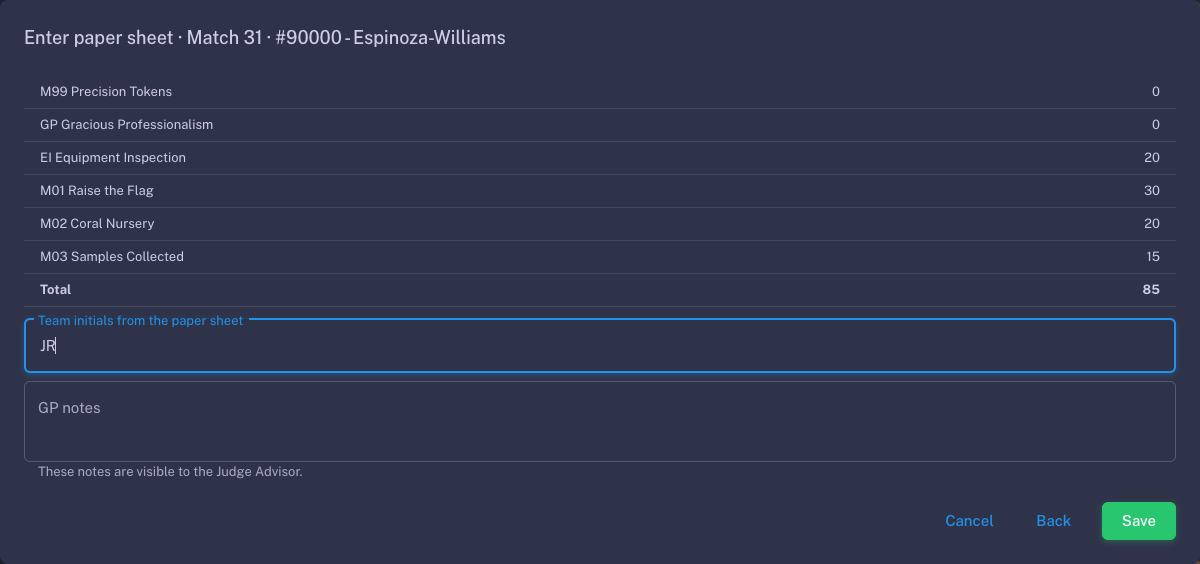
If a referee tablet fails, or at a small event, enter paper score sheets from the keyboard. Number keys pick an answer, Enter or Tab moves on, and Ctrl+Enter opens the summary with each mission’s score and the total. Type the team’s initials from the paper sheet and press Enter to save.
Arena displays
Every event-day display, the arena display (including its timer view) and the standalone score display, keeps the white bar with the program and season logos at the top on every view.
Referee station
Referees score from a tablet at their table.
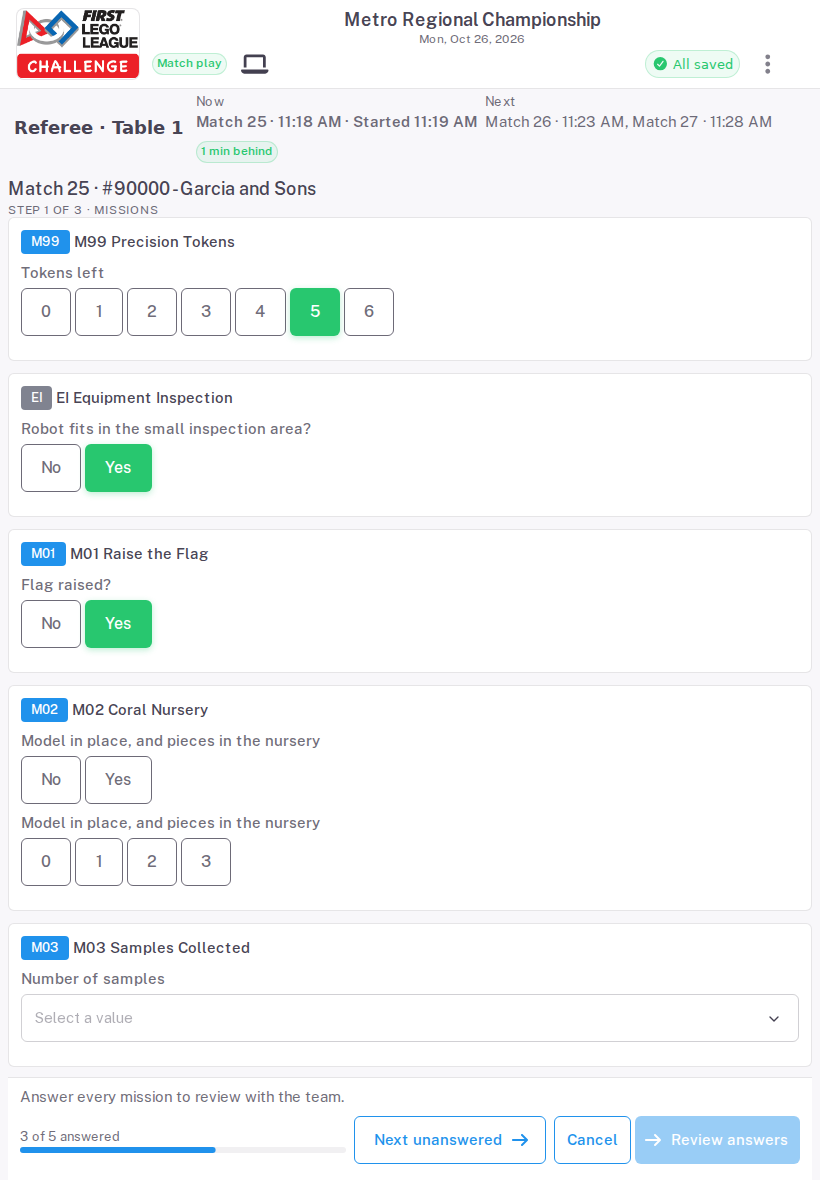
- Score: the current match card has its own Score button.
- Team agreement: on a tablet, the team’s agreement opens on Sign with finger. Typed initials are the fallback.
- After submitting: the screen shows the team’s score, rank and high score. If the sheet is still waiting to upload, it says to check the scoreboard in a bit. Tap Click When Team Leaves to go on to the GP step.
Head referee
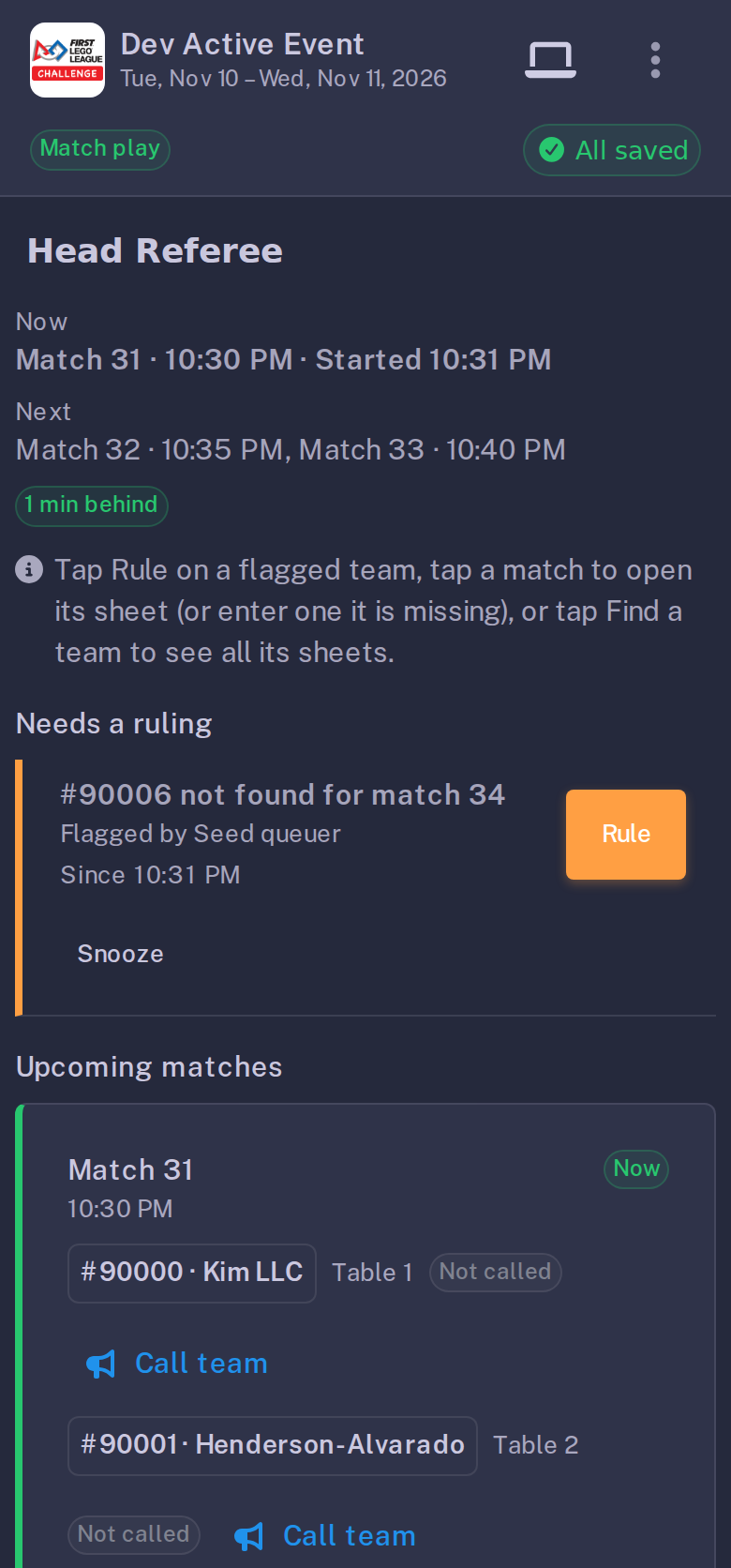
The head referee page is built for a phone. It shows what needs a ruling first, then the upcoming matches, the scores and a button to find a team.
- Needs a ruling: each flag from a queuer or referee is listed with the team and match. Tap Rule to rule it a No Show or clear it. Snooze hides it for 10 minutes.
- Upcoming matches: the current and next match, with each team’s queuing status and a Call team button that asks the announcer and the queuers to bring the team to its table. The next few matches after them sit under Later, collapsed until you tap its arrow.
- Scores: three views of the scores so far. Recent (the default) lists the newest scores first, Matches lists every match in order with each team’s score, and Teams lists every team with its matches. The phone remembers your choice. Tap a row to open its score sheet.
- Finding a team’s sheets: tap Find a team, search by team number or name and tap the team to see every score sheet it has, and to change a No Show ruling for a match that has already left the list.
- Compare: from a sheet, compare it with another sheet or its original to see which answers differ.
- Override: set the score to use from the sheet. A reason is required, and it is shown in the sheet’s history with your name. The override can be cleared to go back to the computed score.
- Sheet status: mark a sheet as a replay, post its score, or delete it. A deleted sheet stays in the history and can be restored.
- History: open a sheet’s history to see its changes.
Game announcer
The announcer page shows the match on deck and the match on now, then the next three matches. The rest of the day sits under Later today (N more).
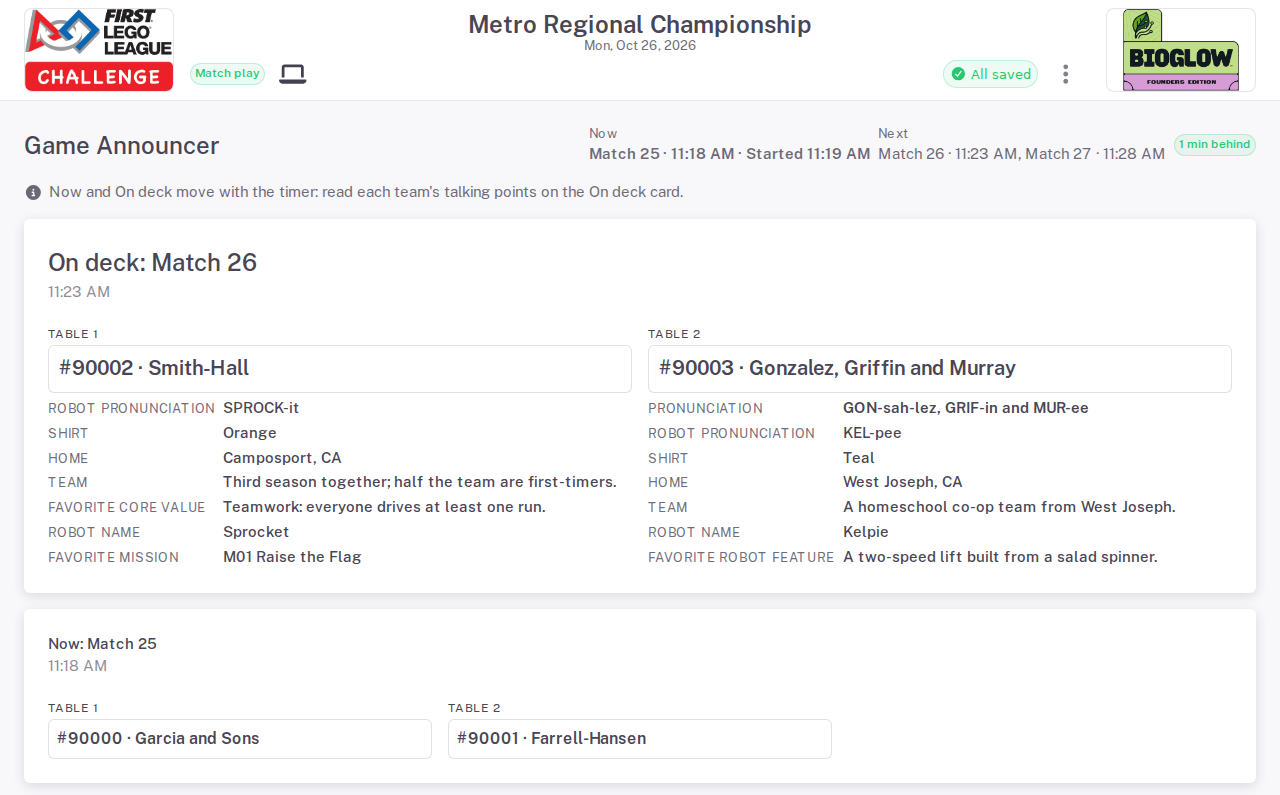
- Team facts: each team lists Pronunciation, Robot pronunciation and Shirt, then the team’s talking points.
- Call requests go to the Pit Announcer page, not here: the pit announcer makes those calls.