Check-in — Quick Card
Device: the check-in desk tablet (or a phone) · Ask: event staff at the desk
There are two check-in desks with their own tablets: Team Check-in and Volunteer Check-in. A tablet only shows the desk it is set up for.
Team check-in
Your job: confirm the team is here and allowed to play, hand over what they need, and tell them where to go first.
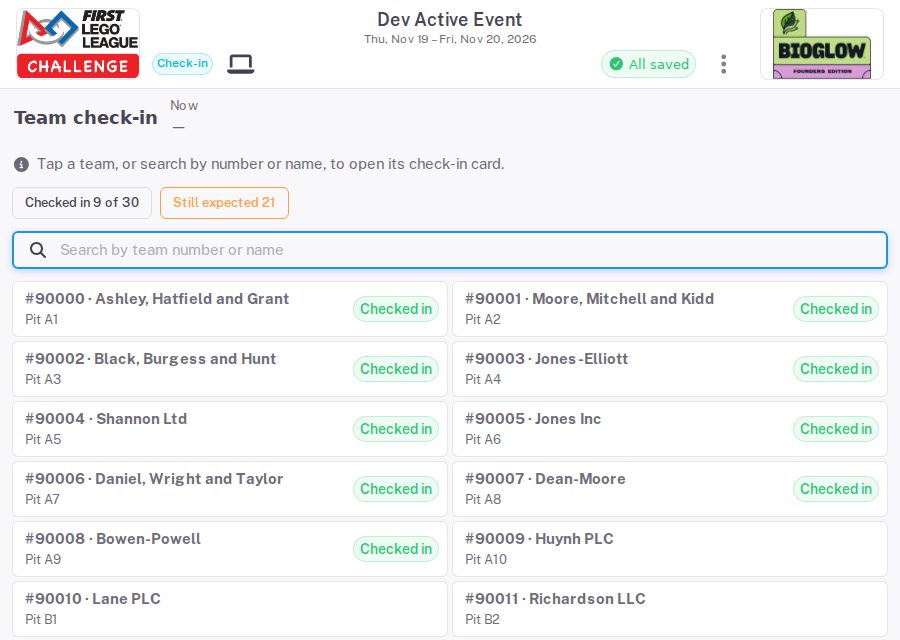
- Find the team in the list: search by team number or name, then tap its row. Each row shows whether the team is checked in, not attending or blocked.
- Work through the check-in:
- Eligibility: if the team is blocked (for example unpaid), the reason is shown. Send the coach to event staff; don’t check them in.
- Hand over wristbands, medals and the team packet.
- Roster and headcount, and correct the team name if needed.
- Where to go first: tell the coach the first activity shown (practice table, judging room or first match).
- Check them in. You can Undo for about a minute; after that only event staff can.
The count at the top shows how many teams are in and who is still expected.
Volunteer check-in
Your job: confirm the volunteer, hand over their badge and shirt, and tell them where to report.
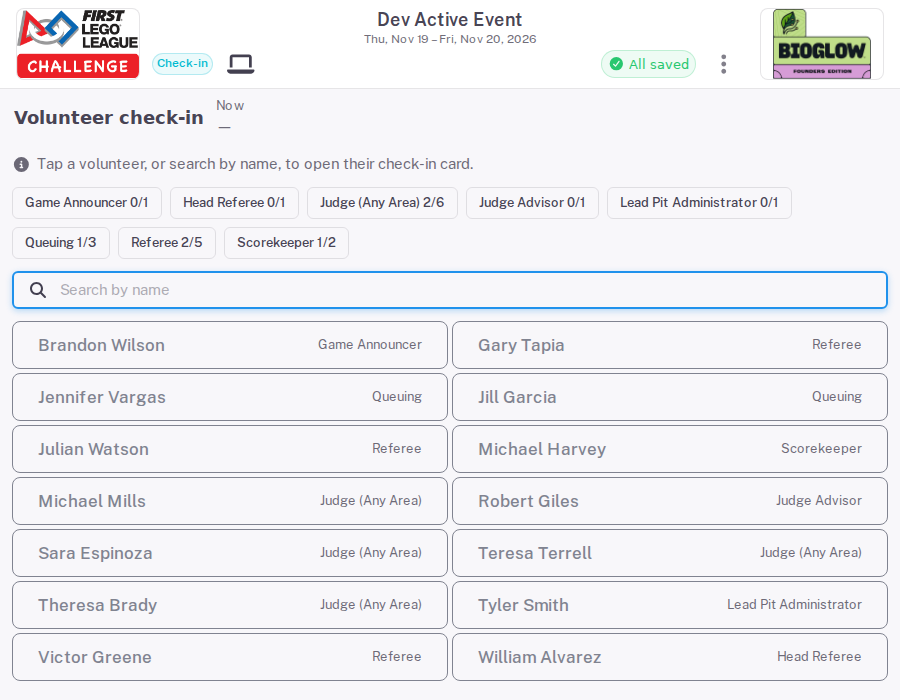
- Search by name.
- Check the card: shirt size, every role they have, the report time and place, and their lead.
- Hand over the badge and shirt, check them in, and send them to their lead.
Walk-in volunteers can’t be added at the desk. Send them to the volunteer coordinator.
If…
| Situation | Do |
|---|---|
| The status line shows pending | Keep checking teams in. Everything sends when the network is back. |
| A message says someone else changed this team | Look at what it shows now, then fix it if needed. |
| A team is marked no-show but has arrived | Event staff can undo a no-show. Call them. |
| The tablet shows a “No internet” page | Wait for Wi-Fi, then tap Home. |
Last updated on