Team Settings & Information
For: Coaches, Team Admins, Mentors
The team management page has several tabs beyond the roster. The Info, Profile, and Documentation tabs let you view and edit your team’s details, showcase team information for events, and track agreement compliance. This page covers each of those tabs.
Team Information (Info Tab)
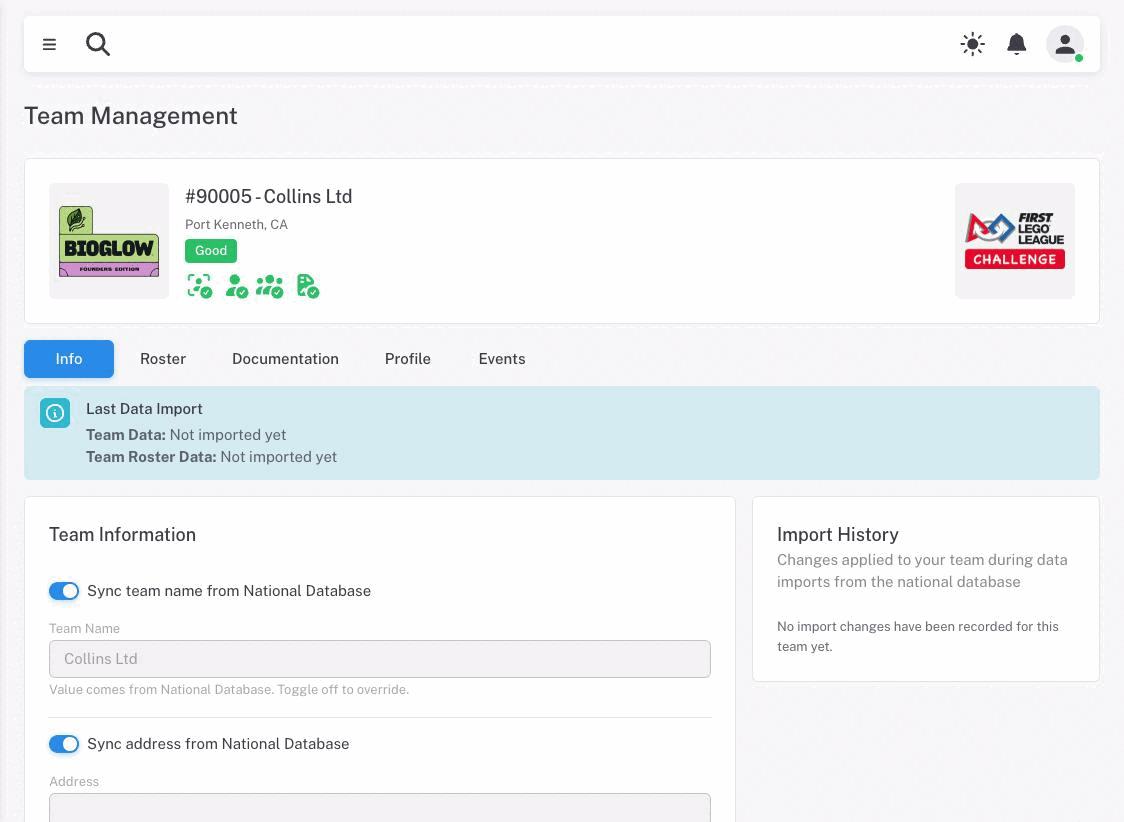
The Info tab shows your team’s core details: name, address, and sponsoring organization. For teams whose data comes from FIRST, each section has a sync toggle.
Above the form, a Last Data Import notice tells you when team data and roster data last arrived from FIRST — and beside it, the Import History card lists what those imports actually changed.
Note: Despite its name, Import History also records changes you make — accepting an invitation, changing someone’s role, adding or removing a member. It is a log of everything that has changed about the team, not only national-database syncs. It keeps the 50 most recent entries.
Sync Toggles
By default, team name, address, and organization fields are synced from the FIRST national database. When a toggle is enabled, the field shows the value from FIRST and cannot be edited here.
To use a local override instead:
- Turn off the sync toggle for that field group (Name, Address, or Organization).
- The field becomes editable and is pre-filled with the current value from FIRST.
- Edit the value as needed and click Save.
Turning a sync toggle back on discards the local override and returns to displaying the FIRST data.
Formation teams (registered directly through Lumieos) do not have sync toggles — all fields are editable directly.
Editable Fields
| Field | Notes |
|---|---|
| Team Name | The official team name. |
| Address | Street address. |
| City | City. |
| State / Province | Dropdown of available regions. The label may say “State” or “Province” depending on your region’s configuration. |
| Zip / Postal Code | Postal code. The label may vary by country. |
| Organization Name | The name of the sponsoring school or organization. |
| Organization Type | The type of organization. The options available depend on your region — for example Elementary / Middle / High School in the United States, or Primary School / Secondary School in South Africa. Home School and Community Team are offered everywhere. |
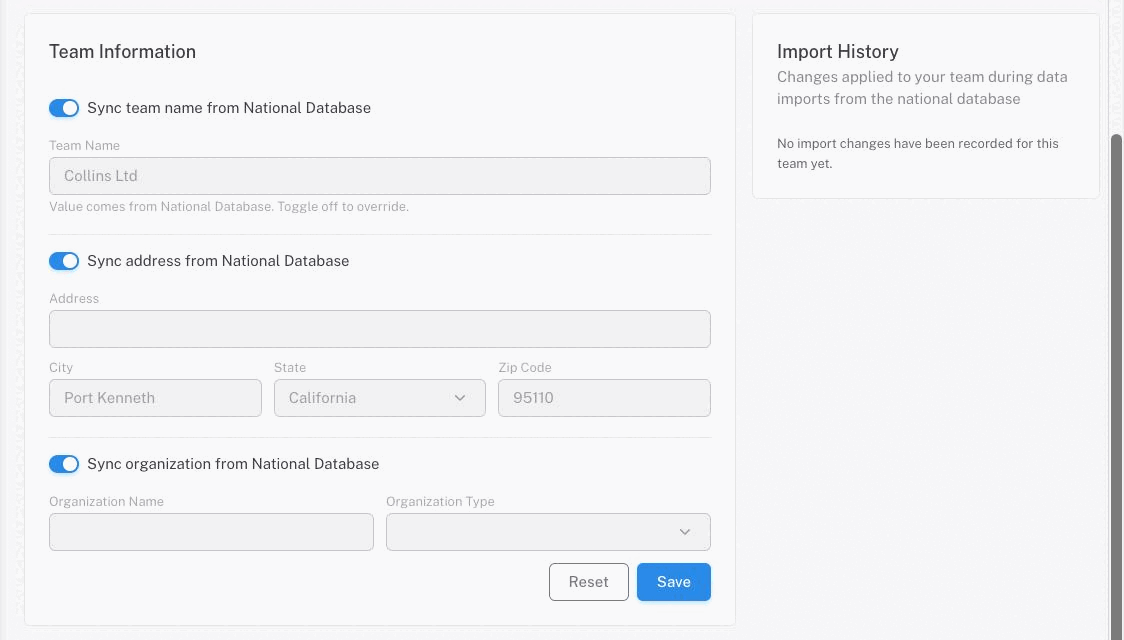
Click Save to save changes or Reset to discard unsaved edits and reload the current values.
Note: Turning a sync toggle off pre-fills the field with whatever was showing, but nothing is stored until you click Save. Once a toggle is off, the override cannot be left blank — an empty name, or an incomplete city/state/postal set, is rejected on save.
Jotform
Applies to regions that collect a Jotform. Pick your instance at the top of the page and this section will hide itself if it doesn't apply to you.
Where your region uses one, a Team Jotform card appears below the main form on the Info tab, reading “Please complete your regional Jotform. This link opens in a new tab.”
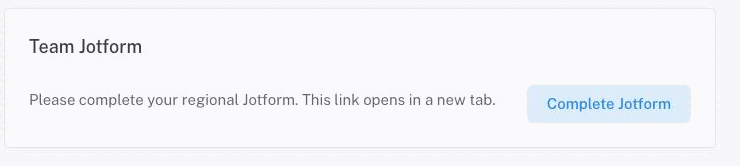
Click Complete Jotform to open it. Once you have submitted it, the button changes to Update Jotform and links back to your own submission so you can edit your answers rather than starting over.
The form is pre-addressed to your team — your team number is passed through to it, which is how your submission gets matched back.
Note: You never mark the Jotform complete yourself. Jotform notifies Lumieos when you submit, and the team is marked complete automatically. If you have submitted the form but the team still shows Pending Jotform Completion, give it a few minutes, then contact your region partner — it usually means the submission could not be matched to your team number.
An outstanding Jotform holds a team at Pending Jotform Completion status, which means it cannot register for events. It also keeps the Agreements compliance icon from turning green, where it is listed as “Jotform pending”.
Team Profile (Profile Tab)
The Profile tab is available on teams that have a judging profile enabled for their season. It lets you share information about your team and robot that may be used during judging at events. If your season does not use team profiles, the tab is not shown at all.
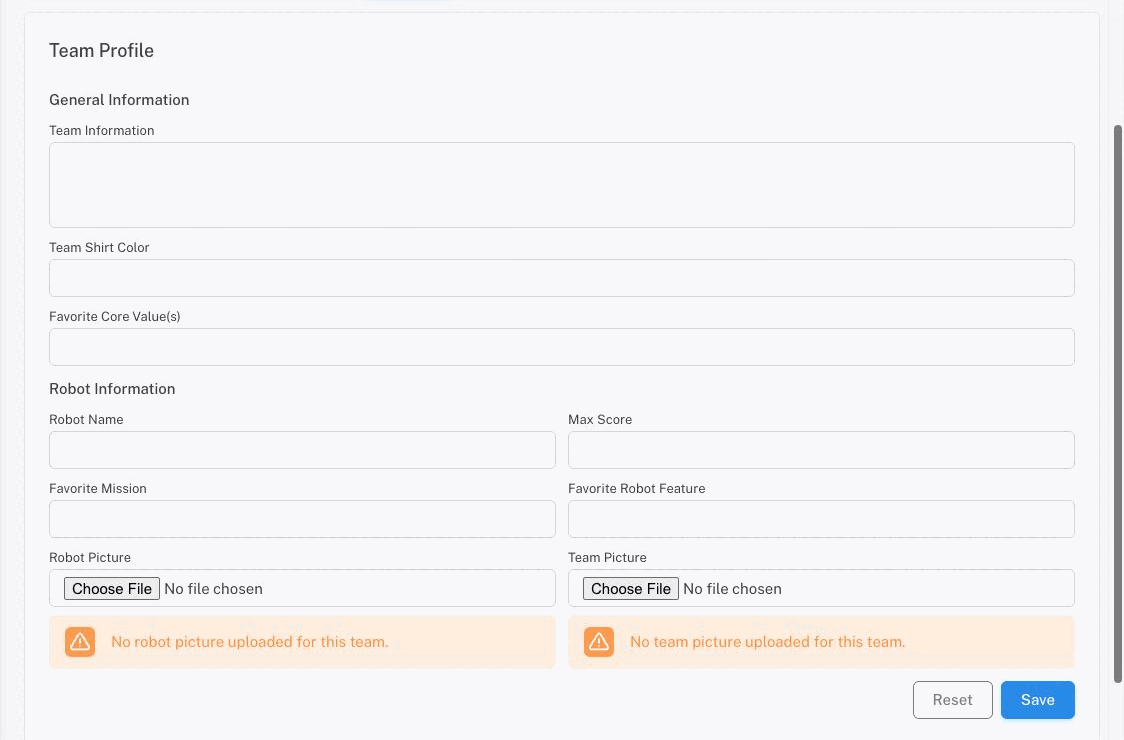
General Information
| Field | Description |
|---|---|
| Team Information | A description of your team — background, goals, community involvement, etc. |
| Team Shirt Color | The color your team wears at events. |
| Favorite Core Value(s) | The FIRST Core Value(s) your team connects with most. |
Robot Information
| Field | Description |
|---|---|
| Robot Name | Your robot’s name. |
| Max Score | Your highest robot game score this season. |
| Favorite Mission | The robot game mission your team enjoyed most. |
| Favorite Robot Feature | Something your team is proud of about the robot’s design or build. |
Photos
You can upload two photos:
- Robot Picture — an image of your robot. Accepted formats: JPG, PNG.
- Team Picture — a photo of your team. Accepted formats: JPG, PNG.
If no photo has been uploaded yet, a warning message is shown in that section. Previously uploaded photos are displayed as a preview below the upload field.
Click Save to save all profile changes or Reset to discard unsaved edits.
Team Documentation (Documentation Tab)
The Documentation tab gives you a table of every team member against every agreement your region requires this season, so you can see at a glance who still owes what.
If no agreement types have been configured for the current season, the tab shows a notice that documentation tracking is not yet set up.
Overview
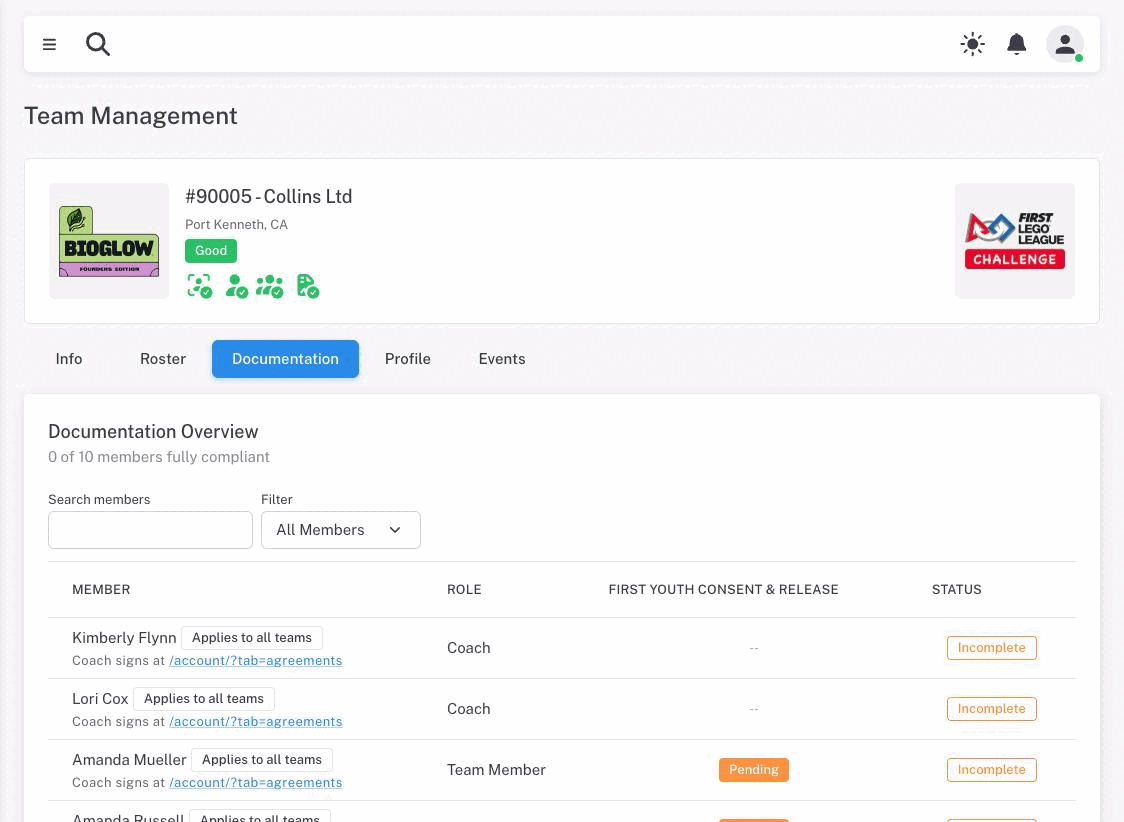
At the top of the Documentation tab, a summary shows how many team members are fully compliant out of the total (for example, “3 of 5 members fully compliant”).
Note: Only members who actually have agreement requirements appear here. Someone you have invited but who has not yet accepted is not listed — they show up once they join the roster.
Filtering and Searching
Two controls help you find specific members:
- Search members — type a name or role to filter the table.
- Filter — choose between All Members, Compliant (all agreements complete), or Incomplete (one or more agreements pending).
Agreement Status Table
The table lists each member with a column for each required agreement type. Each cell shows one of the following:
| Status | Meaning |
|---|---|
| Complete | The agreement has been signed or uploaded. Hover to see the date it was completed. |
| Pending | The agreement has not yet been completed. Action buttons appear for next steps. |
| Pending Review | A signed paper form has been uploaded and your region has not reviewed it yet. There is nothing more for you to do, and you cannot re-upload while it is in this state. |
| N/A | This agreement is not required for this member. |
| Error | Something is wrong with this agreement. Contact your region partner. |
Note: A coach’s agreements belong to the person, not the team. Their row is marked Applies to all teams, and they sign from their own Account Settings → Agreements page — signing once covers every team they coach. You cannot sign on their behalf from here.
For pending agreements, action buttons appear on the right side of the cell:
- Download (if a blank form is available) — downloads a printable blank form.
- Sign online (if an external signing link is configured) — opens the agreement in a new tab for online signing.
- Upload — upload a completed signed form (PDF, JPG, or PNG).
The final Status column shows whether all agreements for that member are Complete or Incomplete.
Changes take effect immediately after a successful upload, and the table refreshes to show the updated status.