Events Management
The Events Management page is the central hub for region administrators to set up and manage all aspects of the event lifecycle — from creating competition levels and events, to managing team registrations, venues, and event-day configurations.
Access the Events Management page from Region Management > Events in the sidebar navigation.
Prerequisite: You must have Events — Can Manage permission at the region level. See Permissions for details.
Dashboard
The Dashboard tab provides a quick overview of your events program:
- Summary cards — Total events, levels, and active registrations at a glance
- Events by status — Counts of draft, open, closed, and canceled events
- Upcoming events — Next 5 upcoming events with registration fill rates
The dashboard only shows data for active seasons. Once a season ends, its data no longer appears here.
Levels
Every event belongs to a level — levels are required. A level is the container that carries the rules for the events inside it: when registration opens and closes, how teams register (open or preference-based), what registration costs, which teams are eligible geographically, and where teams advance to next. Events inherit all of this from their level, so you configure the rules once per tier instead of once per event.
What would I use levels for?
Create one level per distinct set of rules. If a group of events shares the same registration window, pricing, and advancement target, they belong in one level together. If any of those differ, split them into separate levels.
A typical season with scrimmages, qualifiers, and a championship looks like this:
| Level | Contains | Registration | Advances to |
|---|---|---|---|
| Scrimmages | All scrimmage events | Open — teams sign up directly; often free or low-cost | Nothing — standalone |
| Qualifiers | All qualifier events | Open or preference-based, with your entry fee | Championship |
| Championship | The championship event | Advancement only — closed to direct signup | Nothing — end of the chain |
Advancement is the reason qualifiers and championships must be separate levels: you set the Qualifiers level’s Next Level to Championship, and once you mark a team as advanced, Lumieos automatically opens championship registration for that team — no invitation emails or manual registration on their behalf.
Chains can be as deep as your region needs. A larger region might run sub-district events feeding two area championships, which in turn feed a regional championship — each layer is its own level, linked by Next Level:
Use geographic restrictions on the sub-district levels to route each team to the correct feeder events, and each level’s own registration times to stagger the season.
Creating a Level
- Navigate to the Levels tab
- Click Add Level
- Fill in the required fields:
| Field | Description |
|---|---|
| Level Name | Shown publicly on websites. Season year is automatically prefixed on some views. |
| Program | Select the robotics program (e.g., FLL Challenge, FTC). Only active seasons appear. |
| Registration Opens | When open/free-for-all registration becomes available. If using preference registration, this must be at least 10 minutes after the last preference wave processing time. |
- Configure optional fields:
| Field | Description |
|---|---|
| Next Level | Chain levels for advancement (e.g., Qualifiers → Championships). Dropdown shows program info for clarity. |
| Payment Configuration | Link to a Level Payment Configuration for collecting registration fees. See Setting Up Payments. Required for registration: a level with no payment configuration cannot be registered for, and its events will not appear to teams at all — even when those events are open. The Levels table flags such levels with a warning in the Payment Config column. Attach one (a zero-fee configuration is fine if you don’t charge) to make the level’s events registrable. |
| Display Advancement Numbers | Automatically calculate and display advancement info. Requires a next level to be set. |
| Bypass “Good” Status | Allow teams to register without meeting all compliance requirements. |
| Bypass “Good” Status for Payments | Allow teams to pay for this level without a “Good” status — registration is unaffected. Useful for collecting fees early while compliance is still in progress. (When the registration bypass above is on, payments are allowed too.) |
| Allow Multiple Registrations | Allow a team to register for more than one event in this level. Use for non-competitive programs only. |
| Registration Minimum | The minimum number of events a team must rank when submitting an open/direct registration. Defaults to 1. Set to 2 to require teams to rank at least two events (this was the previous fixed behavior). The effective minimum is automatically capped to the number of events actually open in the level, so it can never exceed what is available. |
Once a Payment Configuration is selected, an additional switch appears:
| Field | Description |
|---|---|
| Hide pricing on public event pages | Hides fee amounts from public-facing event pages. |
Note: Whether payments are collected by the event host instead of your region is no longer set here — it’s a switch on the Level Payment Configuration itself, in Commerce > Level Pricing. See Host-Collected Commerce for the full setup.
Note: Rather than creating every event yourself, you can let any signed-in user propose to host one under a level — configured separately in Configuration > Season > Host Application Intake. See Host Applications for the full setup and review workflow.
Geographic Restrictions
Levels support optional geographic filtering to control which teams can register:
| Field | Description |
|---|---|
| Allowed Cities | Chip input. Only teams in these cities can register (case-insensitive exact match). |
| Allowed Counties | Chip input. Only teams in these counties can register (case-insensitive partial match). |
| Excluded Cities | Chip input. Teams in these cities cannot register, even if their county matches. |
The three fields are chip inputs: pick from suggestions drawn from your season’s actual team cities and counties, or type a value and press Enter to add it free-form.
Use Preview matching teams in the Level editor to see which of the season’s teams currently match the configured rules before saving — the preview lists matched teams with their city, state, and county, along with a count of teams that don’t match. County lookups resolve from Lumieos’ cached city-to-county data, which is refreshed automatically after each national-system import and as new teams are added.
Note: Geographic restrictions are applied in addition to any team include/exclude lists configured in Django Admin.
Per-Team Registration Overrides
Occasionally a single team needs to register for more events within a level than the level-wide limit allows. Rather than raising the limit for every team:
- Open the level’s Edit dialog
- In the Per-Team Registration Overrides section, click Add Override
- Choose the team, set its maximum registrations for the level, and optionally record a note explaining why
The override applies only to that team — all other teams keep the level-wide limit. Each override records who granted it and when, and can be edited or removed at any time. Once granted, the team immediately sees the additional events in their registration list.
Cloning a Level
To quickly set up levels for a new season:
- Click the Clone button on any existing level
- Choose a name and target program
- Set a date offset (in days) to shift all dates — registration opens, preference wave times, etc.
- All settings, team lists, payment configurations, and preference waves are copied
Preference Waves
Preference waves let teams rank events during a selection window before open registration begins. You manage them directly from the Preference Configuration section at the bottom of a level’s edit dialog — no Django Admin access needed.
- Add a wave with the Add Wave button, then set its Opens, Closes, and Processes times, whether it is Enabled, and the Minimum Events to Rank.
- Edit or Remove an existing wave using the controls next to it. Removing a wave cannot be undone.
The editor validates wave timing for you and will reject:
- a wave whose Closes time is not after its Opens time,
- a Processes time less than 5 minutes after Closes,
- any wave that overlaps another wave’s window (including a one-hour processing buffer).
In addition, a level’s Registration Opens time must be at least 10 minutes after the last wave finishes processing — this is checked when you save the level.
Each preference wave has a Minimum Events to Rank setting — the minimum number of events a team must rank when submitting preferences for that wave. This defaults to 1. Set it to 2 to require teams to rank at least two events (the previous fixed behavior). Like the level-level registration minimum, the effective minimum is automatically capped to the number of events open in the level.
Behavior change: Prior to v26.3, both the open-registration and preference-wave minimums were fixed at 2 (or the number of available events, whichever was smaller). They now default to 1. If your region’s policy requires teams to submit at least two selections, set Registration Minimum on the level and Preference Minimum on each wave to 2 explicitly.
Events
Events are individual competitions that teams register for. Each event belongs to a level.
Creating an Event
- Navigate to the Events tab
- Click Add Event
- Fill in the required fields:
| Field | Description |
|---|---|
| Event Name | The year is automatically prefixed on most public-facing pages. |
| Level | The competition tier this event belongs to. Dropdown shows program info. |
| Status | Draft (not visible to teams), Open (accepting registrations), or Closed. |
| Start / End Time | The public-facing event schedule, entered as local wall-clock time at the event (interpreted in the event’s Timezone). |
| Capacity | Maximum total teams (including reserved spots). |
- Configure optional fields:
| Field | Description |
|---|---|
| Venue | Select from existing venues or leave empty. Venues are managed in the Venues tab. |
| Reserved Spots | Integer count for non-Lumieos teams (e.g., wild cards, manual entries). |
| Timezone | Timezone for the event (defaults to your browser’s timezone). Start and end times — and event-day schedules — are shown in this timezone. |
| Description | Public-facing event description. |
Event Actions
Each event row has action buttons:
| Button | Description |
|---|---|
| Event Day | Configure event day features — which interfaces are enabled (practice tables, scoring, judging, etc.) |
| Reserved Teams | Manage reserved spots and team assignments with a live capacity breakdown |
| Managers | Assign event-specific managers with granular permissions (requires PII access) |
| Edit | Modify event details |
| Clone | Create a copy as a draft |
| Delete | Remove the event (only if no active registrations) |
Reserved spots and closing
An event closes itself once its registered teams and reserved spots together fill it, so nobody can book a seat that is already spoken for. Reserved teams are unaffected by this and can still register.
If a reserved team registers elsewhere instead, its spot is released. Where Lumieos closed the event because it was full, releasing a spot reopens it so another team can take the seat. Where you closed the event yourself, it stays closed — reserved teams can still register into it, which is usually why an event gets closed ahead of a preference window.
Note: This is the only thing that reopens an event automatically. Reopening one by hand is always available, and doing so means Lumieos treats any later closure as yours rather than its own.
Event Day Settings
The Event Day Settings dialog controls which features are available during event day:
Event Features:
| Toggle | Description |
|---|---|
| Practice Tables | Enable practice table signups before and during event day |
| Hide Robot Game Scores | Hide scores from the public score display |
Event Day Apps:
| Toggle | Description |
|---|---|
| Pit Admin | Check-in and practice table management interface |
| Score Display | Public-facing score display |
| Score Entry | Score entry interface with match timer |
| Game Announcer | Announcer interface with match info |
| Referee | Referee scoring interface |
| Head Referee | Head referee management interface |
| Queuing | Team queuing display |
| Judge | Judge interface for rubric entry |
| Judge Advisor | Judge advisor management interface |
Important: Granting event day permissions to a user has no effect unless the corresponding interface is enabled here. See Permissions for details.
Medals controls whether medal instructions are shown during team check-in: No Medals, Student Members Only, or All Members.
Reserved Teams
The Reserved Teams dialog provides a visual capacity breakdown:
[Total Capacity] − [Reserved Spots] − [Team Assignments] − [Registered] = [Open Spots]- Reserved Spots — An integer count of spots held for teams not yet in Lumieos. Changes take effect immediately on save.
- Team Assignments — Specific teams guaranteed a spot. Add teams by team number. These teams get priority during preference processing and can always register, even when the event is closed.
Capacity rules
- Reservations cannot exceed remaining capacity. The dialog will refuse a reservation increase that would push the running total past the event’s capacity.
- Reducing an event’s capacity below the current registered + reservations is rejected with an error — cancel registrations or remove reservations first.
- When a capacity edit or reservation change leaves no Open Spots, the event automatically transitions to Closed. Reserved teams retain their guaranteed spot and can still register.
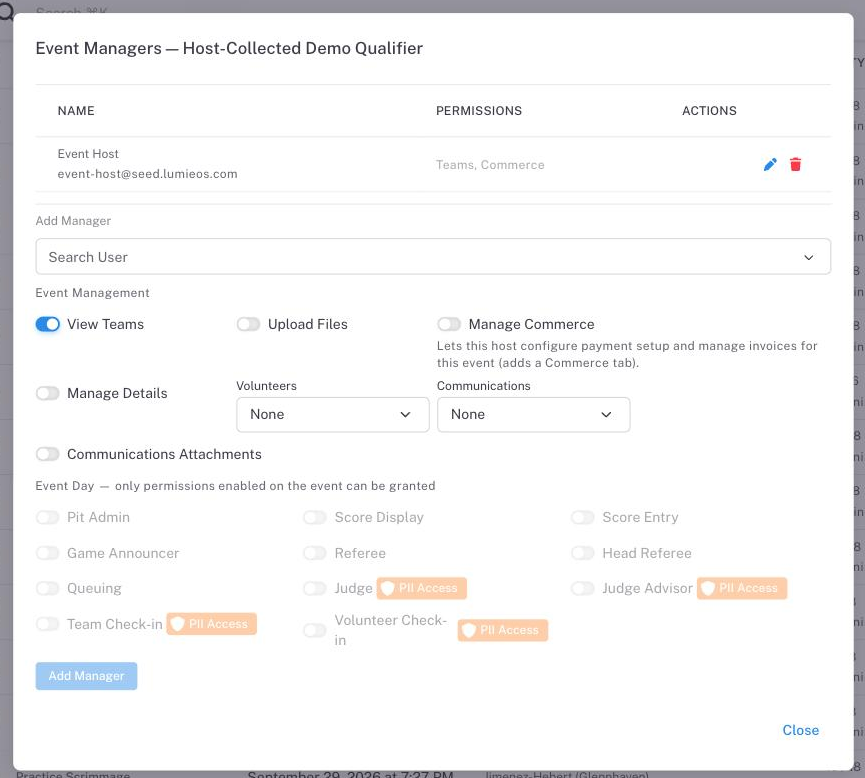
Event Managers
Event managers are users granted per-event permissions. This is useful for volunteers or staff who need access to a specific event without full region-level permissions.
Note: The Managers button is only available to users with PII access. The backend enforces this restriction.
Manager permissions include:
| Permission | Description |
|---|---|
| View Teams | See team list and basic roster info |
| Upload Files | Upload files to the event page |
| Manage Commerce | Grants Configuration and Invoices tabs in the event-manage area, where the host sets up their own payment methods/branding and marks invoices paid. Only meaningful when the event’s level payment configuration is in host-collected mode — otherwise there is nothing for the host to configure. |
| Volunteers | None / View / Contact / Manage |
| Communications | None / View / Contact / Manage |
| Attachments | Allow file uploads in communications (only effective when Communications is set to Manage) |
Managers are added by searching for users by name or email. Permissions can be edited inline after assignment.
Following an Event’s Notifications
Event managers receive an event’s notifications (registrations, volunteer activity, agreement uploads, and so on) automatically. Region staff who are not managers of a particular event can follow it themselves: open the event’s manage page and click Follow notifications in the header. While following, the event’s notifications appear in your normal notification feed exactly as they do for its managers; click Following to stop.
The button is shown to Partner Representatives, Administrators, and Primary Administrators who can see the event under their region permissions. Follows are cleared automatically when the season is archived, so the list only ever holds current-season events.
Cloning an Event
Cloning creates a copy of the event as a Draft. Registrations, payments, and results are never copied. You can optionally change the target level when cloning (e.g., create a similar event under a different level).
The clone dialog also offers an Also copy group for deeper setup reuse — all unchecked by default:
| Option | What it copies |
|---|---|
| Schedule activities | Activity configurations and their rooms (room count, capacity, slot length, self-service policy). Concrete time slots and team sign-ups are not copied, and any pre-registration window is left unset since it belonged to the source event’s dates. |
| Volunteer role needs | The per-event volunteer roles and how many of each are needed. |
| Links & files | The event’s additional details, downloads, and web links (re-attached, not duplicated). |
| Event-day settings | Which event-day interfaces are enabled (pit admin, check-in, scoring, judging, etc.). Because these grant access through event-day logins, they are only carried over when explicitly selected. |
This makes running multiple sessions of the same event — e.g. a morning and afternoon session, or a repeated workshop series — a clone-and-adjust operation instead of a manual rebuild.
Registrations
The Registrations tab shows all team registrations across your events, with powerful filtering to find specific records.
Filters
| Filter | Description |
|---|---|
| Program | Filter by robotics program |
| Level | Filter by competition level (shows program info in dropdown) |
| Status | Not Checked-In, Checked-In, Cancelled, No Show |
| Team Number | Search by team number (debounced — waits 400ms after you stop typing) |
Adding a Registration
Click Add Registration to manually register a team:
- Enter the team number (not the internal database ID)
- Select the target event from a dropdown showing capacity remaining
- Optionally set a payment override (Exempt, Extended, PO Received)
Editing a Registration
Click the Edit button to modify:
| Field | Description |
|---|---|
| Status | Not Checked-In, Checked-In, Cancelled, No Show |
| Payment Override | Payment Required, Exempt, Extended, PO Received |
| Advancing | Mark the team as advancing to the next level. The advancing order is auto-assigned to the next available slot. |
| Wait List | Mark the team as wait-listed. When enabled, an order field appears for manual ordering. |
Moving a Registration
Click the Move button to transfer a team to a different event. The system validates:
- Target event capacity
- Whether the team is excluded from the target event or level
- Target event status (open/draft vs closed/canceled)
If any issues are detected, warnings are shown and you can choose to Force Move to override.
Swapping Registrations
Click Swap Teams to exchange two teams between events:
- Select an event and team for Registration 1
- Select an event and team for Registration 2
- The swap is performed atomically — both succeed or neither does
Venues
The Venues tab manages event locations.
Creating a Venue
Click Add Venue and fill in:
| Field | Required | Description |
|---|---|---|
| Venue Name | Yes | Display name |
| Address Line 1 | Yes | Street address |
| Address Line 2 | No | Suite, building, etc. |
| City | Yes | City name |
| State / Province | No | State, province, or region — free text, suitable for any country |
| Zip Code | Yes | Postal code |
| Website | No | Venue website URL |
Newly created venues appear immediately in the venues list and in the venue dropdown when adding or editing events. Each partner sees only the venues they have created.
Deleting a Venue
A venue can only be deleted if it is not currently assigned to any events. The delete button is disabled when events reference the venue. Remove the venue from all events first, then delete.
Filtering by Program
All tabs filter by program (e.g., FLL Challenge, FTC) rather than by season. Only data from active seasons is shown — once a season ends, its events, levels, and registrations are no longer visible in the Events Management page.
This ensures administrators work with current data and cannot accidentally modify archived seasons.