Bulletins & Chat Rooms
Bulletins are announcements you publish to coaches, volunteers and public pages, and many of them come with chat rooms for replies. Over a season these pile up. Archiving lets you retire a bulletin or a room without deleting it — it disappears for everyone else, and you can bring it back if you need it.
You manage region bulletins under Region Admin > Communications > Bulletins, event bulletins from the event’s own bulletins page, and rooms under Region Admin > Communications > Chat Rooms.
Choosing who receives a region bulletin
A region bulletin has two recipient sections. They are independent, and they add together: the bulletin reaches everyone matched by either one, and nobody receives it twice.
- Program-Based Recipients reaches everyone in the selected programs who matches your options. Tick Include Teams, Include Volunteers or both to use it, then choose at least one program. For teams, you can narrow the list by team status, team member status and payment.
- Direct Recipients reaches the teams and volunteers you pick by hand, from any program. The selected programs do not limit these lists, so the Teams field shows teams from every program.
A bulletin for hand-picked recipients needs no program. If you tick an Include box and select no program, the form flags it, because that section would reach nobody.
Preview recipients
Choose Preview Recipients to see who the bulletin would reach if it were sent now. It uses your current selections, including any you have not saved, and changes nothing.
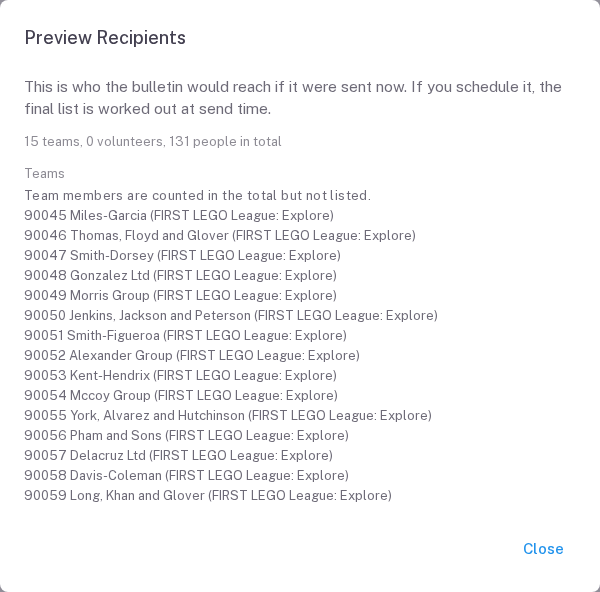
The preview shows the number of teams, volunteers and people in total, then lists teams and volunteers by name. Team members count towards the total but are not listed.
- You need the same permission as sending the bulletin. If you don’t have it for everyone you selected, the preview is refused and says why.
- For a scheduled bulletin, the final list is worked out at send time, so it may differ from the preview.
- The preview is not available for public bulletins, for bulletins already sent, or for event bulletins.
Archiving a bulletin
Region admins and event admins can archive any published bulletin.
- Open the bulletins list and choose Archive on a bulletin. To archive several at once, tick them and choose Archive selected.
- In the dialog, leave Also archive this bulletin’s chat rooms (N) ticked to retire the reply rooms too, or untick it to keep them. It is ticked by default.
- Confirm.
Archived bulletins disappear for coaches, volunteers and public pages straight away.
Finding and restoring archived bulletins
Archived bulletins are hidden from your list. Turn on Show archived to see them, then choose Restore to publish one again.
- A restored bulletin goes back out to the current season’s recipients.
- Restoring does not send notifications a second time.
- Chat rooms that were archived with the bulletin stay archived. Restore them individually from the Chat Rooms page.
Auto-archive
When you publish or schedule a bulletin, the Auto-archive setting lets Lumieos retire it for you. Choose:
- Never
- 1 week, 2 weeks, 1 month or 3 months after publishing
- A specific date
The bulletin and its chat rooms are archived within a day of that time.
Note: A draft can only take a specific date. Relative choices such as 1 month count from publishing, so you pick them when you publish.
When a season is archived
Archiving a season (see Data Ownership & Lifecycle) also archives, with their chat rooms:
- That season’s event bulletins.
- Region bulletins that were sent only to seasons that are now archived.
Note: A region bulletin sent during one season is not delivered to teams that join a later season. For the new season, send a new bulletin or restore the old one.
Chat rooms
The room lists — Region Admin > Communications > Chat Rooms, and the Messages page everyone sees — show active rooms by default. Turn on Show archived to include the rest.
An archived room stays readable but takes no new messages until it is restored.
Replies to bulletins
When a team member replies to a bulletin, Lumieos opens a chat room for the reply and tells the staff who look after that bulletin, in their notification feed, with a link to the room:
- Region bulletins: region admins, and region staff who can change the bulletin, which means Can Contact on teams or volunteers for everyone it reaches. These staff can read, answer and close the bulletin’s replies, in a verified (two-factor) session.
- Event bulletins: the event’s hosts who can change the bulletin (Communications Can Manage, or Can Contact for the host who sent it), and region staff who manage the event and follow its notifications. Region staff who sent an event bulletin hear about its replies only if they follow the event.
Nobody is told about their own reply. The notification shows the bulletin’s title, the sender’s name and the start of the message. Lumieos does not add the sender’s email address or phone number.
Archiving and restoring rooms
Region admins can:
- Archive or Restore a single room.
- Tick several rooms and archive them together.
- Choose Archive inactive… to archive every room with no activity in the last 30, 60 or 90 days.
Automatic clean-up
Bulletin reply rooms with no activity for 60 days are archived automatically.
Your own Messages page
As a region admin, your Messages page lists only the rooms you take part in — rooms you are a member of or have posted in. The full list of the region’s rooms is under Region Admin > Communications > Chat Rooms.
Region staff who are not admins have no full list, so in a verified (two-factor) session their Messages page also shows the replies to region bulletins they were told about or have posted in, for as long as they can change the bulletin.