Ceremonies — Quick Card
Device: a tablet with the emcee · Ask: the scorekeeper (projector and sound) or the event lead
Your job: run the opening and closing ceremonies from the tablet: read the script, and tap once for each thing the audience should see or hear.
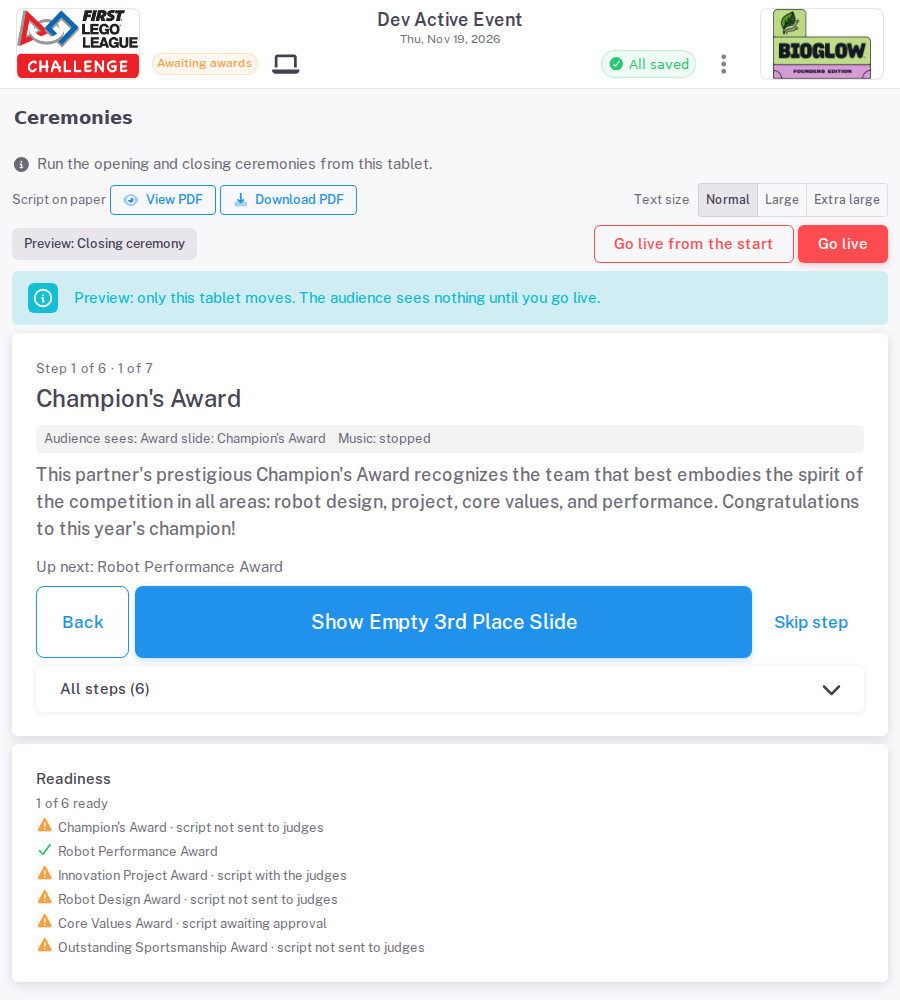
Before the ceremony
- Open Ceremonies and pick Opening or Closing. It starts in Preview: only your tablet moves.
- Walk through the whole ceremony. Check Readiness for awards with no recipient assigned or not published, and tell the judge advisor. Script fields not filled in names event details the script is missing: tell the event lead.
- Ask the scorekeeper: Prepare ceremonies all ready, and Sound: on.
- Keep the tablet away from the audience: Preview shows the winners.
During the ceremony
- Go live and confirm. The chip reads LIVE. After a live run-through, use Go live from the start to begin at the first step.
- Read the script, then press the big button. It says what it will do: Show General Award Slide, Show Empty 2nd Place Slide, Reveal Winner, Lower Music, Play video.
Awards, one winner at a time: Show General Award Slide and read the award’s standard script. Show Empty 3rd Place Slide (or Show Empty Winner Slide when the slide shows no place: an award without places, or a placed award with only one winner), then read the remarks and the winner’s sentence. Tap Reveal Winner, marked with a warning triangle on each side, as you say the name: the winner’s song plays. While it plays, the next button starts with Stop Music and, for example Stop Music and Show Empty 2nd Place Slide. Once the song has ended it reads without it. 3. Up next names the next presenter. 4. At the end, End show: the projector goes back to scores. After the closing, Mark Event as Complete appears: the Judge Advisor presses it. With Ceremonies alone you see a note instead: tell the Judge Advisor.
Back goes one move back (into an award, it lands on the title). Skip step jumps ahead. All steps jumps anywhere; while live it asks first.
Team intros: read each team’s name from the tablet, with its pronunciation, then tap Next for the next team.
Advancing teams: Show General Advancing Slide. The tablet lists every team in reveal order and marks the one revealed next. Reveal Advancing Team (marked with a warning triangle on each side), Lower Music, read the next name, reveal it. After the second-to-last team, Stop Music and Read Before-Last Script goes straight to the before-last script. The projector shows one team at a time. The before-last script sits in the list between the last two teams: before the last team, the music stops and it is highlighted to read.
If…
| Situation | Do |
|---|---|
| Sending… stays up | Wait. Don’t tap again: a second tap is ignored. |
| The tablet shows Offline | Keep reading the script. Ask the scorekeeper to Take over from the laptop. |
| Controlled from the scorekeeper laptop | The laptop is running the show. Press Take back when you’re ready. |
| No sound on a reveal | Tell the scorekeeper: Enable sound on the display window. |
| A video won’t play | The scorekeeper presses Skip or Stream. Go on. |
| Review the team photos on the scorekeeper laptop before going live | Ask the scorekeeper to review the Team photos and press Mark reviewed. Go live is ready shortly after. |
| A [bracketed] word in the script | That event detail is not filled in. Skip it or say it yourself; the big screen shows nothing there. |
| This step was removed from the show | Open All steps and pick where to go on. |
| Nothing works | Tell the event lead. The fallback is Digital Scripts and the slide deck. |
Full guide: Event Day: Ceremonies.