Your Registrations
For: Coaches, Team Admins
Once your team has registered for events, you can view and manage those registrations from the team management area.
Viewing Registrations
Navigate to your team’s management page and select the Events tab. This tab shows all events your team is registered for, organized by season.
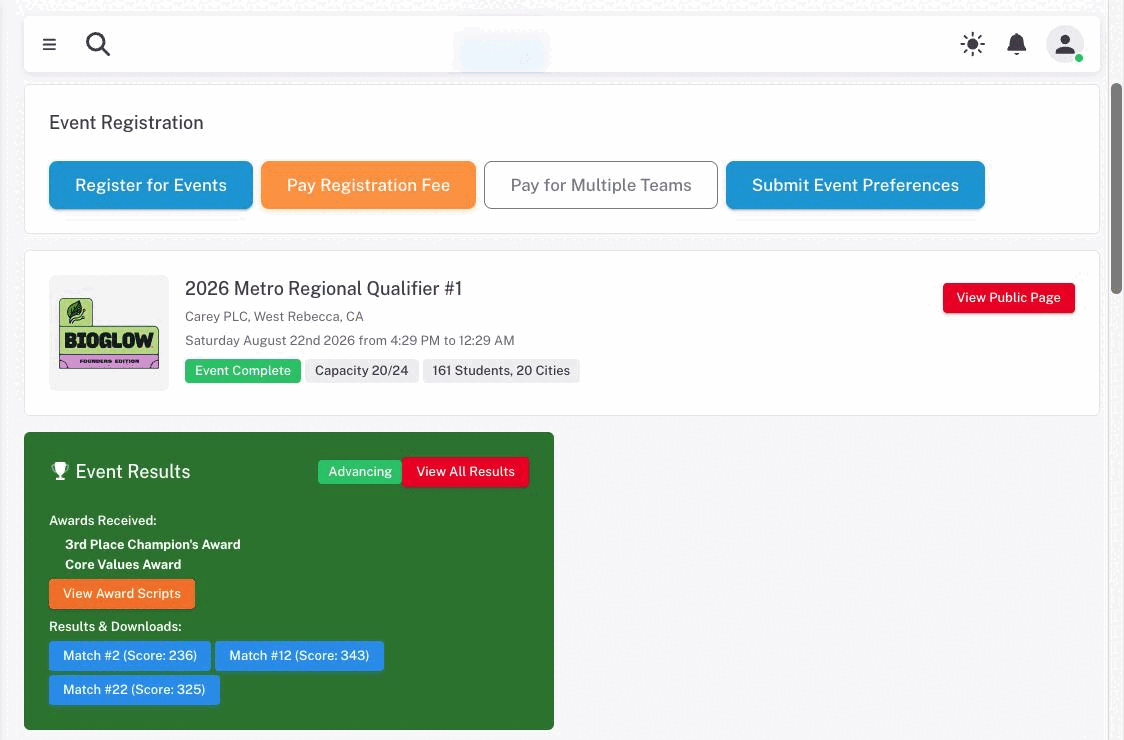
When the page loads, your current season’s events are shown automatically. If your team has participated in previous seasons, a Load Previous Season button appears at the bottom, allowing you to browse older registrations.
Each registered event is displayed as a card with:
- Event name and program
- Date and venue information
- Logistics details — address, venue name, and other event-day logistics posted by the organizer
- Links and downloads — any files or links the event organizer has shared (e.g., team packets, parking information)
- News and bulletins — announcements posted by the event organizer
- Agenda — the event day schedule, if posted by the organizer
- Your team’s schedule — once schedules are published, your team’s specific match and judging times appear within the agenda card
Once your team has anything scheduled, the agenda card is titled Personalized Event Agenda rather than Event Agenda, and offers Open Personalized Agenda PDF — a printable copy with your team’s own times in it. There is also a View Full Schedules button for the event-wide version.
Note: Agenda times are shown in the event’s timezone. If your computer is set to a different one, a notice on the card says so.
Activity Registration Alerts
If the event has optional activities you can book — practice-table time, tours, timed collection slots — an alert appears on the event card when booking is open or opening soon. The alert lists each activity with its window, and an Open Activity Registration button appears once at least one is accepting bookings.
A second kind of alert offers add-ons: things the event’s host, or your region, is selling for this event.
Both are covered in full on Activities & Add-Ons.
Event Results
Once results are published after the event, an Event Results card appears on your registration. It shows:
- Robot Game ranking — your team’s rank and highest score
- Awards received — list of award names your team earned
- Advancement status — whether your team is advancing to the next level, on the wait list, or neither
- Downloads — links to rubrics, match result documents, and other team-specific files
- View Award Scripts button — if scripts are available for the awards your team received
- A View All Results button linking to the event’s public Scores and Awards tab
Registration Details
The following information is tracked per registration:
| Field | Description |
|---|---|
| Check-in status | Whether your team has checked in on event day (Not Checked-In, Checked-In, Did Not Attend) |
| Payment status | Whether payment has been received, is exempt, is extended, or a purchase order is pending |
| Advancing | Whether your team has been marked as advancing to the next level |
| Wait list | Whether your team is on the wait list for advancement |
These fields are managed by event administrators and are not editable by coaches or team admins directly.
Cancellation & Wait Lists
Cancellation
Cancellation of a registration is handled by region or event administrators. If you need to cancel your team’s registration for an event, contact your region. There is no self-service cancellation in the team management interface.
Cancelled registrations remain in the system for record-keeping but count as a prior registration for the purposes of duplicate-registration checks. If you cancel and wish to re-register, contact your region to confirm whether that is possible.
Advancement Wait Lists
When results are posted after an event, teams that qualified for advancement but did not receive an advancement slot may be placed on the wait list. If a spot opens up (e.g., an advancing team declines), wait-listed teams may be offered the advancement slot. Your registration card will show a “Wait list” chip if this applies to your team.
Capacity Wait Lists
If an event reaches its capacity limit during registration processing, additional registrations may be placed on a wait list rather than confirmed. Contact your region for information about how wait list slots are managed for a specific event.