Team Status & Compliance
For: Coaches, Team Admins, Mentors, Region Administrators
A team must have a Good status to register for events in Lumieos. The status appears as a badge at the top of the team management page and in the region admin team list.
This page explains how Lumieos decides what status to show for your team, lists every possible status, and answers the most common questions about why a team is not “Good” when it looks like it should be.
See the reason for your team
The status badge is clickable. Clicking it opens a dialog that shows, for this specific team, which check is currently failing and why — including the exact member involved, their roster position, and the date of the last FIRST data import.
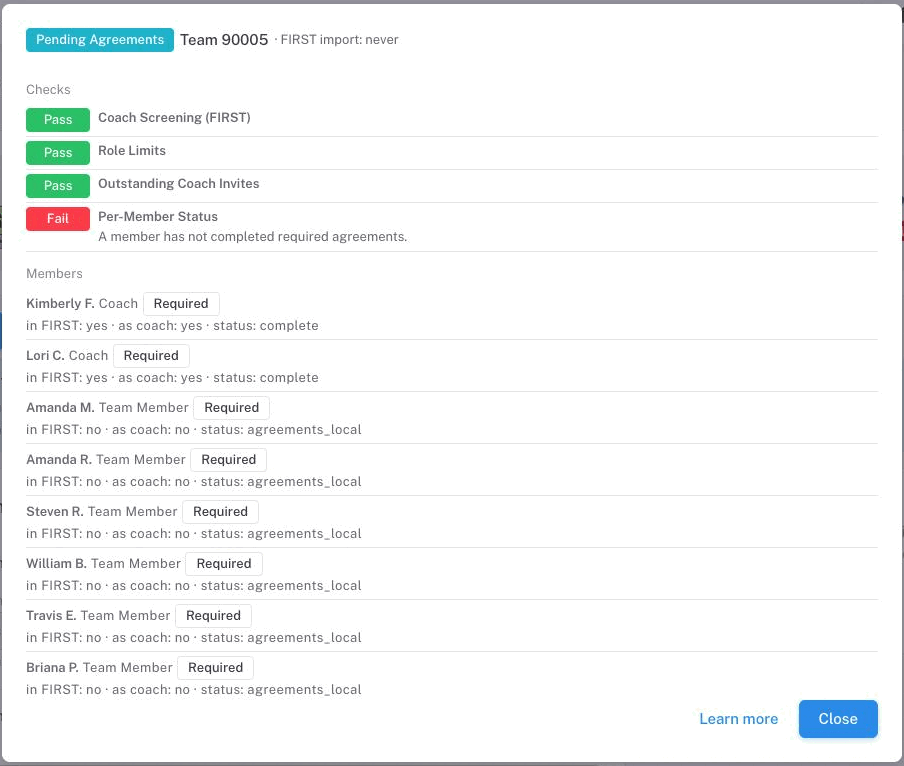
Read it top down. The Checks list runs in order, and the first Fail is the one setting your status; the line underneath says why. The Members list below shows each required member — whether they are in the FIRST data, whether they count as a coach, and their own status — which is usually where the actual fix lives.
Who sees what:
- Coaches and team admins see the dialog on their own team page with member names shown as first name + last initial.
- Region administrators see the same dialog for any team they manage. If your region role does not include PII access, member names are replaced with generic role labels (e.g., “Coach A”, “Student 1”).
- On public team pages (the ones anyone can visit without logging in), the badge instead links to this documentation page with the matching status preselected, so you can learn what it means without exposing team-specific data.
If you need to escalate, the dialog includes the data points your region partner will ask for — the failing check, the member’s state, and the FIRST import timestamp — so you can paste them directly into a support request.
How we calculate it
Lumieos runs a series of checks in order and picks the first check that does not pass. That check determines the displayed status. Several statuses can be reached through multiple checks — pick a status below to see every path that leads to it.
Note: Lumieos cannot import information directly from FIRST. Team data comes from report uploads scheduled by your region (typically twice a day).
One check does not follow the “first failure wins” rule: an outstanding coach invitation overrides everything else. While an invitation is unaccepted, the team shows Pending Lumieos Invites even if something further down the list is also wrong. Clear the invitation first, then look again.
The compliance icons
Next to the status badge — on the team header and on each team card — is a row of small icons summarizing where the team stands. Hover any of them for a breakdown with counts.
| Icon | Covers | Green when |
|---|---|---|
| Screening | FIRST Youth Protection Program screening for both coaches | Both coaches are screened |
| Fingerprinting | California Live Scan, Mandated Reporter Training and the BCIA 9018 form | All three are on file for both coaches |
| Coaches | How many coaches the team has against the region’s minimum and maximum | The count is within range and nobody is still an unaccepted invite |
| Roster | The same, for students | The count is within range and nobody has dropped off the FIRST roster |
| Agreements | Coach and student agreements, plus the Jotform if your region uses one | Everything is signed |
The Fingerprinting icon only appears in regions that have California fingerprinting switched on. It is the one icon that can be amber rather than red or green — see California AB 506 and the BCIA 9018 form.
Status reference
| Status | What it means | Typical next step |
|---|---|---|
| Good | All requirements met — the team can register for events. | Nothing — you’re ready. |
| Roster Not Complete | The team has fewer required members than the region minimum. | Add required coaches/members on the FIRST side, then wait for the next data import. |
| Pending Lumieos Invites | One or more Lumieos coach invites have not been accepted. | The invited coach should accept the invite email from Lumieos. |
| Pending Agreements | A member is missing required agreements (consent forms, regional agreements). | Check the roster for the specific member and complete the pending agreement. |
| Pending Jotform Completion | A region-required Jotform has not been marked complete. | Open the Jotform link from the Info tab and complete it. Completion is recorded automatically when the form is submitted — you do not tick anything here. |
| Pending Demographic Information | Demographic details are missing for the team. | Add the missing details on the Roster tab. |
| Coach Missing YPP | A required coach has not completed FIRST Youth Protection Program screening. A coach counts as screened only when the FIRST report shows the YPP agreement signed and the screening verdict Satisfies YPP Requirements — a signed agreement alone is not enough. | Complete YPP (agreement and screening) on the FIRST side and wait for the next data import. |
| Missing State Requirements | A required coach has not completed state-mandated requirements — Live Scan fingerprinting, Mandated Reporter Training, or (from the BCIA 9018 effective date) the BCIA 9018 form. Before that date a missing form is only a warning. | Complete the outstanding item through FIRST; allow up to several weeks for FIRST data to reflect it. |
| Urgent Roster Issue | The team has more members than allowed, or a member is missing from the FIRST data. | Reconcile the roster on the FIRST side; excess members must be removed. |
| Error | A member has an error state. | Contact your region partner for details. |
| Not Participating | The team has indicated it is not participating this season. | Contact your region partner to change this. |
| Initially Registered | The team has just signed up and has not yet been processed. | Wait for the first data sync. |
| Draft — Pending Payment | The team was created but payment has not been completed. | Complete payment on the Payments page. |
Two-stage validation — why a coach on your roster might not “count”
Lumieos validates team membership in two places:
- FIRST data. When your region uploads the FIRST report, Lumieos records which people are assigned to your team as required coaches (Coach Mentor 1 and Coach Mentor 2). This is FIRST’s own record of who is authorized to coach.
- Lumieos roster. Separately, a user on the Lumieos side must join the team (via invite or email match) to show up on your roster and log in.
A coach only counts toward the required minimum when both are true: they are a user on the Lumieos roster and they are listed as a required coach in the most recent FIRST data import.
A common scenario:
- A coach joins your team in Lumieos in early March.
- A few weeks later, someone changes the coach assignment on the FIRST side — for example, swapping Coach 2 for a different person.
- The next FIRST data import updates Lumieos. The new coach may not yet have accepted their Lumieos invite.
- The original coach still appears on your Lumieos roster (because they’re still a valid user on your team) — but they’re no longer listed in the FIRST data as a required coach, so they don’t count toward the minimum.
- Team status becomes Roster Not Complete even though the roster shows a name.
If you see this, check the team audit log (visible to your region partner) — it will show the date FIRST changed the coach assignment. Usually the fix is for the newly-assigned coach to accept their Lumieos invite, or for FIRST to be corrected on the national side.
California AB 506 and the BCIA 9018 form
Applies to regions with California fingerprinting requirements. Pick your instance at the top of the page and this section will hide itself if it doesn't apply to you.
California law requires three things of each coach, and Lumieos tracks all three from FIRST’s fingerprint report:
- Live Scan — the fingerprinting itself.
- MRT — Mandated Reporter Training.
- BCIA 9018 — the California DOJ form that authorizes the results to be shared with your organization.
Important: None of these can be edited in Lumieos. They are a read-only mirror of FIRST’s report. The only way to change what you see here is to fix it at the source with FIRST, and then wait for your region’s next import.
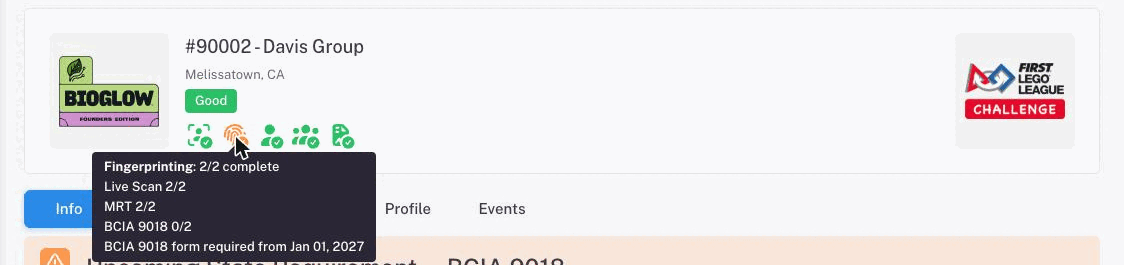
Hovering the Fingerprinting icon in the team header breaks the three parts out, so you can see which one is outstanding.
Before and after the deadline
The BCIA 9018 form becomes a hard requirement on a date your instance is configured with. That date splits behaviour in two:
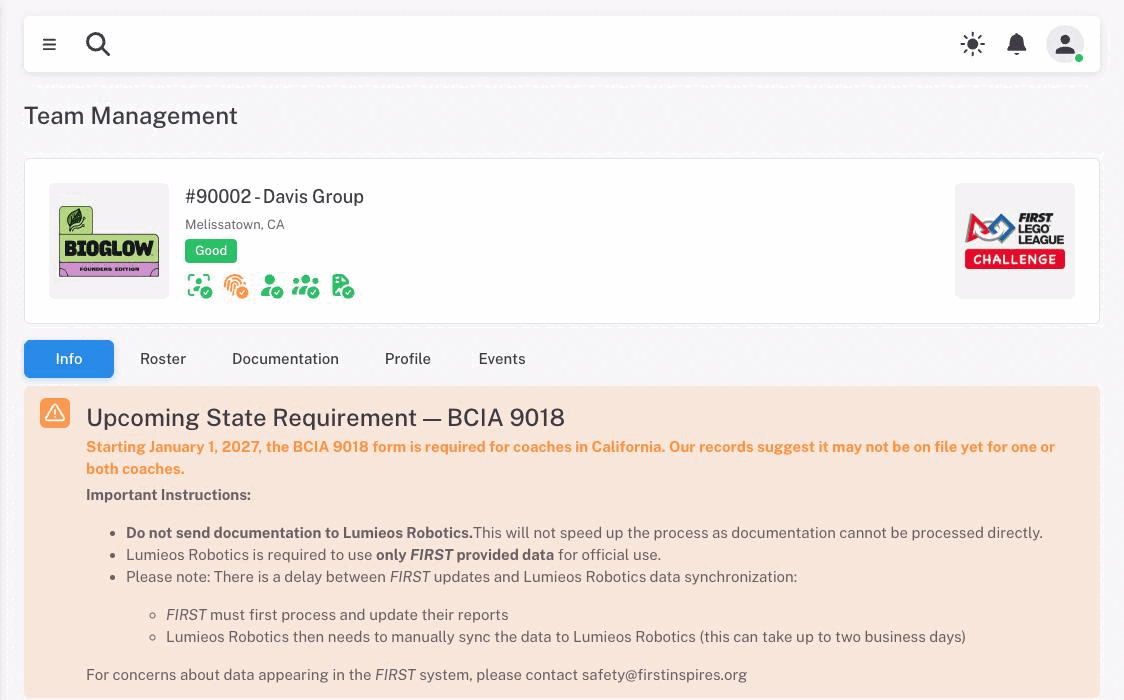
- Before the date — if Live Scan and MRT are both done but the form is not confirmed, your team is still Good. You get an amber Fingerprinting icon and a warning banner headed Upcoming State Requirement — BCIA 9018, so you have time to sort it out.
- On and after the date — the same situation now fails the check. The team drops to Missing State Requirements and cannot register for events until the form is on file.
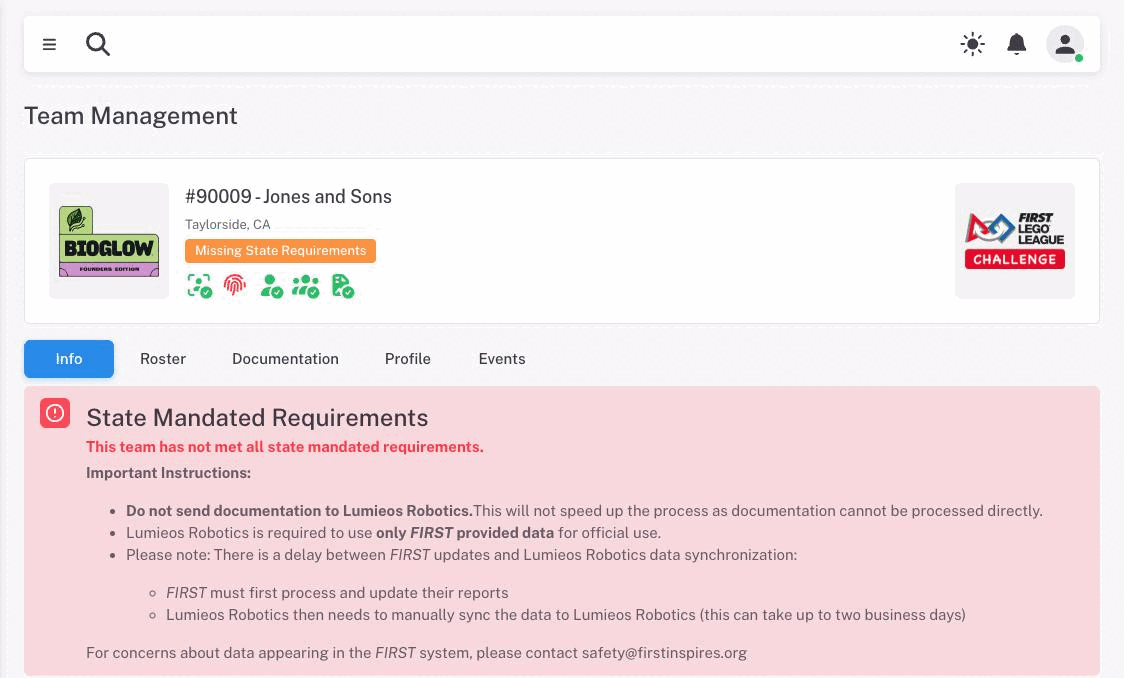
The banner names the exact date, so check your own team page rather than assuming.
What not to do
Both the warning and the blocking banner carry the same instructions, and the first one matters most:
Do not send your documentation to your region partner. They cannot process it, and sending it will not speed anything up — regions are required to use only FIRST-provided data for official purposes.
There is also an unavoidable delay. FIRST has to process your paperwork into its own reports first, and then someone at your region has to download that report and import it, which can take up to two business days. So a coach who completed Live Scan this morning should not expect the icon to turn green this afternoon.
For concerns about data in the FIRST system itself, contact safety@firstinspires.org.
Region overrides
Your region administrator can set a team’s status manually, bypassing the checks above. When this happens, the status displayed is the override, and it persists until the region admin clears it.
Region admins use overrides to communicate non-standard situations — for example, a team that needs extra paperwork reviewed or one that has been flagged for a specific issue. If you see a status that does not match what the checks above would produce, ask your region partner whether an override is in effect.
Frequently Asked Questions
Why is my team data not updated from FIRST?
Lumieos does not import information automatically from FIRST. Data comes in through report uploads by your region, and FIRST itself only refreshes region reports about twice a day. If you changed something on the FIRST side recently, it will take until the next upload to appear in Lumieos.
How long does it take for FIRST changes to appear in Lumieos?
Usually within 24 hours, but it depends on your region’s upload schedule. The top of the team management page shows the timestamp of the most recent import.
I added a coach on FIRST but my team still shows as Roster Not Complete — why?
Most likely, the new coach has not yet joined the team in Lumieos. Being in the FIRST data is necessary but not sufficient — the coach also needs to accept their Lumieos invite (or create an account with the same email address, which auto-links them). See Two-stage validation above.
Tip: Click the status badge on your team page to see exactly which member is missing and the timestamp of the last FIRST data import.
My roster shows a coach but the status says a coach is missing — why?
This is the inverse of the question above. The coach is joined to the team in Lumieos, but they are not currently listed in the FIRST data as a required coach. FIRST may have removed them from the coach slot without removing them from the team entirely.
Tip: Click the status badge on your team page to see the affected member and when FIRST data last changed. Reach out to your region partner if you think FIRST has the wrong information.
What is “Not Participating” and how do I change it?
“Not Participating” is a manual status set by your region administrator to indicate that a team is skipping this season. It removes the team from public lists. Contact your region partner to have it cleared.
What is the “Error” status?
“Error” indicates a problem with the team’s data that needs region-partner attention. It’s rare. The status box on the team page usually contains notes about what is wrong. Reach out to your region partner for details.