Your Assignments
For: Volunteers
This page explains how to view your volunteer assignments, read your event-day schedule, and understand what information is available once a coordinator has confirmed your role.
Viewing your applications and assignments
All of your volunteer applications are shown on the Applications tab of your Volunteer Dashboard. Each application appears as a card with:
- The event name
- The event date
- Your application status
- Your assigned role name (if a role has been assigned)
- Your call time (if one has been set by coordinators)
Application statuses
| Status | What it means |
|---|---|
| Application Pending | Coordinators have received your application and are reviewing it. No action needed. |
| Accepted - Pending Role | You have been confirmed for the event. A coordinator is working on role assignments. |
| Assigned | You have a confirmed role. Your role name is shown on the card. |
| Cancelled | This application was cancelled. |
When your status changes to Assigned, you will receive an in-app notification with your role details (included in your email digest if you have digests enabled).
Updating your role preferences
If you have not yet been assigned a final role, you can update your preferences at any time. Click the pencil (edit) icon on your application card to open the Edit Role Preferences dialog.
From there you can:
- Change up to 5 role preferences in priority order
- Update your availability notes
Once your role has been finalized (status: Assigned), you can still view your assigned role from the edit dialog, but changes are locked. The dialog will show a message asking you to contact event staff if you need adjustments.
Viewing your event-day agenda
Once coordinators have published your schedule, an Agenda button will appear on your application card. Click it to open your personal agenda for that event.
Your agenda shows:
- Call time — The time you are expected to arrive at the venue. Arrive by this time to check in and receive any final details.
- Schedule table — A list of agenda items showing the time range, room or location, activity title, and a brief description.
The Agenda button only appears after coordinators finalize your schedule. If you do not see it yet, check back closer to the event date.
Seeing your team
If you are assigned to a role that other roles report to, a My Team button appears on that application card alongside View Event and Agenda. It opens a read-only list of everyone working under you at that event.
For each reporting role you see how many people are assigned — “3 of 4 assigned” where the event stated how many it needed, or just “3 assigned” where it did not — and then each person’s first name and last initial, their assigned time, whether they have checked in, and their training status.
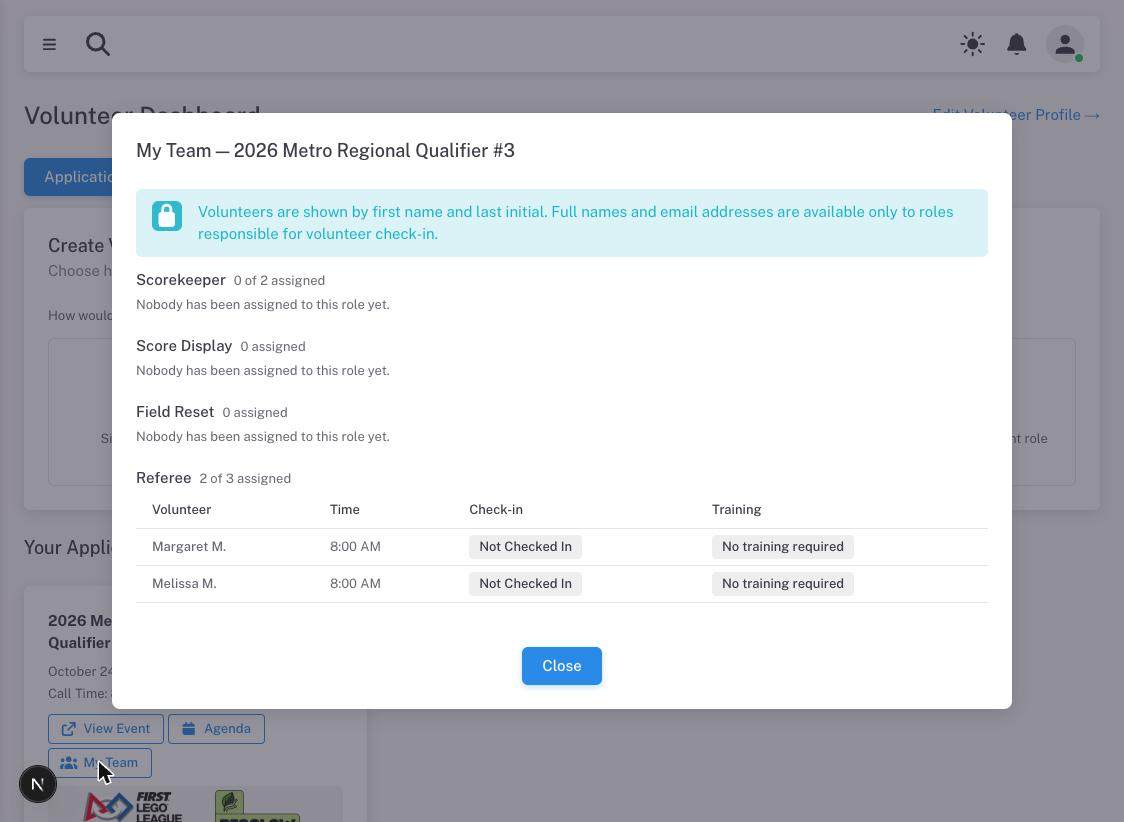
Roles nobody has been assigned to yet are still listed, so you can see what is outstanding as well as who has been filled.
The button only appears when there is somebody to show. If your role has reports configured but nobody is assigned to any of them yet, it stays hidden.
Note: Most roles never show this button, and that is normal. Reporting structure is something each region sets up deliberately; a region that has not done so will not have it anywhere. If you lead a group at an event and think you should see it, ask your region.
Communicating with coordinators
If you have questions about your assignment or need to make changes after your role is finalized, contact your event’s volunteer coordinator directly. Coordinator contact information is available on the event details page, which you can reach by clicking the View Event button on your application card.
If coordinators have set up a volunteer coordination chat room for your role, you may also receive an invitation to that room automatically when your role is assigned. Chat rooms for specific role groups (for example, judges or referees) can be created by coordinators to coordinate before and during the event.
Cancelling an assignment
To cancel an application that has already been assigned, click the trash icon on your application card and confirm. Coordinators will receive a notification. If your cancellation leaves a role with fewer volunteers than needed, the notification is sent with critical priority to alert coordinators immediately.
The trash icon is only available for active applications. Once an event is complete, the cancel option is no longer shown.
Viewing past seasons
By default, the Applications tab shows only the current season. If you have volunteered in previous seasons, a Show All Seasons button will appear in the top-right corner of the applications list. Click it to see your full history. Click Show Current Season to return to the current view.