Season Setup & Settings
Each season program your region runs is set up once, with the season setup wizard, and then adjusted on Season Settings. This page covers the Season Setup Required task on the region dashboard, the wizard, and the Season Settings tab.
Prerequisite: Setting up a season, and hiding or un-hiding one, needs partner administrator permission. Changing Season Settings needs Manage Season (or partner administrator) permission. See Permissions.
Season Setup Required
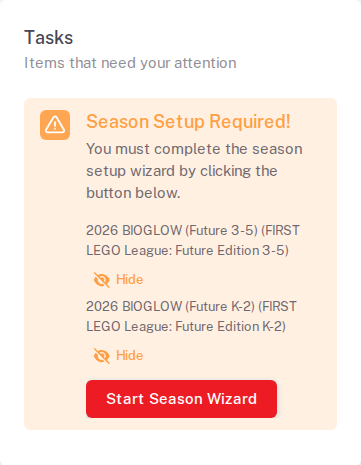
When a new season program becomes available to your region and hasn’t been set up yet, the Tasks card on the region dashboard shows a Season Setup Required task. It lists each pending season, for example 2026 UNEARTHED (FLL K-2), and has a Start Season Wizard button. The same task appears at the top of Region Management → Configuration.
Admin URL:
Hiding a season you haven’t decided on
Your region may be allowed a program you’re not sure you’ll run this year. To stop it showing as a task until you decide, click Hide beside that season and confirm.
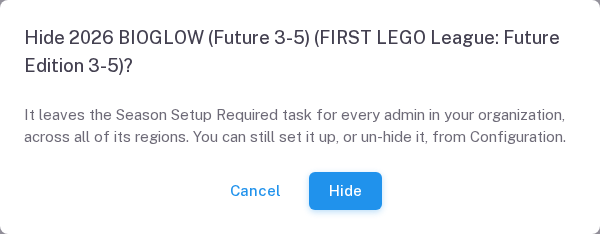
- A hidden season leaves the task for every admin in your region, not only you. Once every pending season is hidden, the task disappears.
- Hiding doesn’t stop you setting the season up. The wizard still offers it, marked hidden from the dashboard.
- Hiding covers only that season. When a new season program becomes available, it shows in the task as usual.
- Each hide and un-hide is recorded in your region’s change history, with who did it.
Un-hiding a season
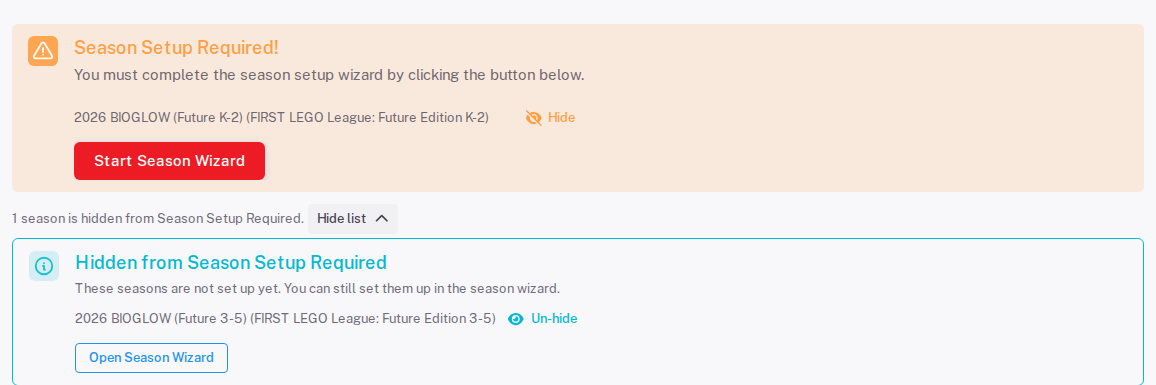
Hidden seasons are listed on Configuration → Season (the Season Settings and Team Formation tabs), in a Hidden from Season Setup Required box above the tabs. From there:
- Un-hide puts the season back in the dashboard task.
- Open Season Wizard sets it up straight away, whether it’s hidden or not.
The season setup wizard
The wizard creates the season for one region. It asks for the region (only if your partner has more than one), the season, and its starting settings, then shows a review before Create Season. The settings step has the same Dates, Features and JotForm integration fields as Season Settings, below. You can change any of them later.
Admin URL:
Season Settings
Open Region Management → Configuration → Season → Season Settings and pick the season. Any archival banner and a missing-roles warning appear first, then one card per topic.
Admin URL:
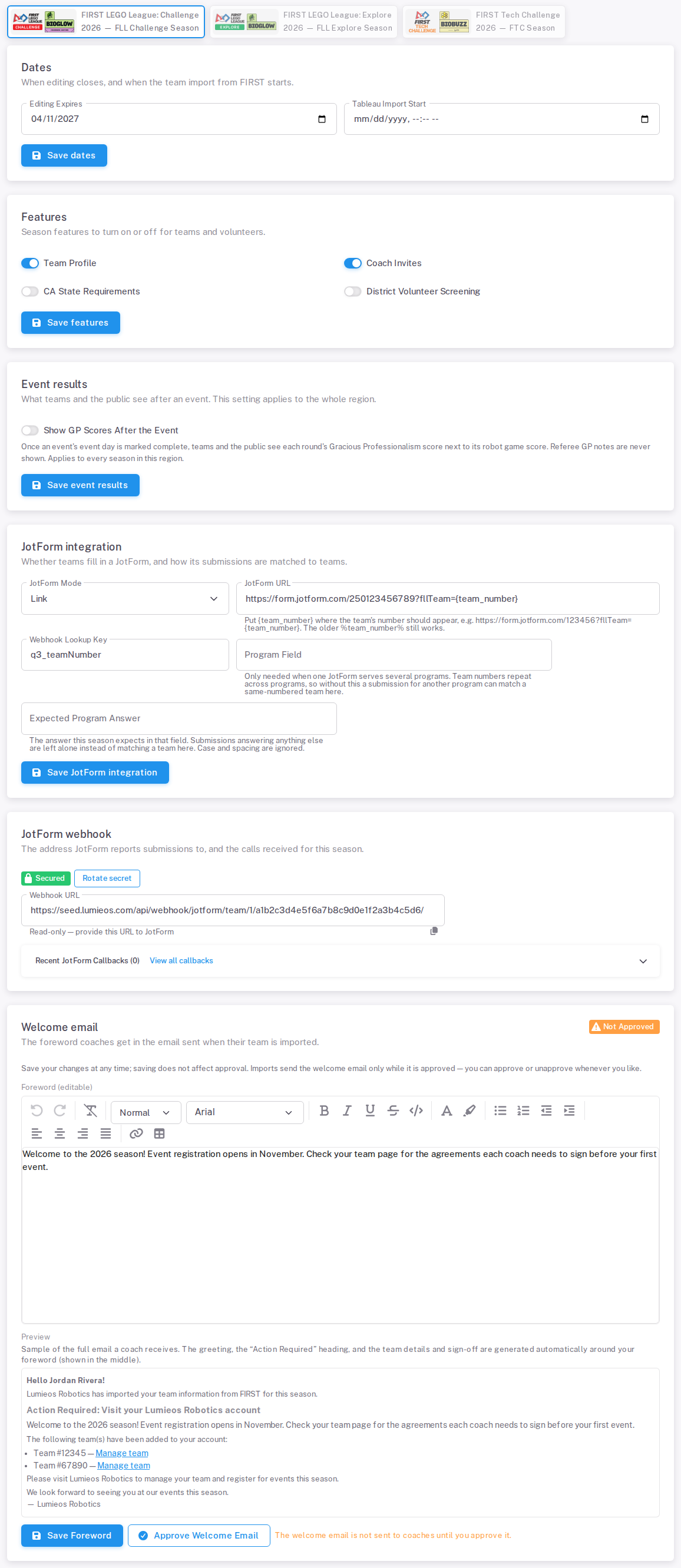
Each card has its own Save, named for what it saves, such as Save dates or Save JotForm integration. A card’s Save saves only that card’s settings. Edits you haven’t saved on other cards stay on screen, and a card with unsaved edits shows Unsaved changes beside its Save. If a value can’t be saved, the error appears under that field, in that card.
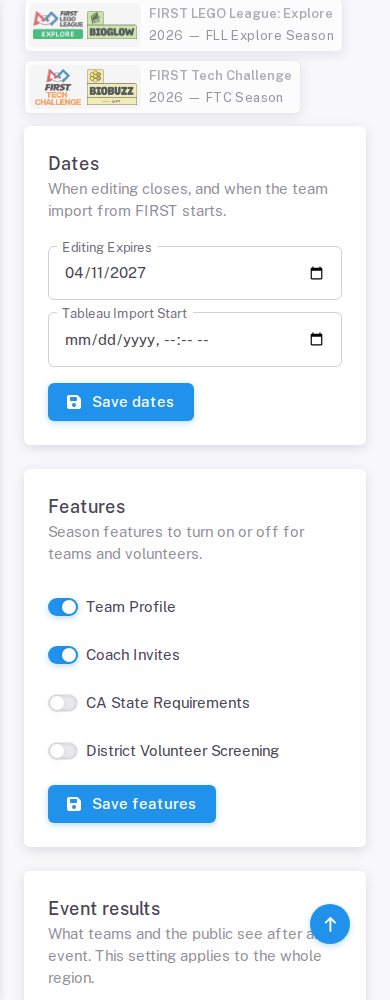
| Card | What it controls |
|---|---|
| Dates | Editing Expires, and Tableau Import Start. With team formation on, Formation Opens and Formation Closes replace the Tableau import start. |
| Features | Team Profile, Coach Invites, and, when team formation is off, CA Fingerprinting and District Volunteer Screening. |
| Event results | Show GP Scores After the Event. Once an event’s event day is marked complete, teams and the public see each round’s Gracious Professionalism score beside its robot game score. Referee GP notes are never shown. This is a region setting: saving it on one season changes it for every season in the region. |
| JotForm integration | JotForm Mode, and, once JotForm is on, the JotForm URL, Webhook Lookup Key, Program Field and Expected Program Answer. See JotForm Team Forms and Callbacks. |
| JotForm webhook | Shown once JotForm is on. The Webhook URL to give JotForm, whether it’s secured, and Recent JotForm Callbacks. This card has no Save: securing the webhook takes effect at once, and choosing a lookup key or program field from a callback fills in the JotForm integration card, which you then save. |
| Welcome email | The foreword in the email coaches get when their team is imported, its preview, and approval. Save Foreword saves the foreword only; approving is separate. |
Paper agreement uploads aren’t on Season Settings. They’re turned on for each agreement type, with Accept scanned paper uploads. See Creating & Managing Agreements.