Hosting an Event
For: All roles
Any signed-in Lumieos user can apply to host a competition event — you don’t need to already be a coach, team admin, or existing event host. If your region is accepting proposals, you can put your organization forward to run an event for an upcoming season.
Finding “Host an Event”
Look for Host an Event in the main navigation, available to every signed-in user. This takes you to Your Host Applications, which lists any applications you’ve already started or submitted and lets you start a new one.
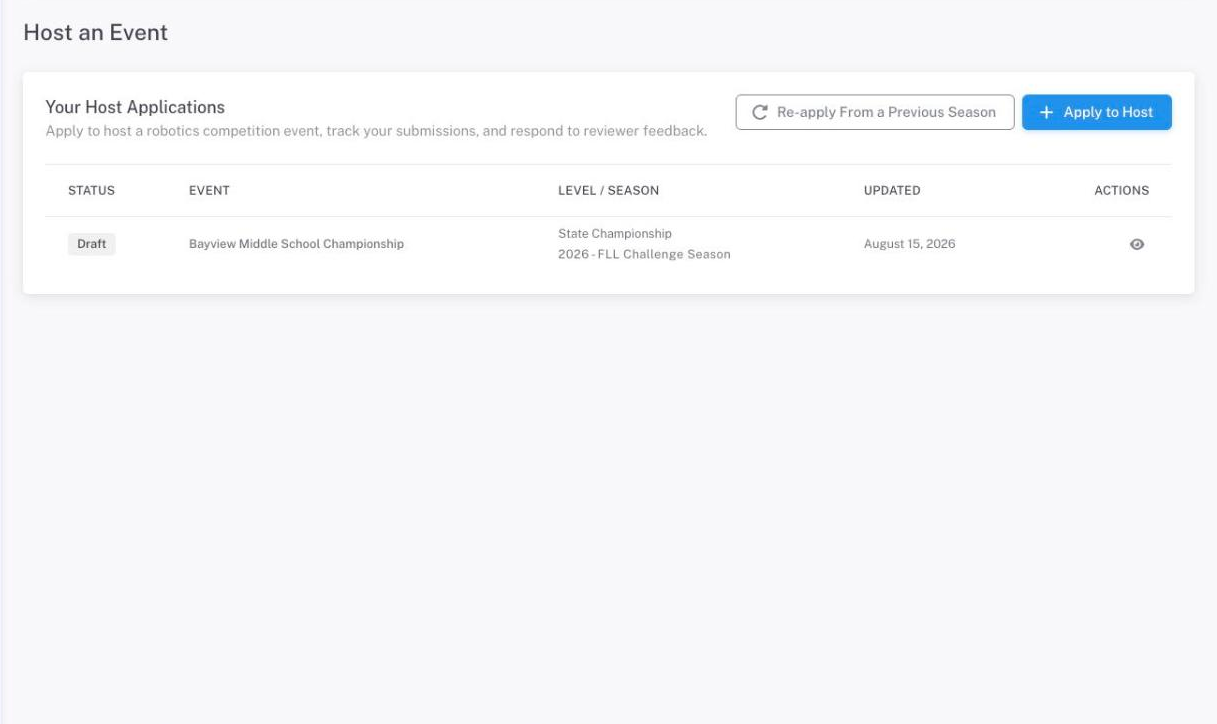
If no levels are currently accepting proposals, you’ll see a message explaining that host applications open on a per-season, per-level basis and may not have started yet. Check back later, or reach out to your region if you believe this is a mistake.
Starting an Application
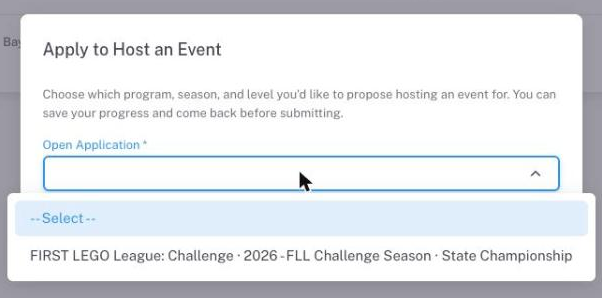
Click Apply to Host and choose which open application you’d like to apply to from the dropdown — each option shows the program, season, and level (for example, FLL Challenge · 2026-27 · Qualifiers). Regions sometimes run more than one open application at a time, so pick the one that matches what you’re proposing to host.
If your region has added an introduction for that application, it appears right below the dropdown — read it before starting, since it may cover expectations, deadlines, or venue requirements specific to that level.
Once you start an application, it opens as a Draft you can edit freely and come back to.
What the Form Covers
Every application is organized into sections. Which questions actually appear — and which are required — is set by your region for each application, so you may not see every item below, and some regions require more than others.
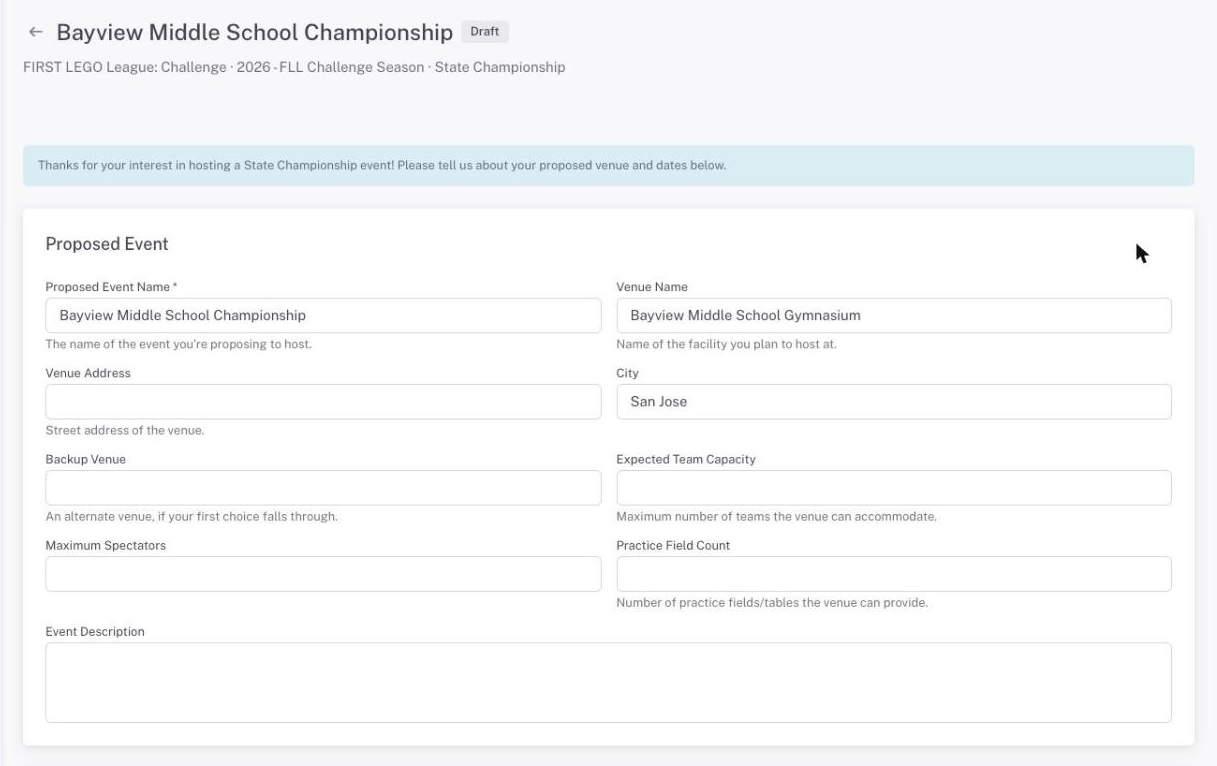
- Proposed Event — the event name, venue/city, expected team capacity, and a description of what you’re proposing.
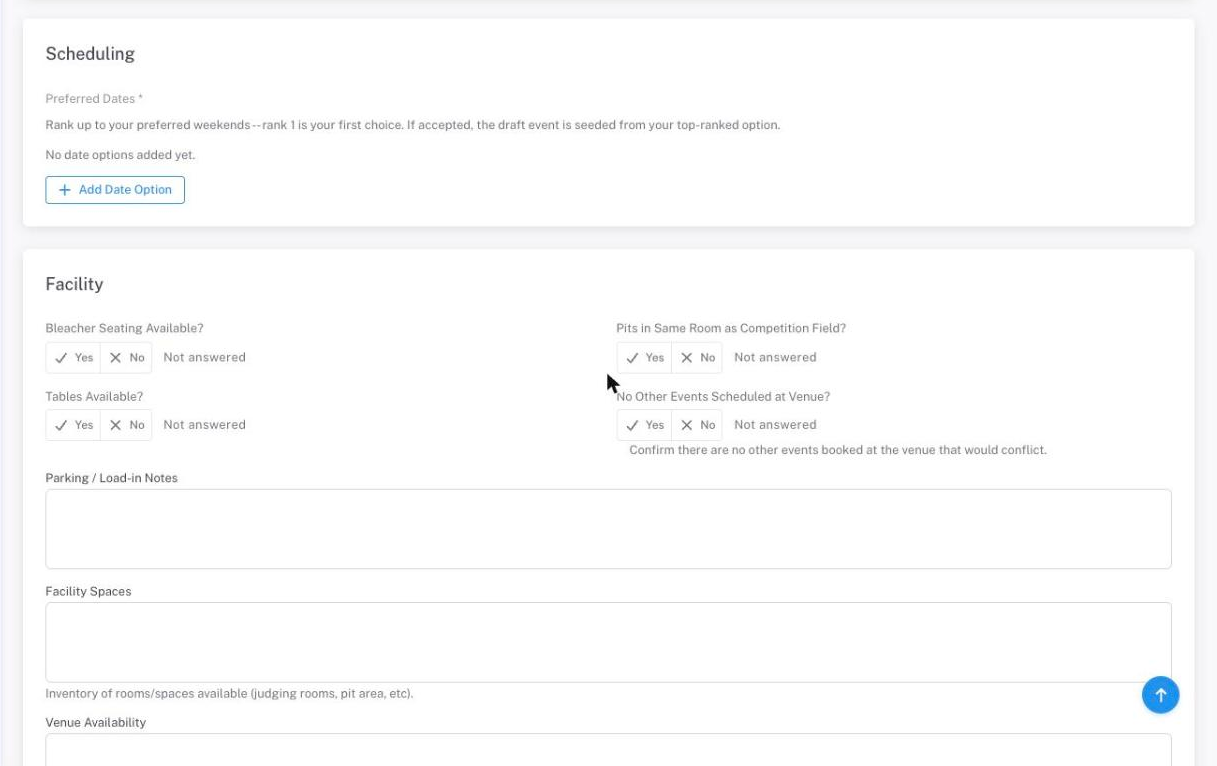
- Preferred Dates — one or more weekend date ranges, ranked in the order you’d prefer them. Rank 1 is your first choice. Add as many options as your region allows; if your application is accepted, the event is created using your top-ranked option (a region admin can pick a different one of your options instead, if needed).
- Facility — details about the venue: seating, whether the pit area shares a room with the competition field, table availability, confirmation there are no scheduling conflicts at the venue, parking/load-in notes, a rundown of available spaces, and venue availability (whether it’s reserved, confirm-by date, and access times). You can also attach a venue map or photos here.
- About You — your hosting background: whether you’ve hosted before, relevant experience, and why you want to host.
- Additional Helpers — anyone you plan to bring on to help run the event. Add each helper’s name, email, and intended role; they aren’t notified or granted access yet — see What Happens If You’re Accepted below.
- Food — your plans for concessions, team lunches, and volunteer food.
- Reimbursement — how you’d like to be reimbursed for hosting expenses (bank transfer, PayPal, check, or other), the payee name, and any additional payout details or mailing address needed.
- General — any notes for your reviewer, plus a required acknowledgement confirming the accuracy of your application. You must check this box before you can submit.
Saving Your Progress
Use Save Draft at any time to save your answers without submitting. You can leave and come back as many times as you like while your application is in Draft status — nothing is sent to your region until you submit.
Submitting
Click Submit Application when you’re ready. Submitting requires:
- The application window to still be open (your region sets an optional opening and closing time per application),
- Every question your region marked as required to be answered, and
- The accuracy acknowledgement checked.
If anything is missing, the form highlights the fields that still need attention. Once submitted, your application moves to Submitted and you can no longer edit it unless a reviewer requests changes.
If Changes Are Requested
A reviewer may send your application back with Changes Requested and a comment explaining what needs updating. You’ll be notified, and the comment appears prominently at the top of your application. Update the relevant answers and click Resubmit Application when you’re done.
Resubmitting works even after the application window has closed. Your region asked for the changes, so a closed window won’t strand you mid-review — you can still resubmit at any point until a final decision is made.
Decisions
Once you submit, your region reviews the application and reaches one of two outcomes:
Accepted
Congratulations — your proposed event is created as a draft event, and you’re granted host management access to it. From here you can finish configuring your event the same way any host would (schedule, capacity, and so on) before it goes live.
Any helpers you listed under Additional Helpers are not automatically added — they stay as pending invites until you assign them access yourself from your event’s management area after acceptance.
Not Accepted
If your application is rejected, you’ll see the reviewer’s comment explaining why. This is a final decision for that application — if you’d still like to host, you can start a new application the next time your region opens one.
Re-Applying From a Previous Season
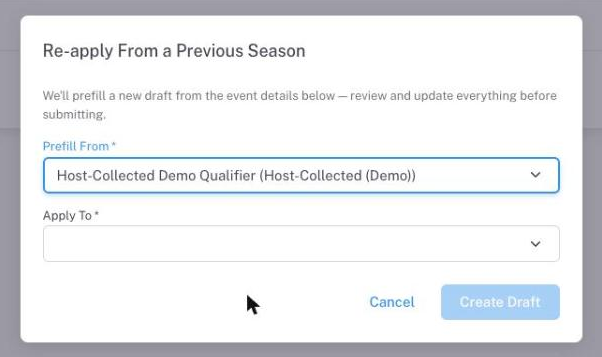
If you’ve hosted before or had an application accepted previously, use Re-apply From a Previous Season on the Host Applications page instead of starting from scratch. Choose a currently open application to apply to, then choose which prior accepted application or previously hosted event to prefill from. Lumieos creates a new draft pre-filled with those details — review and update everything before submitting, since venues, dates, and other details may have changed.