Volunteer Roles & Templates
Volunteers can only sign up for roles that an event offers, and an event offers roles by way of a volunteer role template. Setting this up is a two-step job: define the roles your region uses, group them into a template, then assign that template to each event.
Access this from Region Management → Configuration → People & Access, where you will find both Volunteer Roles and Volunteer Role Templates.
Prerequisite: You must be a region administrator. See Permissions for details.
How the pieces fit together
| What it is | |
|---|---|
| Volunteer Role | A job at an event — Judge, Referee, Pit Admin. Defined once for your region and reused across events. |
| Role Template | A named set of roles and how many volunteers each one needs, e.g. Standard Qualifier. |
| Event | Gets one template assigned to it. That is what opens volunteer signup. |
An event with no template assigned shows volunteers nothing to sign up for.
Step 1 — Create your volunteer roles
On the Role Templates tab, use New Role in the Volunteer Roles card.
| Field | Details |
|---|---|
| Role Name | What volunteers see, e.g. Head Referee. Must be unique within your region. |
| Role Type | Groups the role on the volunteer signup screen. |
| Description | Shown to volunteers when they choose this role. |
| Time Commitment | Shown when no volunteer agenda is available, e.g. Full day, 8am–5pm. |
Age ranges
A role can carry an optional minimum and maximum age. Both are informational: the range shows on the role list, on the volunteer sign-up form and in the assignment dialog, and an assigned volunteer outside it is flagged on the event volunteer list. Nothing is blocked — a coordinator can still assign whoever they judge appropriate. Leave either bound blank for no limit in that direction.
Visibility
- Hide from public signup — the role exists but volunteers cannot request it. Use for roles you assign directly.
- Hide from volunteer assignment — the role can be requested publicly but does not appear in the assignment tools.
Event day access
Each role can unlock parts of the event-day interface: score display and entry, game announcer, referee and head referee, queuing, and practice tables.
There is also Keep access after the event is marked complete, for roles that still need to review event data afterwards.
Important — access to personal information. Four permissions unlock personal information about teams or volunteers: Judging, Judge Advisor, Team Check-in, and Volunteer Check-in. Anyone assigned to a role carrying one of these can see that information on event day. The role editor groups them separately and warns you when one is enabled, and roles that grant them are flagged in the roles list. Only enable what the role genuinely requires.
Reporting structure
A role can report to another role. Do this and the volunteers in the parent role gain a My Team button on their application, listing everyone working under them at that event — name, role, assigned time, check-in and training status.
In the role editor, under Reporting Structure, set Reports To to the role this one answers to. Leave it as Reports to nobody for a role at the top, which is the default for every role.
Nothing appears until you build this. No role arrives with a parent set, so the My Team button is absent for everyone in a region that has not configured it. That is the expected state, not a fault — if a lead volunteer asks why they cannot see their team, this is usually why.
A few rules the editor enforces for you:
- You can only pick roles in your own region.
- You cannot create a loop. A role that already reports to this one, directly or further down, is not offered.
- Deleting a role that others report to does not delete them — they simply lose their parent and stop appearing under it.
The roles list shows a Reports To column so you can see the shape of the tree at a glance.
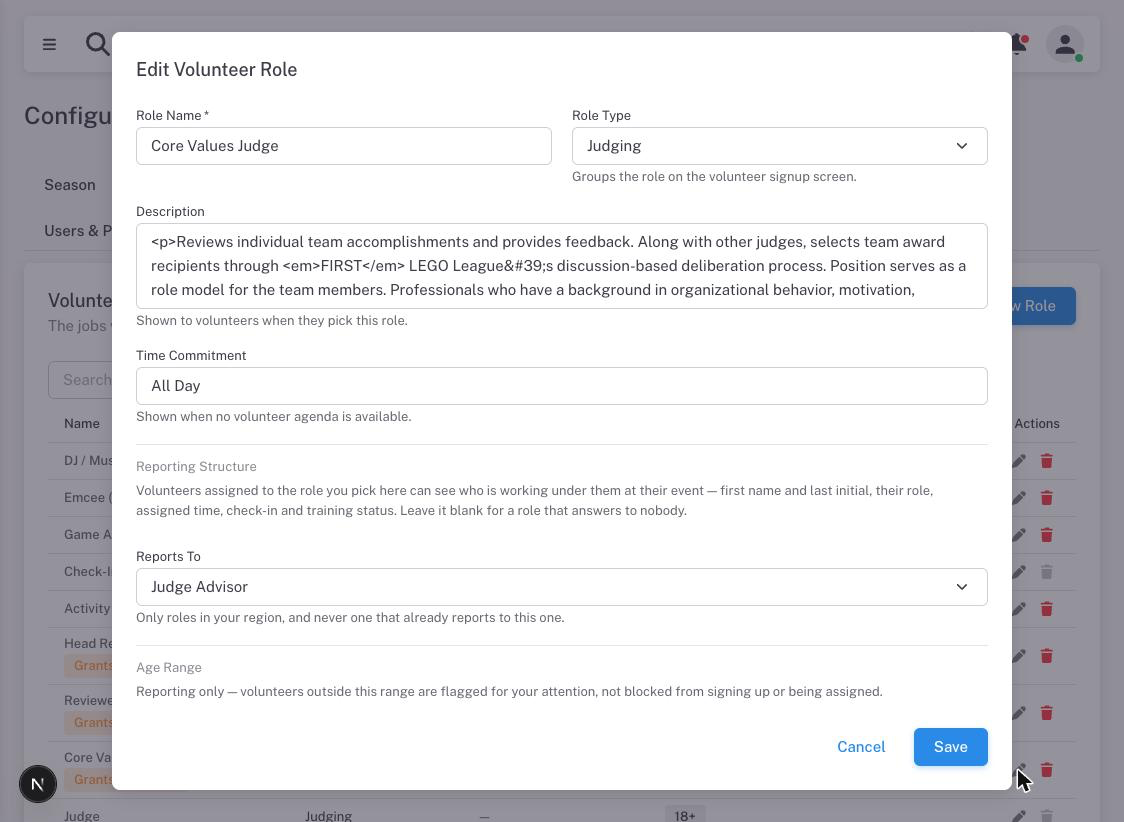
Tip: Build it around who actually needs oversight on the day rather than mirroring an org chart. Referees reporting to a Head Referee, judges to a Judge Advisor — the value is a lead being able to see who has turned up and who is still missing.
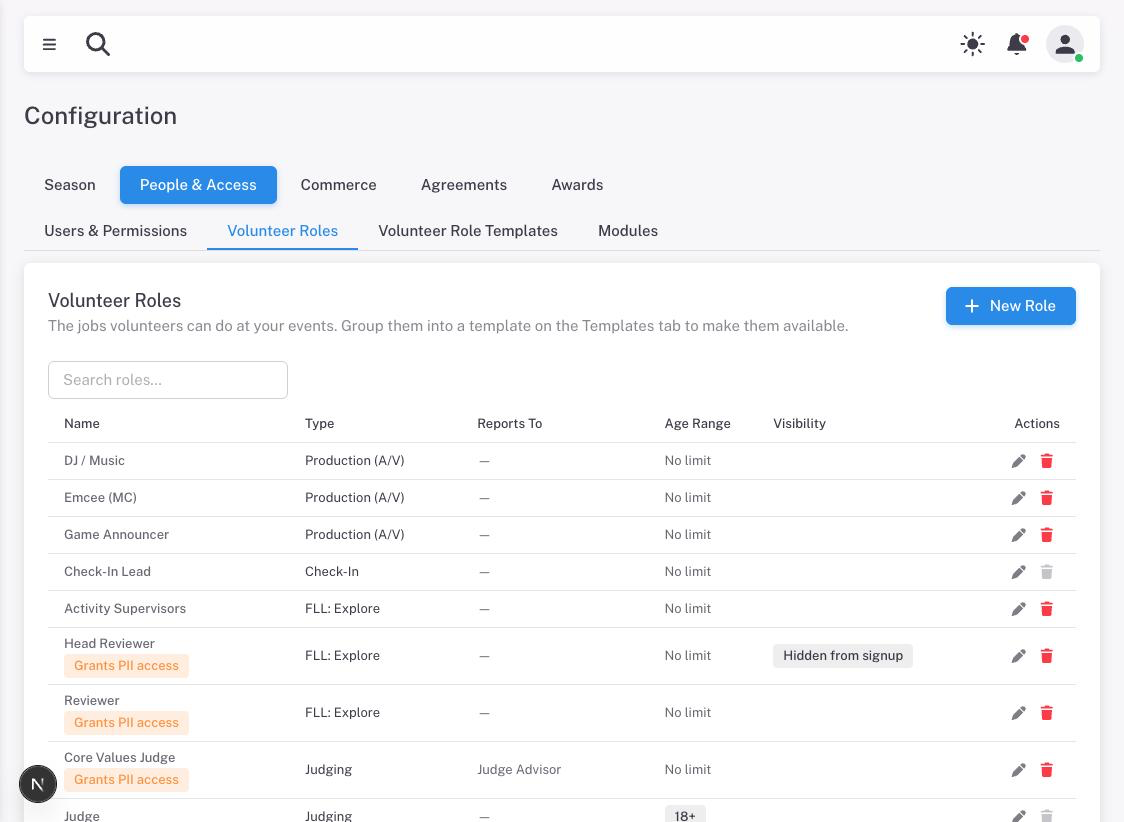
Tip: A region carrying the standard catalogue has around forty roles. Use the search box above the list to filter by name rather than scrolling for the one you want.
Step 2 — Build a role template
Use New Template in the Role Templates card. Give the template a name (a description is optional), then add a row per role:
- Role — a role you created in step 1. A role can only appear once per template.
- Volunteers Needed — how many people this event type needs in that role. This drives the fill-rate figures coordinators see.
- Restricted — limits who can be assigned to the role.
Saving replaces the template’s roles with exactly what is shown, so removing a row removes that role from the template.
Most regions need only a small number of templates — often one per event format.
Step 3 — Assign the template to an event
Edit the event under Region Management > Events and set Volunteer Role Template. Volunteer signup opens for that event as soon as a template is assigned.
Changing an event’s template changes which roles volunteers can sign up for. Volunteers already assigned to a role keep their assignment.
Deleting roles and templates
Lumieos refuses a deletion that would quietly change existing data:
- A template assigned to one or more events cannot be deleted — reassign those events first. The Role Templates list shows how many events use each template.
- A role used by a template, an event, or a volunteer’s choices cannot be deleted. Remove those references first; the roles list disables the delete action and explains why.