Displays — Quick Card
Device: the pit score display TV, the arena projector or TV · Ask: the scorekeeper (arena) or event lead (pit display)
Nobody touches a display during the event. Set it up once, check it, and leave it.
Pit score display
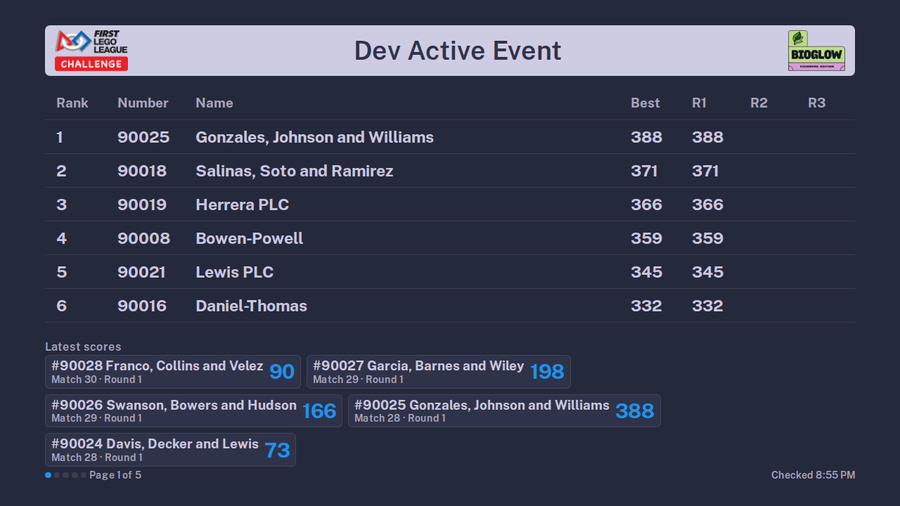
- On the laptop or TV browser for the pits, open Score Display from the event-day menu. Use the practice display during practice rounds.
- Make the browser full screen. Turn off sleep and screen savers on the device.
- Check from across the pits that the rankings are readable and pages rotate.
Arena display
The arena display is opened by the scorekeeper’s laptop and shown on the second screen or projector (see the Scorekeeper card). It shows the teams, the match clock and scores.
- Connect the projector or TV to the scorekeeper laptop as a second screen, not mirrored.
- The scorekeeper opens the display and drags it to that screen, then makes it full screen.
- Check that the clock is readable from the back of the stands and that nothing else (taskbar, notifications) shows on that screen.
Fit the picture to the screen
The arena display, the score display and the pit display each have their own settings, for a display that opened by itself with no link to edit.
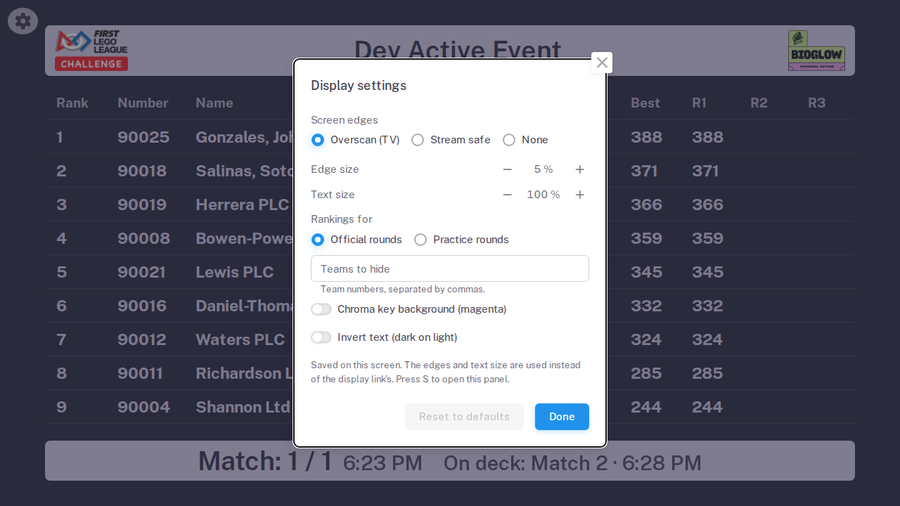
- Move the mouse or touch the screen: a gear button shows in the top-left corner for a few seconds. With a keyboard, press S instead.
- In Display settings, pick the Screen edges: Overscan (TV) for a TV that crops its edges, Stream safe for a video feed, None for a projector or monitor.
- Use Edge size to move the picture in or out a percent at a time, and Text size to make the text bigger or smaller. The display changes as you go.
- Select Done. The settings are kept on that screen and are used instead of the display link’s settings, even after a reload or a new sign-in. Reset to defaults puts the link’s settings back.
If…
| Situation | Do |
|---|---|
| The display shows old data | It catches up by itself after a network blip. Don’t reload during a match. |
| The arena display window closed | The scorekeeper opens it again; it picks up the running match. |
| The screen went to sleep | Wake it, and turn off sleep on that device. |
| The edges are cut off, or the text is too small | Open the display’s settings (see Fit the picture to the screen). |
| A display is wrong for everyone | Tell the event lead. Closing or reloading a display does not affect scoring. |
A display never shows an error to the audience. If you see one, tell the event lead.
During the opening and closing ceremonies, the arena display shows the ceremony instead of scores. If the scorekeeper asks, click Enable sound once on the display screen. See the Ceremonies card.
What the arena display shows
- Now and on deck: under the match number, the arena display’s teams and scores views show the match’s scheduled start and the match on deck with its start time. With three tables or fewer, the teams view also lists the team numbers on deck. The timer view shows only the match number and its teams.
- Table colours: a table with a colour (set by the event’s staff on the schedule page) shows its name in that colour on the teams and timer views.
- Practice: while the display shows practice scores, a PRACTICE MATCHES banner runs across the top of the rankings.
Arena display settings
The arena display’s settings panel (the gear button in the top-left corner, or S on a keyboard) has these settings as well as the screen edges and text size:
| Setting | What it does |
|---|---|
| Rankings for | Official rounds or Practice rounds. Shown only for an event with practice rounds. |
| Teams to hide | Team numbers, separated by commas, to leave out of the rankings. |
| Chroma key background (magenta) | Makes the background of every view pure magenta, so a video switcher can key it out. The timer stops changing colour while this is on. |
| Invert text (dark on light) | Shows dark text on light panels instead of light on dark. |
The settings are kept on that screen. Rankings for and teams to hide are kept for each event. When the scorekeeper opens the display with a teams-to-hide list, the scorekeeper’s list is used and the panel shows it as set by the link. Reset to defaults turns everything off again.
Practice or official rankings
The arena display and the pit display can each switch between practice and official rankings from their own settings, even on a display that opened by itself.
- Open the display’s settings (the gear button in the top-left corner, or S on a keyboard).
- Under Rankings for, pick Official rounds or Practice rounds. The display changes straight away, and shows the PRACTICE MATCHES banner while it shows practice scores.
The choice is kept on that screen for the event, even after a reload. When the display was opened from a link that picks practice or official (such as Open Practice Display), the link only sets where it starts: the choice made on the screen wins after that. Opening the display from a link that picks the other one starts it over from the link.