Nemeo Tablet Management
Nemeo is Lumieos’s tablet management system for the tablets your events run on — check-in, scoring, judging, queuing, and the other event-day interfaces all run on tablets that Nemeo enrolls, monitors, and configures. Each partner organization gets its own Nemeo organisation, so your fleet of tablets is completely separate from every other region’s.
Access Nemeo from Region Management → Nemeo.
Prerequisite: You must have Events — Can Manage permission at the region level — Nemeo uses the same access as the Events area. See Permissions for details.
Enabling Nemeo for your region
Nemeo is not a toggle you switch on yourself. Lumieos staff turn it on for your region and assign your organisation’s identifier — a permanent, staff-assigned ID that keeps your tablets isolated from every other partner’s. Once that is done, the Nemeo entry appears in your sidebar and a region administrator completes onboarding to finish setup.
If you would like to start using Nemeo and don’t see it in your sidebar, contact Lumieos support.
Onboarding
Admin URL:
The first time a region administrator opens Nemeo after it has been enabled, they see a short setup form instead of the usual tabs:
| Field | Details |
|---|---|
| Organisation name | What your tablets belong to on Nemeo. Defaults to your region’s name — change it if you’d like something more specific. |
| Organisation ID | Your permanent identifier, assigned by Lumieos staff. Read-only — contact support if it needs to change. |
| Contact phone | Optional. Printed on a tablet, for whoever finds one that’s gone astray. |
| Contact email | Optional. Shown alongside the phone number. |
Check the details and press Set up Nemeo. This creates your organisation and takes you straight to your Fleet.
Note: If Nemeo already has an organisation under your assigned identifier that this region did not create, setup stops: the button still reads Set up Nemeo but is disabled, and a message on the form says the organisation already exists on Nemeo and asks you to contact support. This is most likely a one-time setup issue on Lumieos’s side. Reloading and trying again cannot fix it — Lumieos won’t take over an organisation it didn’t create, because that would risk mixing your tablets with another organisation’s. Contact Lumieos support and we’ll sort out the organisation identifier with you.
Organisation settings
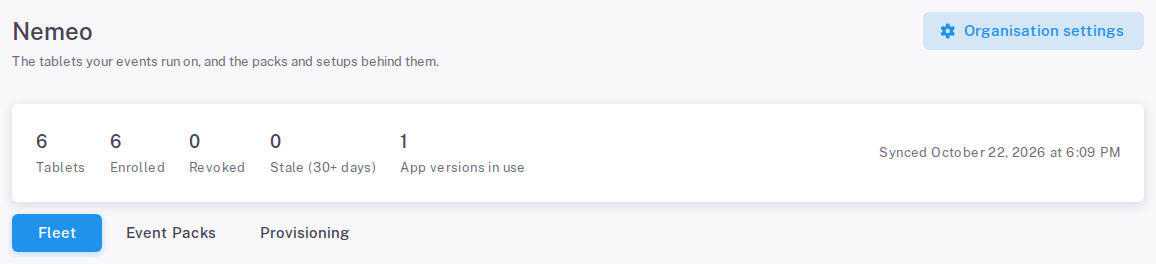
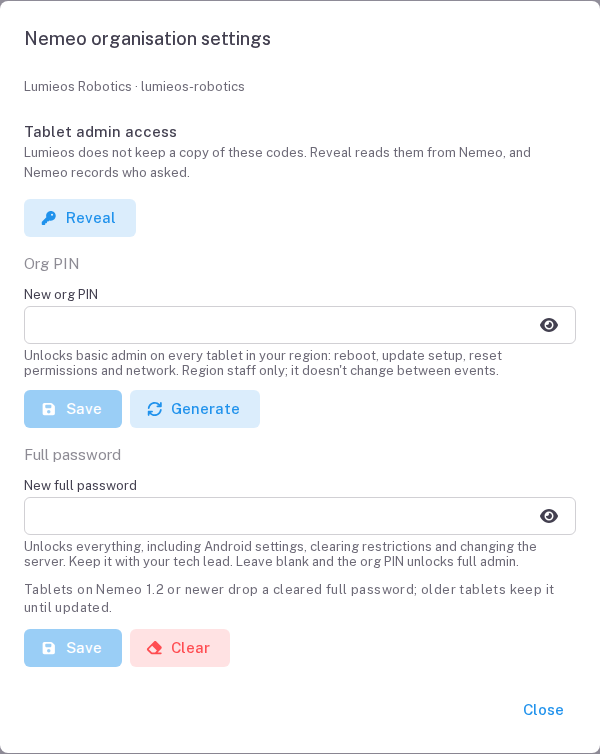
Once your region is set up, an Organisation settings button appears at the top of the Nemeo page. That’s where you manage the admin codes for your tablets.
Tablet admin access
The Tablet admin access card in Organisation settings controls the codes that unlock admin features on your tablets. There are two, and they unlock different things.
- Org PIN (6 to 8 digits) — unlocks basic admin on every tablet in your region: reboot, update setup, reset permissions and network. It is for region staff only and doesn’t change between events.
- Full admin password (10 to 64 characters) — unlocks everything, including Android settings, clearing restrictions and changing the server. Keep it with your tech lead. If you leave it blank, the org PIN unlocks full admin.
Lumieos never stores either one. Nemeo holds them, and Lumieos only passes your changes along.
Org PIN
- Reveal reads your codes live from Nemeo and shows both the org PIN and the full password (or “No full password: the org PIN unlocks full admin.”). Nemeo records who asked, and the button holds for a short cooldown after each press.
- Save sets the PIN you type in New org PIN. Because every tablet in your region uses it, you’re asked to confirm before it changes.
- Generate creates a random 6 digit PIN for you. You’ll be asked to confirm first, as with Save. The generated PIN is shown once, in the card, so copy it before you close Organisation settings. It stays there until you close the dialog, change the org PIN again or press Reveal. While it’s showing, clicking outside the dialog doesn’t close it; use Close.
An org PIN can’t be the same as any of your packs’ event PINs. If Reveal finds that your organization has no PIN yet, the card says so and asks you to set one.
If you make too many changes in a short time, the buttons wait until you can try again.
Full admin password
Type a password and choose Save, or choose Clear to remove it. Clearing asks you to confirm: once a tablet is on Nemeo 1.2 or newer, the org PIN unlocks full admin on it. Tablets on Nemeo 1.2 or newer drop a cleared full password; older tablets keep it until they’re updated.
When you press Reveal, the card warns you if any of your packs has an event PIN but there is no full password: “Your org PIN currently unlocks full admin. Set a full password before handing out event PINs.” The card can only tell whether a full password exists by reading it, so press Reveal to check. Set a full password before you give event PINs to volunteers.
Note: Tablet admin access requires Nemeo v1.2.0. If your Nemeo server is older, saving a change shows “Requires Nemeo v1.2.0” and the card’s forms become read-only. Reveal still works.
When a venue blocks Nemeo
If a venue’s network blocks the main Nemeo address, tablets automatically try your region’s own Lumieos addresses instead. Lumieos keeps that list in step with your region’s domains by itself, usually within an hour of a change, so there’s nothing to configure.
Fleet
The Fleet tab is the full inventory of your region’s tablets, however they got there.
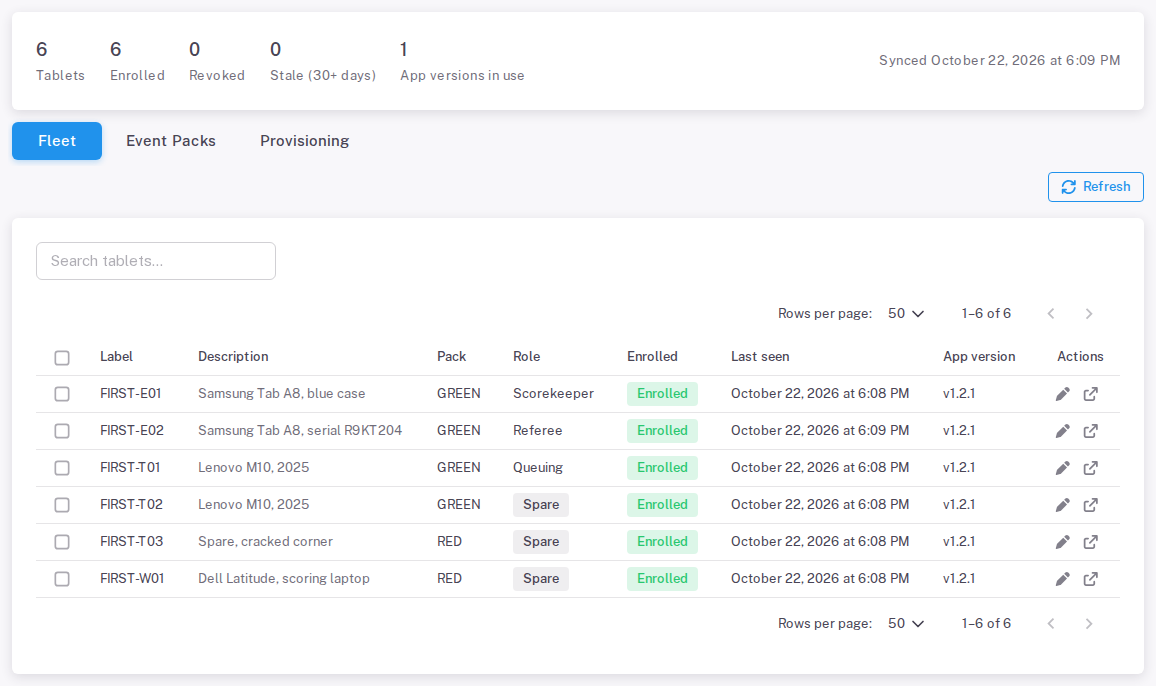
The fleet summary sits above the tabs, so it stays in view whichever tab you’re on. It shows: total tablets, how many are enrolled, how many are revoked, how many haven’t been seen in 30+ days (“stale”), and how many different app versions are currently in use across the fleet (version skew — worth a look if it’s more than one, since it usually means some tablets are overdue for an update). Only Android tablets count towards app versions: a Windows station’s app has its own version numbers. If any device was set up as a different type than it was registered as, the summary also shows Wrong device type.
The table below lists every tablet with:
| Column | Meaning |
|---|---|
| Label | The name the tablet was registered under. A Wrong device type badge means the device was set up as a different type than it was registered as: for example, a laptop registered as a Windows station that was set up with the Android app. Hover over the badge for details. Set the device up again as the right type, or correct its Device type with the pen button. |
| Description | Your notes about the tablet, such as its serial number, color or year. Hover to see all of it. Use the pen button in the row to edit it. |
| Pack | Which event pack (case) the tablet belongs to. |
| Role | The volunteer role the tablet fills at events, or Spare. A tablet that is out of service (swapped out or switched off) also shows “Out of service” underneath, so you don’t pick it as a replacement. |
| Enrolled | Enrolled, Not enrolled, or Revoked. |
| Last seen | When the tablet last checked in. This is as of its last check-in, not live — tablets sit powered off in crates between events, so a tablet showing “last seen 3 months ago” may simply be waiting for its next event, not broken. |
| App version | The launcher app version currently on the tablet. |
The search box matches a tablet’s name and its description, so you can find a tablet by its serial number or color.
Editing tablets
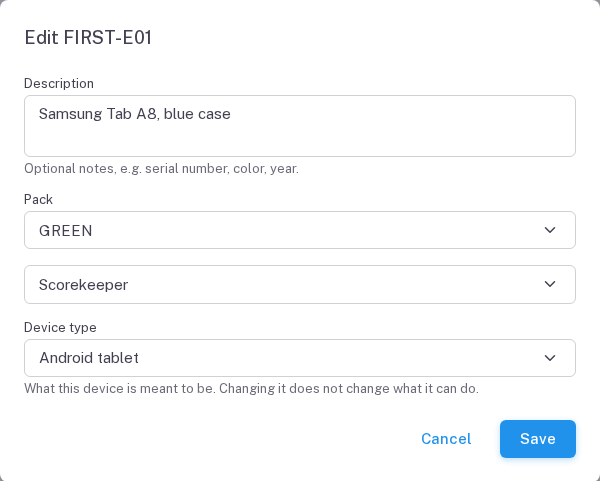
Each row has an Edit button (the pen) that opens a dialog for the tablet’s description, pack, role and device type. The tablet’s pack name in the Pack column is also a link to that pack’s page (see Pack page, below).
Changing several tablets at once
Tick the checkbox on each tablet you want to change, or use the checkbox in the header to select every tablet on the current page. A bar appears with these actions:
- Move to pack… — move the selected tablets into another pack.
- Set role… — give them all the same volunteer role.
- In service / Out of service — take them in or out of service together.
When it finishes, one message reports how many tablets were changed (“3 of 4 tablets updated”) and names any that failed, with the reason. If you move tablets into a pack that is currently at an event, the confirmation names that event, because those tablets will receive its sign-in links (see Moving tablets between packs, below).
If you select more than 50 tablets, the change runs in the background and you’re notified when it finishes, so you can carry on working.
Press Refresh to pull the very latest state from Nemeo for every tablet at once — useful right before an event. Refreshing is a live check against a shared budget, so the button holds for about a minute after each press rather than being available continuously.
Provisioning
The Provisioning tab is where you register tablets and hand them their enrolment codes — one at a time, or a whole crate at once. Provisioning happens ahead of your events: you set tablets up, pack them into their event pack, and give them their roles later in Event Packs.
Registering a tablet
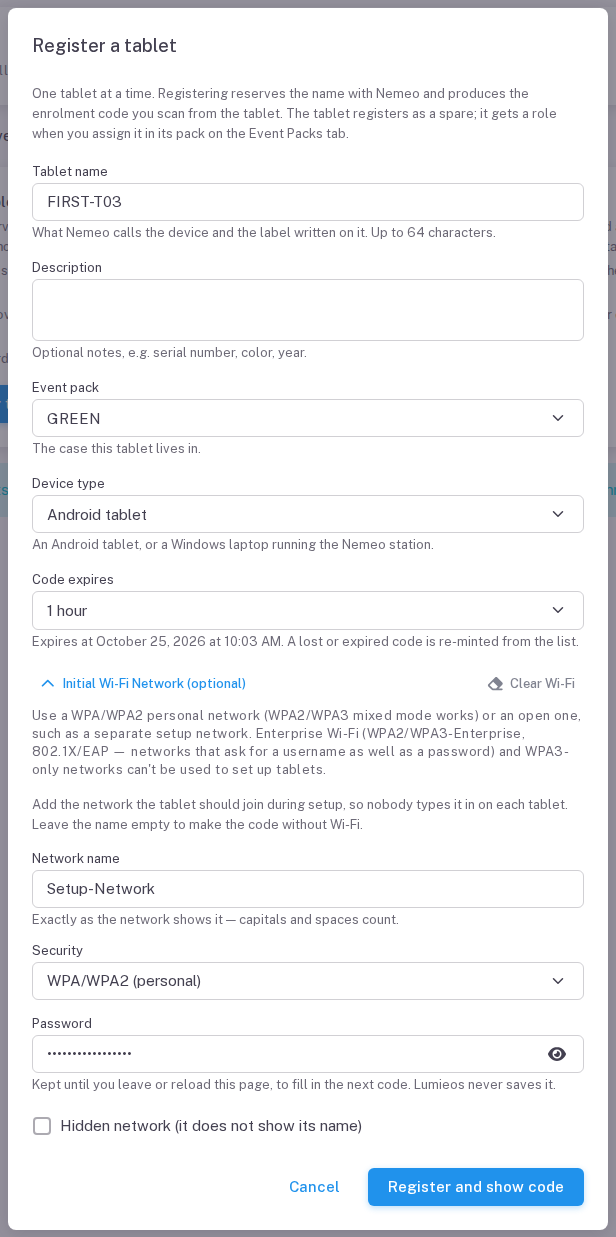
- Press Register tablet.
- Give it a name (this becomes both its Nemeo name and its label in Lumieos — worth making it something you can read off a sticker, like
FIRST07). - Optionally add a Description: a few lines of notes about the tablet, like its serial number, color or the year it was bought. It stays in Lumieos and isn’t sent to the tablet.
- Choose the event pack it will be packed into.
- Choose the Device type: Android tablet (the default) or Windows station, for a Windows laptop running Nemeo’s station app. The type is a label only: a station gets exactly the same access as a tablet in the same role.
- Choose how long the enrolment code should stay valid. One hour is the default and is right when the tablet is in front of you. Longer options (up to seven days, Nemeo’s own maximum) exist for a tablet you won’t set up straight away.
- Press Register and show code to get the QR code.
New tablets register as spares, on their pack’s spare setup. Give each one its role in its event pack (see Event Packs, below).
Title bar. Once it’s set up, a tablet’s title bar shows its pack and role, for example GREEN · Queuing, or GREEN · Spare until it has a role. That way you can tell tablets apart at a glance while setting up a crate. The title follows the tablet when its role changes or its pack is renamed, and it keeps showing the pack and role while the pack is at an event.
Initial Wi-Fi Network (optional). Both this dialog and re-issuing a code (below) have an Initial Wi-Fi Network section for the network the tablet joins while it’s being set up: enter the network name, its security — WPA/WPA2, WEP, or Open — a password, and whether it’s a hidden network. With that filled in, the tablet joins the network by itself during setup, so nobody has to type the password into each tablet. Lumieos never stores the password — it only goes into that one code — but it keeps the network name for your region, and the rest of the details for the remainder of this browser session, so you can register a whole crate of tablets in a row without re-entering them.
Use a WPA/WPA2 personal network (WPA2/WPA3 mixed mode also works) or an open network — a separate setup network is a good choice. Enterprise Wi-Fi (WPA2/WPA3-Enterprise, 802.1X/EAP — networks that ask for a username as well as a password) and WPA3-only networks can’t be used this way. If the dialog says the Wi-Fi wasn’t included in the code, that means an older Nemeo server — join the network by hand on the tablet instead, as before.
Whichever network you set tablets up on, it must let them reach nemeo.innovalda.com: that’s where they download the launcher and pair. If a firewall or content filter blocks it, setup stalls, so check this first on school or venue networks.
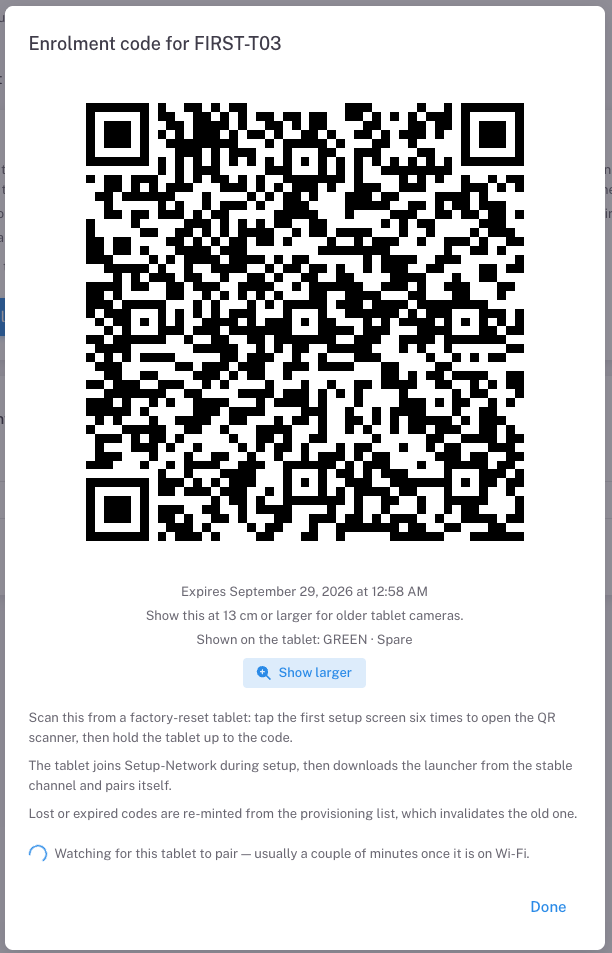
Set-up label. The tablet’s own setup screen shows what it’s for while it’s being provisioned — for example GREEN · Spare (the pack, then the tablet’s role or Spare until it has one, then the event the pack is deployed to, if any). Lumieos fills this in automatically; look for Shown on the tablet: … under the QR code. Tablets need a newer Nemeo launcher to actually display the label, but it’s included in the code either way.
Registering several tablets
For a whole crate, press Register several tablets. A wide dialog opens with the settings every tablet shares at the top: the Device type — every device in the list registers as that one type — the code expiry and the venue’s Initial Wi-Fi Network (see above). Below them is a table with one row per tablet, up to 50 rows, with a Name, a Description and a Pack for each.
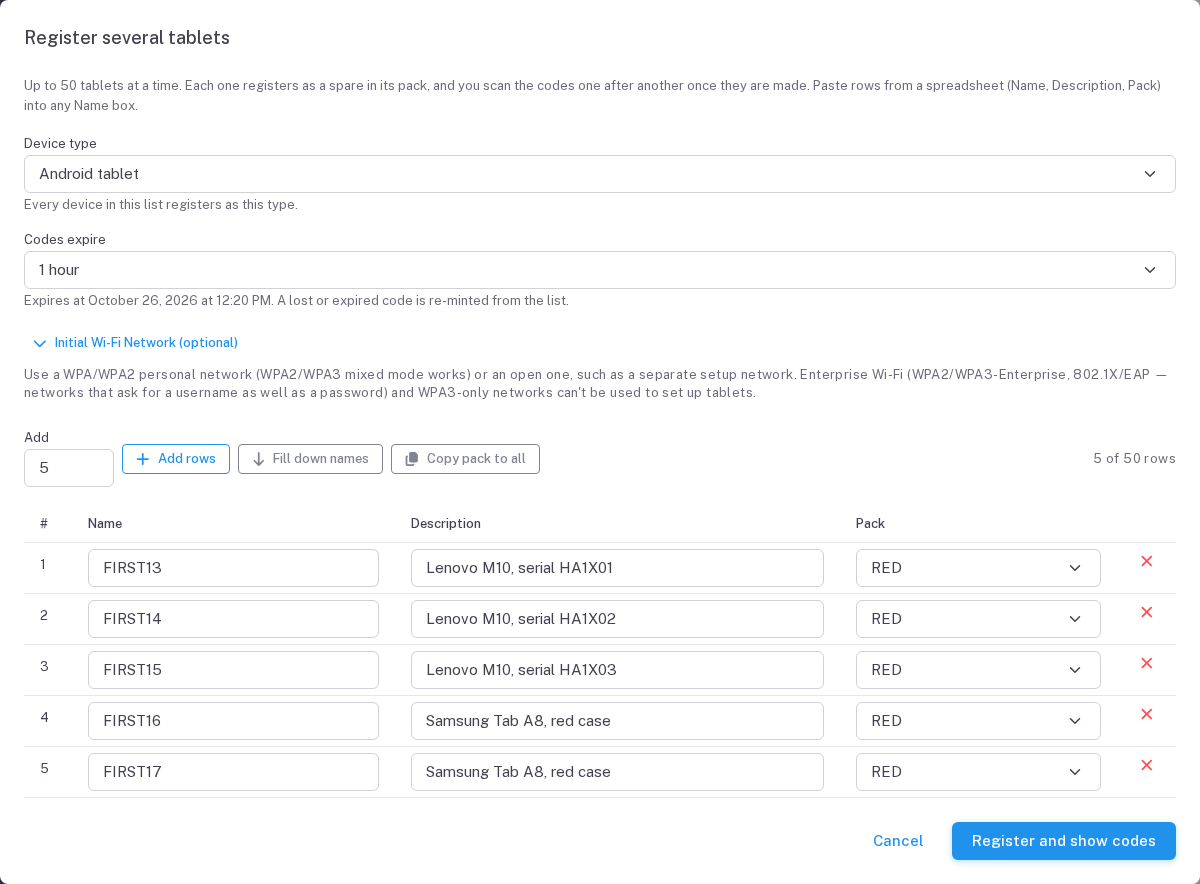
The toolbar above the table saves typing:
- Add rows — adds 1 to 10 empty rows at a time.
- Fill down names — numbers the names for you from the first one: if the first row is
FIRST13, the rows below becomeFIRST14,FIRST15and so on. - Copy pack to all — gives every row the same pack as the first.
You can also paste rows straight from a spreadsheet. Copy cells with the columns Name, Description and Pack (in that order) and paste them into a Name box. The pasted rows fill the table from the row you paste into: they replace that row and every row below it. Choose the pack by its name. Text separated by commas also works when it’s two or more lines; a single comma-separated line is pasted as plain text into the one box.
Before anything is registered, the dialog flags problems on the rows themselves:
- a name already used by a tablet in your region, or by a device in Nemeo;
- the same name twice in the list;
- a missing pack;
- a name longer than 64 characters or a description longer than 500 characters.
Press Register and show codes once the table is clean. If some rows fail, they stay in the table with their message so you can fix them and register again — the rows that worked are registered and aren’t repeated. As with a single tablet, new tablets register as spares in their pack.
Note: Each administrator can register up to 300 tablets an hour, sent in groups of 10. Registering more than that has to wait until the hour is up. Each press of Register and show codes also counts toward an hourly limit, so many small retries can reach that limit before you get to 300 tablets.
Stepping through the codes
Once the Register several tablets dialog closes, a stepper shows the enrolment codes one at a time, so you can scan each tablet in turn. The dialog closes by itself when every row has registered. After a partial run, first fix the remaining rows and register them, or remove them and press Cancel; the codes of the tablets that did register then appear. The heading tells you where you are, for example 3 of 10 · FIRST15 · expires 14:20, and Previous and Next move between codes. A list at the side shows every tablet’s state:
| State | Meaning |
|---|---|
| Waiting | The code is ready to be scanned. |
| Paired | The tablet has enrolled. |
| Code expired | The code ran out before the tablet was set up. |
| No code | The tablet registered but its code couldn’t be drawn. |
| Not in Nemeo | The tablet can’t pair as it is: Nemeo no longer has it, or its code was cancelled. See below. |
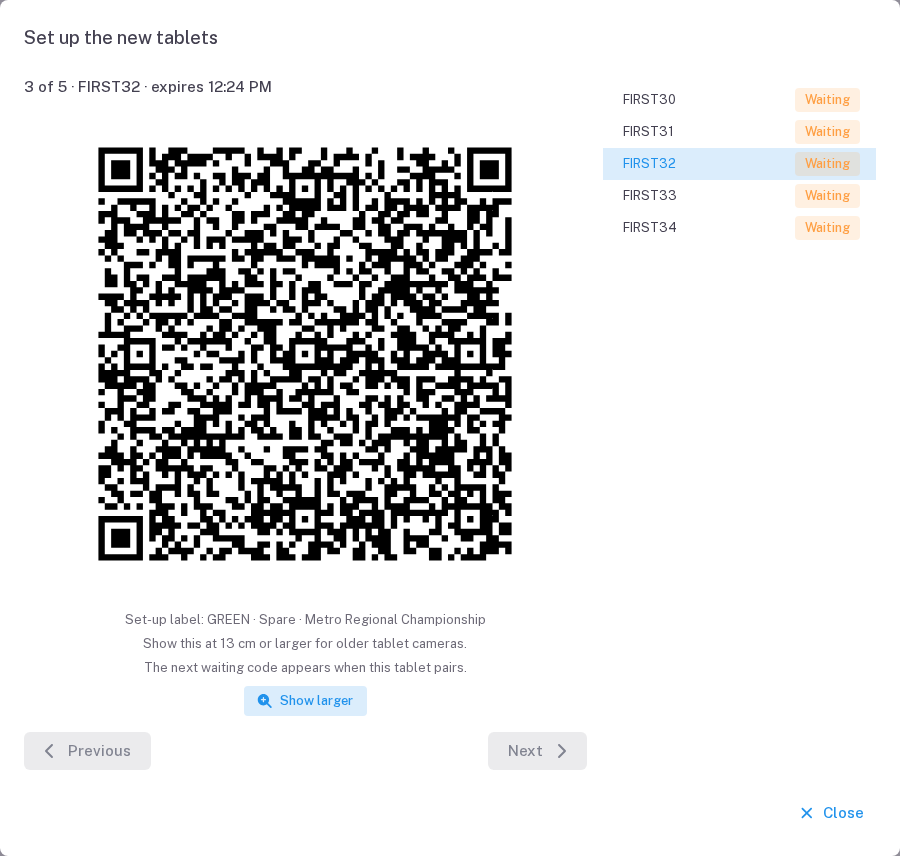
When the tablet on screen pairs, a short message announces it and the next waiting code appears on its own, so you can keep scanning without pressing anything. Use Issue new code on a row whose code has expired, or one that has no code, to get a fresh one. When every tablet is paired, the stepper says All 10 tablets are paired.
Closing the stepper doesn’t lose anything: tablets that haven’t paired yet stay in the Provisioning waiting list, ready to scan later.
For a tablet marked Not in Nemeo: if its code was cancelled, issue a new one from the waiting list. If Nemeo no longer has it, remove the tablet from its pack — open the pack’s page, then use Remove tablet in its Tablets card — and then register it again. Registering it again straight away is refused, because the tablet still holds its name until it’s removed.
Scanning the code
From a factory-reset tablet, tap the first setup screen six times to open the QR scanner, then hold the tablet up to the code on your screen — show it at 13 cm or larger so older tablet cameras can read it clearly. If the code carries an initial Wi-Fi network, the tablet joins it by itself at this point; otherwise, join a network by hand in the tablet’s setup wizard. Once it’s online, the tablet downloads the launcher and pairs itself automatically.
After scanning, Lumieos watches for the tablet to check in — this usually takes a couple of minutes once it’s on Wi-Fi. When the tablet pairs, the code dialog closes by itself and a short message tells you which tablet paired — there is no confirmation to dismiss. The dialog checks automatically for a few minutes; if nothing has paired by the time it stops, a Check again button lets you check on demand once the tablet is back online.
Note: Registrations that were never set up are removed automatically once their code has been expired for more than a day, the next time anyone registers or re-mints a tablet in the region. Codes that are still valid are never affected.
Managing codes that are waiting to be scanned
Every tablet that’s been registered but not yet paired shows up in a list below. While tablets are waiting, the list checks with Nemeo by itself about once a minute (for 10 minutes after you last registered or refreshed), so a tablet you’ve just set up leaves the list without you keeping its code open. Press Refresh to check right away; Last checked shows when it last did. Each tablet in the list has two actions:
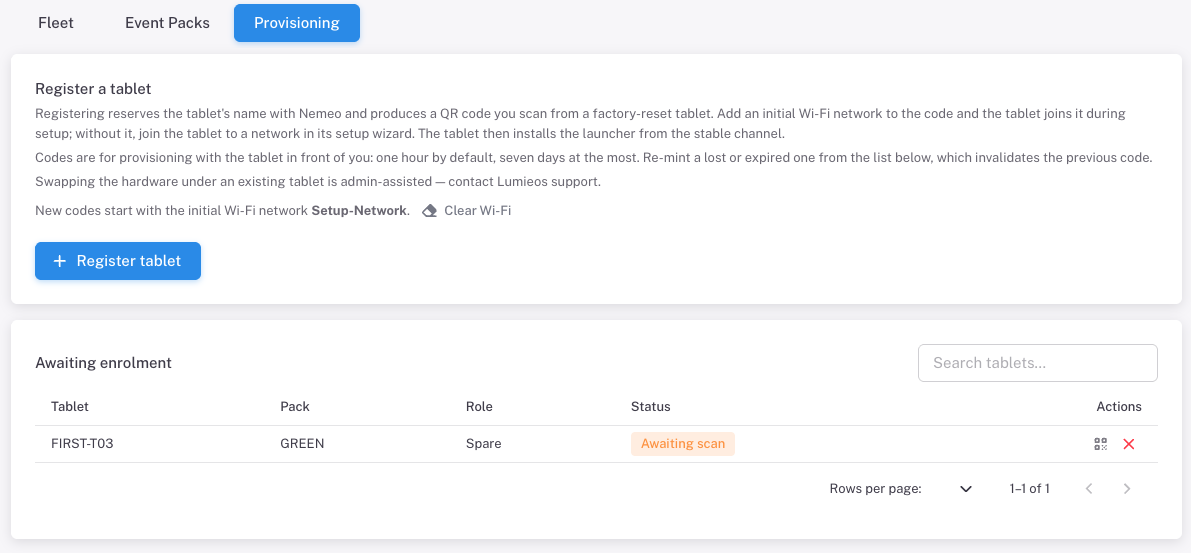
- Issue a new enrolment code (re-mint) — for a code that’s lost or expired. This invalidates the previous code for that tablet. The same Initial Wi-Fi Network section is offered here too, pre-filled with the network you last used.
- Cancel the enrolment code (revoke) — stops the code working immediately, and the tablet then shows as Expired. The tablet stays reserved in its pack and can be given a new code whenever you’re ready.
Each waiting tablet shows where its code stands:
- Awaiting scan with Code valid until … underneath — the code can still be scanned.
- Expired — the code has run out, or you cancelled it. Re-issue code is then the row’s main action.
- Awaiting scan with no time shown — Lumieos has no expiry on record, as for a tablet registered before this was tracked. Issue a new code if it doesn’t pair.
If a code has been expired for more than a day, the row adds a note: Nemeo may have removed the tablet. If re-issuing fails, remove it from its pack on the Event Packs tab and register it again. A tablet marked Not in Nemeo has no Re-issue code button, because Nemeo no longer has it; remove it from its pack and register it again.
Automatic checks
While the Provisioning tab is open and visible, Lumieos keeps checking whether waiting tablets have paired, and announces each pairing with a short message wherever you are on the tab.
- On newer Nemeo servers this happens about every 20 seconds; on older servers, about once a minute.
- Checking stops after a stretch without activity — 30 minutes on newer servers, 10 minutes on older ones. Press Refresh to start it again.
- On newer Nemeo servers, a device that has been removed from Nemeo shows as Not in Nemeo. To set it up again, remove the tablet from its pack (on the pack’s page, Remove tablet in the Tablets card), then register it again.
- Tablets whose code was cancelled are no longer watched.
Replacing a tablet’s hardware
If a tablet’s physical hardware needs replacing but you want to keep the same tablet identity (so it keeps its history and role), that’s an admin-assisted step — contact Lumieos support rather than trying to register a replacement as a new tablet.
Event Packs
Event Packs now lives under Nemeo, alongside the fleet it configures.
Packs are the cases your tablets travel in — a pack groups a set of tablets together (for example, one pack per event kit). The Event Packs tab lists them with these columns:
| Column | Meaning |
|---|---|
| Name | The pack’s name. |
| Description | Notes about the pack. |
| Tablets | How many tablets are in the pack. |
| Active | Whether the pack can be used (see below). |
| Next event | The pack’s next upcoming event, or ”—” if there isn’t one. Hover over it (or focus it with the keyboard) to see every upcoming event the pack is assigned to. |
| Actions | View opens the pack’s page, Edit changes its name and description, and Delete removes it. |
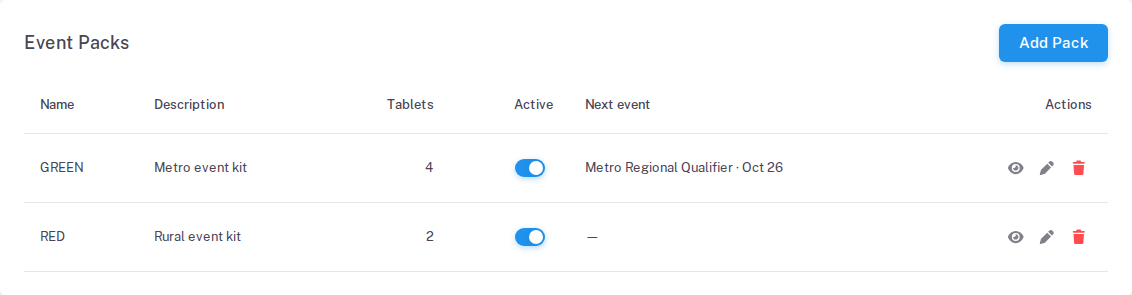
Deactivate a pack you’re not using with its Active switch rather than deleting it; a pack that has tablets, event history, or configurations tied to it can’t be deleted.
Placing packs on events
Packs belong to your region and move between events across the season, so you place them from here rather than from each event. Below the pack list, Place packs on events lists your region’s upcoming events, soonest first, with:
| Column | What it shows |
|---|---|
| Event | The event and its region. The name links to the event’s Tablets tab. |
| Date | The day it starts, in the event’s time zone. |
| Packs | The packs already on the event, or ”—”. |
| Login templates | Ready when the event’s agenda has login templates for its event-day logins. Not ready when it has none, or the event has no agenda yet; hover over the chip to see which. |
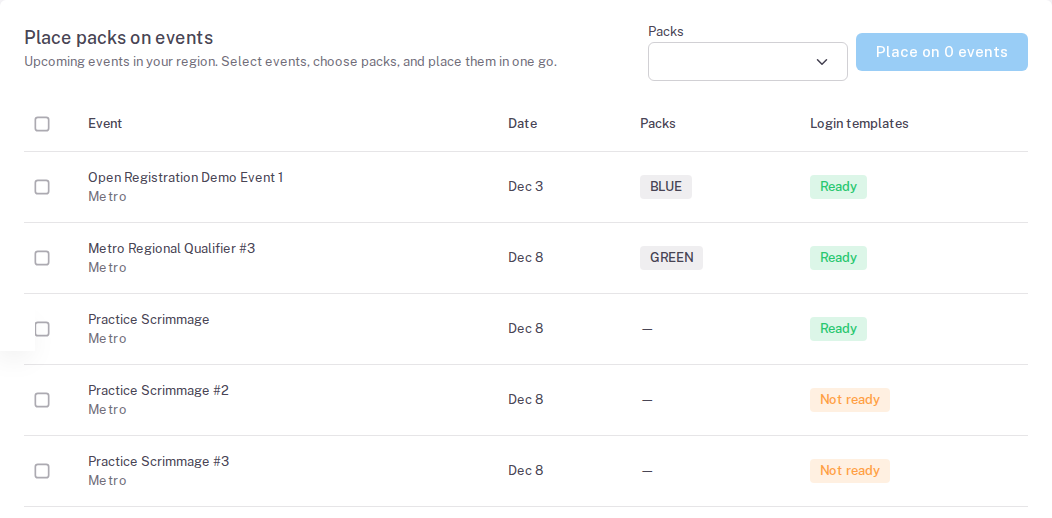
To place packs on several events at once:
- Tick the events (or the box in the header for all of them).
- Choose one or more packs in Packs. Only active packs are offered.
- Press Place on N events.
Each event and pack is placed or refused separately, and Placement results lists every one. A pack already committed to an event whose times overlap is refused, naming that event and its dates, the same as on the event’s Tablets tab. A pack that was already on the event shows Already there. The refused events stay ticked, so you can choose a different pack and place again.
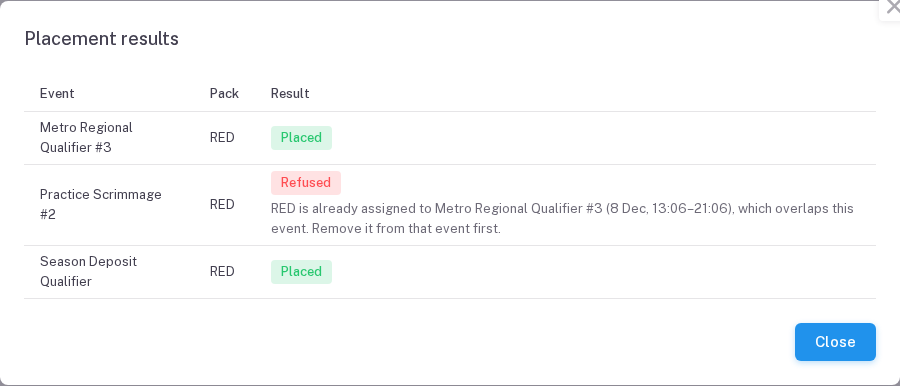
You only see, and can only place packs on, events in the regions and programs where you can manage events. Placing a pack doesn’t apply it: Lumieos applies it automatically ahead of the event, or you can press Apply on the event’s Tablets tab.
Pack page
Open a pack’s page with View on the Event Packs tab, or from the pack’s name in the Fleet.
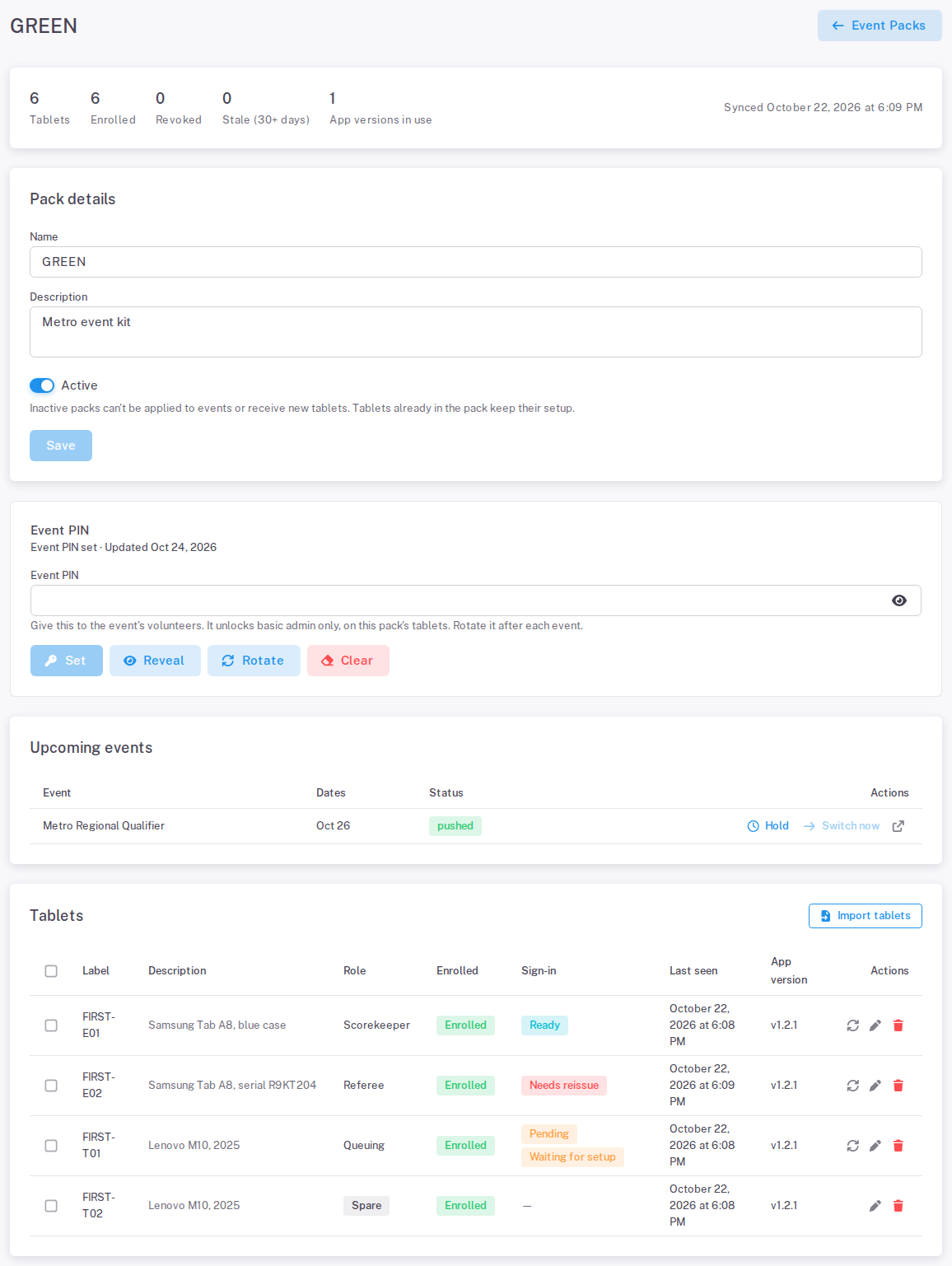
Each pack has its own page with four cards.
Info
The pack’s name, description and Active switch. Inactive packs can’t be applied to events or receive new tablets. Tablets already in the pack keep their setup.
Event PIN
Each pack can have its own event PIN. Give it to the event’s volunteers: it unlocks basic admin only, on this pack’s tablets. Rotate it after each event.
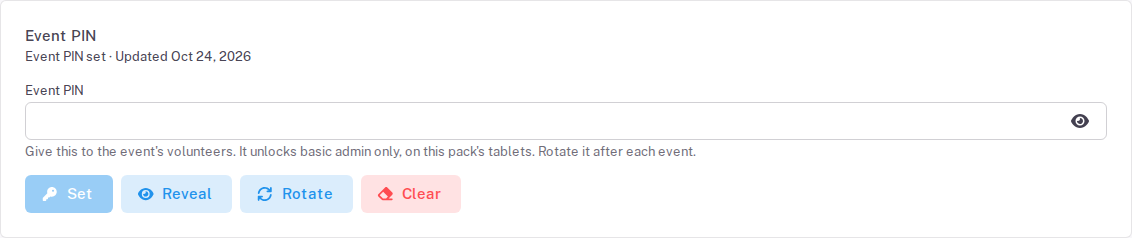
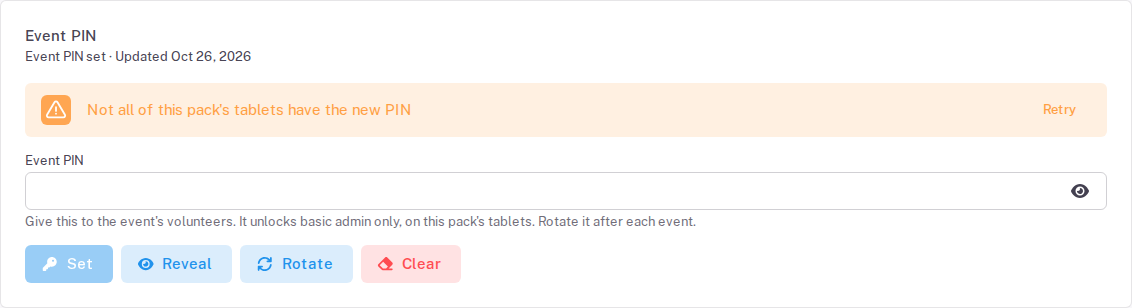
The card shows one of these states:
- No event PIN: only the org PIN works — tablets in this pack accept only the org PIN.
- Event PIN set — with the date it was last updated.
- Not all of this pack’s tablets have the new PIN — a change didn’t reach every tablet. Choose Retry to finish the job.
- The event PIN wasn’t removed from every tablet in this pack. — a clear didn’t reach every tablet. Choose Retry to finish it.
Actions:
- Set — type a 6 to 8 digit PIN. If the pack already has one, you’re asked “Replace the event PIN?” first.
- Generate — available when no PIN is set. Creates a random 6 digit PIN, shown once.
- Reveal — shows the current PIN. If it was cleared somewhere else, the card updates to say there’s no event PIN.
- Rotate — after you confirm, creates a new PIN and replaces the old one.
- Clear — after you confirm, removes the event PIN.
Tablets that join the pack later get its event PIN automatically. If a tablet joins while someone is changing the PIN, the card shows the Retry warning instead; choose Retry to finish. An event PIN can’t be the same as your org PIN.
Lumieos never stores event PINs. Only one change to a pack’s PIN can run at a time: if someone else is changing it, wait a moment and try again.
If some tablets in the pack need the latest Nemeo app, the card says how many, for example “2 tablets need the latest Nemeo app before the event PIN works.” Update those tablets before the event. Tablets that are out of service don’t count.
Upcoming events
Every upcoming event the pack is assigned to. Each event links to that event’s Tablets tab, where you can apply the pack or swap a tablet.
Tablets
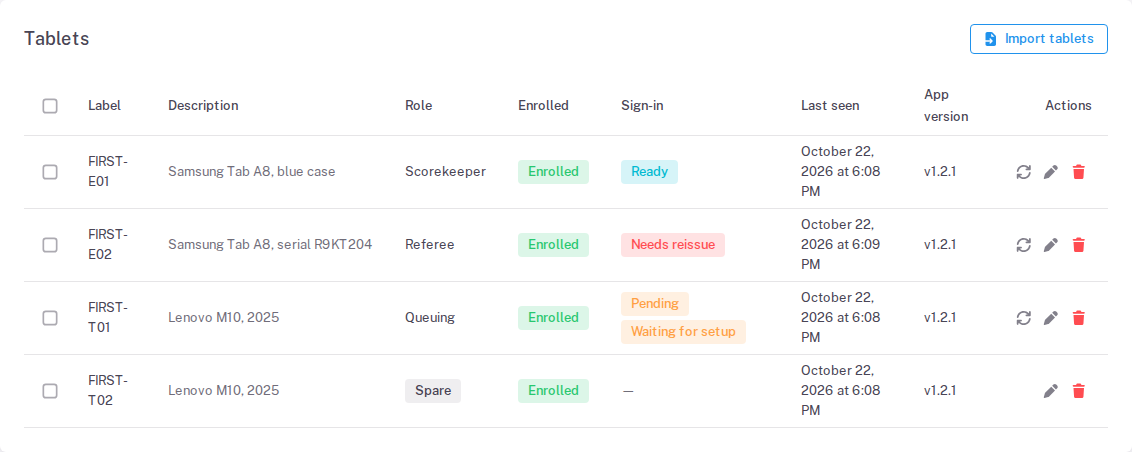
The pack’s tablets, where you can give each one a volunteer role (or leave it as a spare), take it in or out of service, edit its description, or remove it from the pack. Select several tablets to set a role or put them in or out of service in bulk. Only roles with event-day access are offered — a tablet’s role decides which event-day screens it shows.
For any tablet Nemeo knows about, each of those changes reaches Nemeo right away, not at the next Apply: a role change, or switching In service off, moves the tablet straight to the setup its new role belongs on — the pack’s spare setup for a spare or an out-of-service tablet — and removing a tablet cancels its set-up code if it was never paired, or moves it back to your organisation’s default configuration if it was, so it stops showing an event page. A tablet Nemeo never knew about is simply removed, as before. If Nemeo can’t be reached, the change isn’t made and you’ll be told why; every removal is recorded in your region’s change history.
Import tablets brings in tablets that are already enrolled in your Nemeo organisation but not yet in any pack. It is disabled for an inactive pack.
Moving tablets between packs
A tablet that joins a pack, or takes a role, while that pack is at an event gets the event’s sign-in link right away — you don’t need to apply the pack again. The confirmation when you move tablets names the event so you know what will happen. Spare tablets and tablets that are out of service never get an event link.
Sign-in links are only written within 72 hours of the event, so a tablet moved earlier than that simply moves to its role’s setup and picks up its link when the window opens.
An inactive pack refuses new tablets, whether they come from Import tablets, a single move or a bulk move.
Using a pack at an event
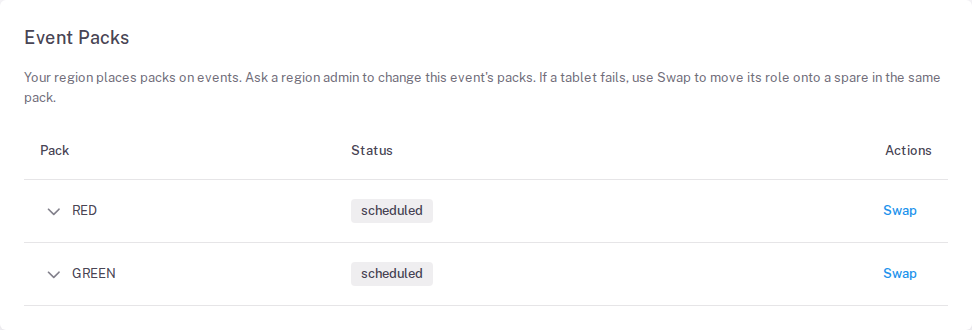
On an individual event’s management page, the Tablets tab lets you assign one of your event packs to that event, as well as apply, swap, hold and switch it. Only region admins who can manage the event’s events can change its packs. The event’s hosts see the same tab: which packs are coming and the state of their tablets. The only change they can make is Swap, for hosts with Manage Details: moving a failed tablet’s role onto a spare in the same pack. They get no Assign Pack, Apply, Hold, Switch now or remove.
A pack can only be at one event at a time: assigning or applying a pack to an event whose dates overlap another event it’s already assigned to is refused, naming the other event so you know where to remove it from first. While a pack is still deployed to an event that hasn’t ended yet, Apply for a different event is refused until that event ends — for back-to-back events, Lumieos hands the pack over to the next one automatically the moment the current event finishes, so there’s nothing you need to do.
Apply pushes the event’s setup out to every tablet in the pack that has a role — spares are left as they are until they’re swapped in. Each tablet gets its own sign-in link, so tablets open already signed in. There is no per-role login to size and no limit on how many tablets share a role. A tablet that is given a role, or moved into the pack, after the pack is deployed picks up the event’s link automatically (see Moving tablets between packs, above).
Once every one of those tablets has checked in with Nemeo since the pack’s roles last changed, the pack’s status shows Checked in — hover over it to see when. Lumieos checks about once an hour from three days before the event, so a pack that isn’t checked in yet usually just has tablets still in their crate; it isn’t an error. The check-in resets whenever the pack’s roles change — an Apply, a Swap, a tablet’s role or In service switch changing, or a new tablet registered or imported into the pack already carrying a role — and it comes back once every tablet with a role in the pack, including whichever one just moved, has checked in with Nemeo again.
If a tablet fails on the day, Swap lets you bring in a spare from the same pack once the pack has been applied. Before moving anything, Lumieos checks the replacement with Nemeo live: only a spare Nemeo reports as paired and not revoked can be swapped in. In the Swap dialog, a spare Lumieos already knows won’t work — because it’s revoked, or because it isn’t enrolled in this region’s Nemeo fleet — is greyed out with the reason; a spare that just hasn’t been confirmed as paired yet is still offered, since Lumieos checks it with Nemeo the moment you swap. If Nemeo can’t be reached to run that check, nothing is swapped. Once the replacement passes, it takes over the failed tablet’s role and the failed tablet is marked out of service so it isn’t handed out again by mistake. If the swap fails partway through, Lumieos moves the replacement tablet back to where it was so nothing is left half-changed.
Tablet sign-in
When a pack is applied to an event, each tablet with a role receives its own sign-in link, written to Nemeo within 72 hours of the event. The tablet opens Lumieos already signed in, named after the tablet (for example “FIRST07”), with the permissions of its role. Scores, check-ins and similar entries made on a tablet show which tablet made them. This attribution is hidden from team-facing score sheets and rubrics.
If a tablet loses its session, for example because its browser data was cleared, opening its link again signs it back in until the event ends. A tablet has one session at a time: opening the link signs out anyone else signed in as that tablet.
A tablet with a role always gets its link and signs in, even when the event hasn’t turned on the event-day screens its role uses. In that case the tablet’s event-day page names the screens that are off and asks the event’s host to turn them on in the event’s Event Day settings.
Separately, a tablet whose role has been switched off for your region can’t sign in: it shows “This tablet isn’t set up for an event yet”, any session it had stops working, and Reissue sign-in tells you to turn the role back on first.
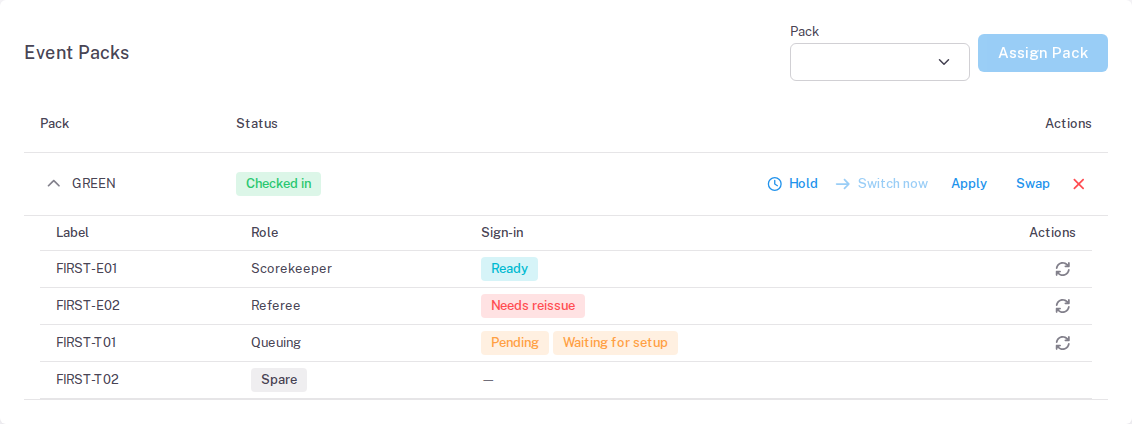
The Sign-in column on the pack page, and on the event’s Tablets tab, shows where each tablet stands:
| Chip | Meaning |
|---|---|
| Signed in | The tablet has used its link and is signed in. |
| Ready | The link is written. The tablet hasn’t opened it yet, or lost its session and will sign back in when it opens the link again. |
| Pending | The link has not been written yet, for example because the event is more than 72 hours away or Nemeo hasn’t confirmed the tablet. |
| Needs reissue | The link was used, its session is gone, and the event’s setup can’t be signed in to right now (for example, a push failed). Reissue sign-in to fix it. |
| — | The tablet gets no sign-in: it is a spare, out of service, or has no event. |
A warning icon on a chip means Nemeo reports a different link on the tablet than the one Lumieos sent. Reissue sign-in if it won’t sign in.
After any change to a tablet’s setup (an apply, a swap, a role change, a handover or the reset after an event), Lumieos checks within about a minute that the tablet picked up its new setup, and prompts it again if it hasn’t. Until it does, the tablet shows Waiting for setup beside its Sign-in chip, even if it is a spare. If the tablet goes offline after a prompt, the chip shows Offline instead. This isn’t an error: Lumieos doesn’t prompt it again while it is offline, and the tablet picks up its new setup when it reconnects. If a tablet is online but still hasn’t picked up its setup after three prompts, the chip changes to Setup not confirmed. Hover over the chip to see when Lumieos stopped. The tablet picks up its setup at its next check-in, within 15 minutes; if it doesn’t, restart it. Tablets that have been switched off or out of range for a while aren’t prompted. They pick up their setup when they next connect.
The pack page’s Tablets card above shows the same Sign-in column. The event’s Tablets tab lists every tablet in one table below the packs, with no row to open. When more than one pack is assigned, a Pack column shows which pack each tablet is in:
Reissue sign-in
If a tablet is stuck, or you think its link may have been read, use Reissue sign-in on the tablet’s row. It gives the tablet a new link, stops the old link from working, and signs out anyone currently signed in as that tablet. You’ll be asked to confirm.
- Region admins can reach it from the pack page, and event hosts from the event’s Tablets tab. It needs the same access as managing the event’s details.
- It only works for the pack’s current deployment. If the event has been handed over, or the pack is not on that event’s tablets right now, it is refused with the reason.
- On Nemeo 1.2 the tablet shows a “Next event ready” banner. Tap it, or tap Home and then Open.
To reissue several tablets at once, for example after many lose their sign-in, tick them on the event’s Tablets tab (or tick the box in the header to select every tablet that can be reissued) and press Reissue selected. You confirm once for all of them. Each tablet is handled as if you had reissued it on its own: one that can’t be reissued is skipped with the reason shown in its row, and the rest still get their new links. Tablets that weren’t reissued stay ticked so you can try them again. If Nemeo is busy, the remaining tablets are not sent and the button shows when you can try again.
Open <event name> and the end of the event
While a pack is deployed to an event, its tablets’ launcher button reads Open followed by the event’s name, and the tablet’s page names the event too. Spare tablets, and packs between events, keep Open Lumieos. Older Nemeo servers (before 1.2) keep showing Open Lumieos, and the link still works.
If you press Switch now to hand the pack over early, the tablets get the next event’s links straight away. Sessions from the previous event stay valid until that event ends. The switch can’t be undone: the previous event’s row no longer offers Apply or Swap. A tablet tapped while the switch is still being sent shows “Getting this tablet ready…” and signs in once it is done.
Sign-ins stop at the event’s end time, or later if the pack is held. For a day after the end, a tablet still uploads score sheets, rubrics and check-ins it saved before the end but couldn’t send yet, for example after a Wi-Fi drop, even if the event has been closed. Nothing else works in that time: pages don’t open or refresh, nothing new can be entered, and no one can sign in. Within about an hour and a half of the end, tablets go back to Open Lumieos. If the pack’s next event is about to take the tablets over, as with back-to-back events, they skip Open Lumieos and switch straight to that event.
Back-to-back events on one pack
When a pack is assigned to several events one after another, Lumieos switches the tablets from one event to the next for you. The switch happens when the earlier event ends. It follows that event’s end time, so if you edit the event’s times the switch moves with them. If you shorten an event so that it has already ended, the pack hands over straight away. If an edit makes two events on the same pack overlap, whichever of the two you edited, you’re warned when you save; the tablets still switch when the earlier event ends.
A switch never interrupts a page a volunteer already has open. Tablets open the next event the next time someone taps the event button on the home screen, and pages already open stay as they are.
Only a later event counts as “next”. A morning event that is still running is never treated as the next event for an afternoon one.
A late event keeps its pack
If an event is running late, its pack doesn’t move on at the end time. Just before the end, Lumieos checks whether official matches are still waiting for a score. If they are, it holds the event for 15 more minutes, as Hold would, and checks again before the new end. The tablets stay signed in and the switch waits. As soon as you Mark Event as Complete, the pack moves on to the next event. An event with no matches left hands over at its end time as usual.
While this happens, the pack’s row on the Tablets tab and its Upcoming events card say “Running late: 3 matches outstanding. The tablets stay until they are scored or the event is marked complete.” If the next event has already started, the note says so too. The pack still waits for those matches to be scored or for the late event to be marked complete. Each automatic hold is recorded in your region’s change history.
Only official matches count. A match without a score more than three hours after its scheduled start is treated as forgotten, so it doesn’t keep the tablets.
Next event ready
Tablets on Nemeo 1.2 or newer show a Next event ready banner once the pack has moved on to the next event, so the person at the tablet knows to tap through to it.
Hold
Lumieos holds an event with matches still outstanding by itself (A late event keeps its pack). For anything else that runs late, such as judging, use Hold on the event’s Tablets tab, or on the pack’s Upcoming events card. Choose +30, +60 or +90 minutes, or Until a time to pick a specific time in the event’s time zone. Hold moves the event’s end time later, so the switch waits, and it also keeps the sign-ins for that event working in the meantime.
Hold changes the end time of the whole event, not just this pack: every pack on the event waits for the new end, and volunteers’ sign-ins for the event keep working until then.
- An event host can hold until at most 12 hours from now.
- A region admin can hold up to 12 hours past the event’s current end.
- If you host this event but not the pack’s next event, you can’t hold past the next event’s start. A region admin, or someone who manages both events, can.
Each hold is recorded in your region’s change history. If the new end time overlaps the next event, you are warned, but the hold still goes ahead.
Hold works only before the end time. If the end time has already passed, a region admin can move it later on the event’s edit page instead. The pack then comes back to this event and its tablets sign in again by themselves within a few minutes, while the next event waits for the new end. This doesn’t work for an event marked complete, or when the pack’s next event starts before the new end; the edit says so and the pack stays where it is.
Switch now
If the current event is finished early, use Switch now to hand the pack to the next event immediately. You are asked to confirm first.
- Switch now needs a region admin, or someone who manages both events. Anyone else sees “Only a region admin, or someone who manages both events, can switch now. Tablets switch when the current event ends.”
- It is only available while there is a later event to switch to; otherwise the button is disabled.
- It does not end or close the current event, and it does not change its end time. It only moves the tablets. Volunteers’ sign-ins for the current event keep working until that event ends.
- If the tablets can’t be moved straight away, you see a notice that the switch was requested but not completed. That counts as the first attempt: Lumieos tries up to twice more on its hourly check, or you can press Apply on the next event’s Tablets tab to try straight away.
When Hold and Switch now are available
Hold and Switch now appear only while the event is running: from its start time until its end time. A pack sent to its tablets ahead of an event that hasn’t started yet doesn’t show them. Once the event’s end time has passed, they’re gone too; if the event is still going on, ask a region admin to change its end time.