Event Day Consoles
For: Judge Advisors, Event Organizers
Needs attention column
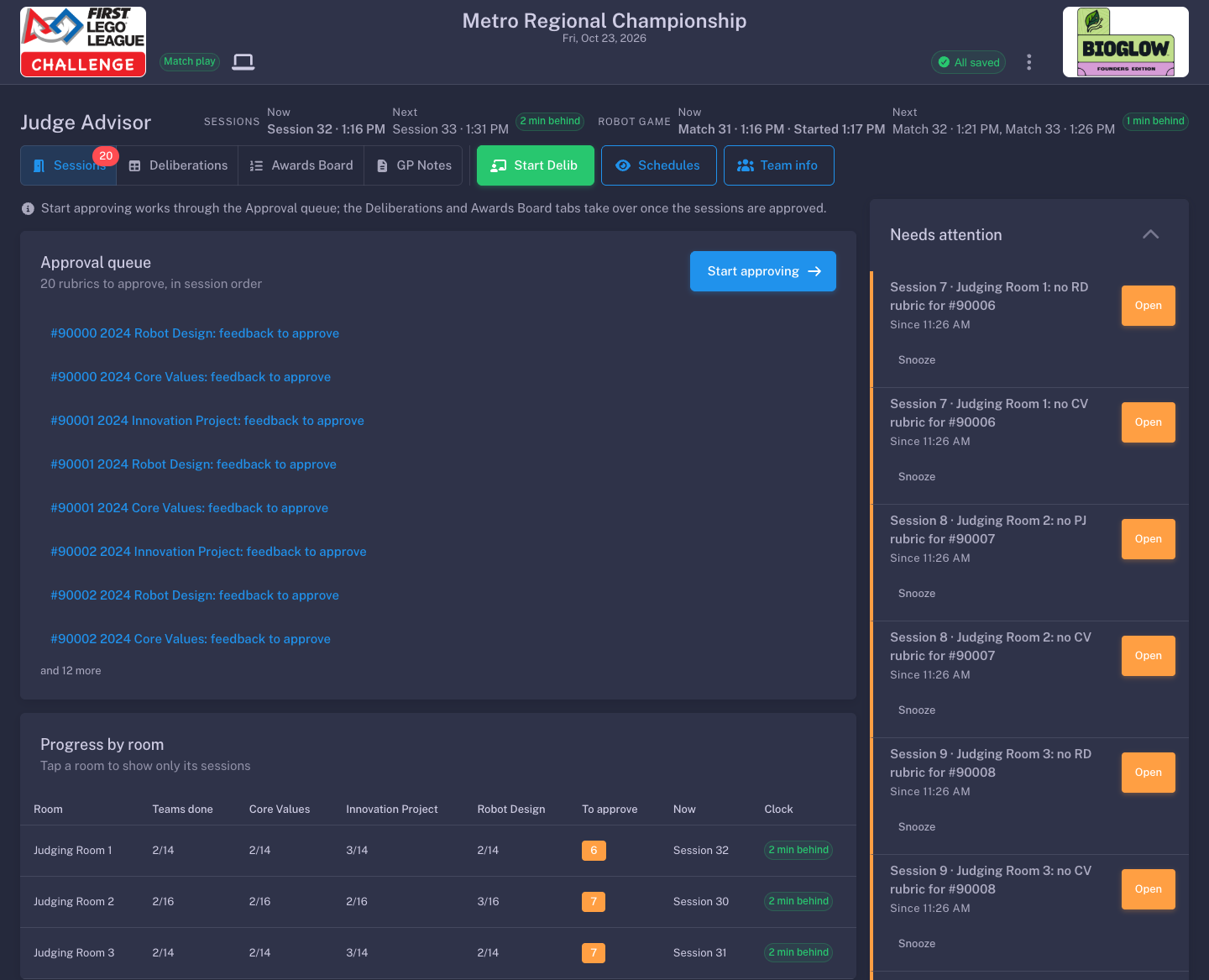
Every console lists what needs attention in a column beside its main panes. On a laptop, hide the column with the chevron on its card. A Needs attention button in the header, showing the count, brings it back. Each console remembers the choice on that computer.
Judge advisor
On the event-day page, judging has three tiles: Judging, Judge Advisor (formerly Sessions) and Digital Scripts.
The Judge Advisor console switches between Sessions, Deliberations, Awards Board and GP Notes from the switch at the front of its header actions. The view you choose replaces the whole page. A badge on Sessions counts the rubrics waiting for approval. The attention column hides itself on Deliberations, Awards Board and GP Notes and comes back on Sessions.
Sessions holds the approval queue, room progress and the session list:
- Approval queue: judge advisors and their helpers share one queue. Each rubric shows who has it open, so two people do not approve the same one.
- Score summary in the approval queue: each rubric shows how many 4s, 3s, 2s and 1s it has, how many scores are non-standard (anything other than 3, Accomplished), its average, and its total out of the maximum. A totals row covers the whole queue. Rubrics with a 4 carry a green up arrow and come first. Sort by offers 4s first (the default), most 2s, most non-standard scores, session order, or one rubric criterion. The choice stays while you work, and Start approving and Next follow it. Reviewing rubrics and rubrics with no scored criteria have no summary.
- Progress by room: every judging room shows how many rubrics are done, by rubric type.
- Late rooms: rooms running behind schedule are marked.
- Session timers: each session lists the rooms where a judge has started its timer. Restart timer makes it count from now, and Cancel timer puts the session back to Not started so a judge can press Start again. Both ask first, change only that room’s session, and show on every judge device in the room. Each one goes on the change log with who did it.
- No Show rulings for sessions: rule a team’s judging session a No Show, or clear the flag if the team is not a no-show.
- A rubric’s history: open its History button, in the approval stepper or on the session list.
Advancing Teams appears only when the event’s level has a Next Level set. It is then linked from the console header, and advancing teams are chosen in the Deliberations table itself: each row’s Adv/Waitlist column has Advance and Waitlist buttons, and a waitlisted team takes a place number. The bar above the table shows how many teams are advancing out of the number allowed. Advance is unavailable once that number is reached. Choices are kept until you press Save advancing (or Discard). Judges see the column but cannot change it. If the level has a Next Level but the region has not set how many teams advance, the bar says advancement is not set up and the column stays read-only. At an event that does not advance teams, there are no buttons or bar: the Adv/Waitlist column shows only dashes, and the Advancement page, if opened directly, says the event does not advance teams to a next level.
Digital Scripts opens from its own tile on the event-day page.
Ops
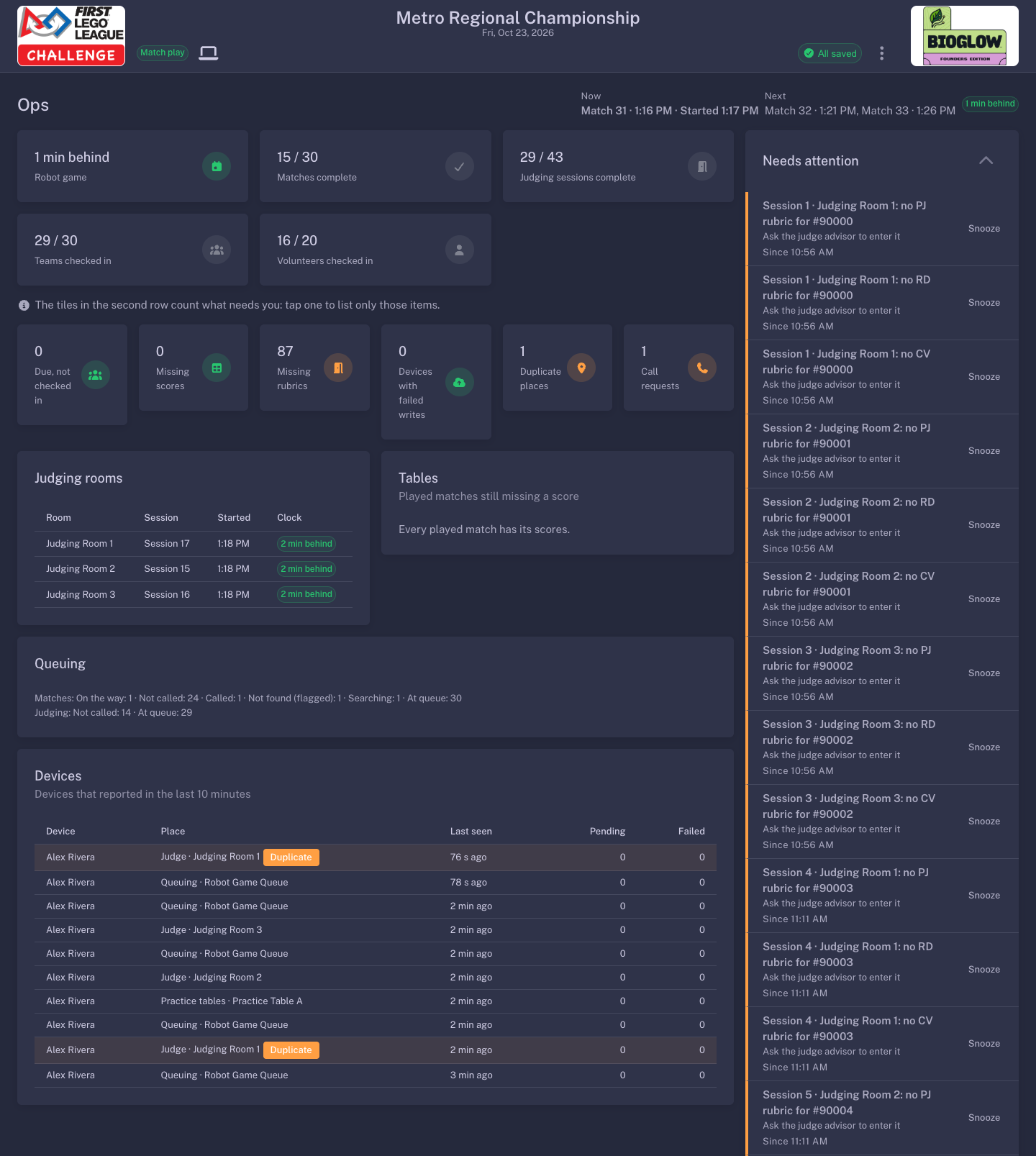
- Clock: shows whether matches and judging rooms run ahead of or behind the schedule.
- Attention tiles: the problems to fix, grouped by kind. A match counts as complete only when every team in it has a score or was ruled a No Show.
- Missing scores and rubrics: while the event runs, these items say who to ask, “Ask the scorekeeper to enter it” or “Ask the judge advisor to enter it”, instead of linking to the entry pages. Once the event is complete, the links return so you can finish up.
- Devices: the devices that reported in the last 10 minutes, with a Duplicate chip when two devices share a place.
- Volunteers by role: how many volunteers in each assigned role have checked in, for example “Queuing: 3/4 checked in”. A volunteer with two roles counts under both.
- Recent activity: today’s activity as the pit display shows it. A match start or judging session start recorded by mistake can be cancelled with Cancel, one at a time, during the event, including after match play starts. A cancelled match start leaves the feed and the displays; if it was the match on the field, the consoles go back to the match started before it. A cancelled judging session start puts that room’s session back to Not started, as when the judge advisor cancels its timer. Scores, agenda items and practice slots cannot be cancelled here. Shown to people with Manage Details on the event, and each cancel is recorded in the change log.
The page updates by itself when a score, rubric or check-in is saved. The pill above the tiles says how it is doing: Connecting… while the page connects or briefly reconnects, Live while updates are arriving, or Live updates off when the connection has stayed down. While it is off, the page keeps reconnecting and refreshes every 30 seconds, so the numbers can be up to 30 seconds old.
Device status
The Device status page shows the connection, the signed-in person, and any scores waiting to send or refused on this device.