Coordinator: Managing Volunteers
For: Volunteer Coordinators
This page covers how to use Lumieos to review volunteer applications, assign volunteers to roles, and manage the volunteer roster for your events.
Accessing volunteer management
Volunteer management tools are available inside Event Management for each event. Navigate to Events → [Your Event] → Manage → Volunteers to access the coordinator view.
The Volunteers section has two tabs:
- Overview — A full list of all applicants and a role fill summary grid.
- Assignments — A detailed role-by-role assignment view with tools to assign volunteers.
Overview tab
The Overview tab gives you a consolidated view of everyone who has applied to volunteer at your event.
Volunteer list table
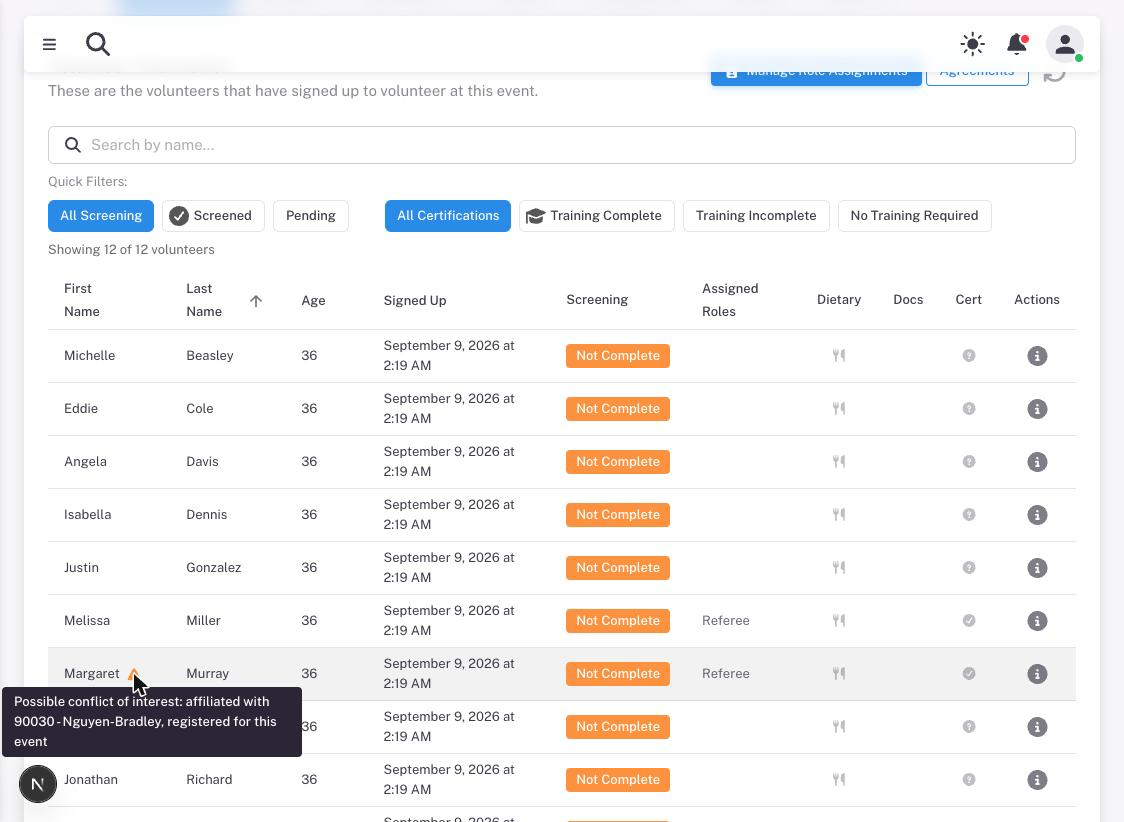
The volunteer list shows all registrations for the event in a searchable, filterable table. Columns include:
| Column | Description |
|---|---|
| First Name / Last Name | Volunteer’s name |
| Age | Volunteer’s age (if on file) |
| Screening | Background check status (see below) |
| Assigned Roles | The role(s) the volunteer has been assigned to |
| Dietary | Indicates whether the volunteer has dietary restrictions on file (hover to see details) |
| Cert | Training completion icon for the volunteer’s assigned role |
Searching and filtering
Use the search bar to find volunteers by name or email address. Quick filter chips let you narrow the list by screening status or training completion:
Screening filters:
- All Screening
- Screened (background check confirmed)
- Pending (check in progress)
- Error (issue with the screening record)
Training filters:
- All Certifications
- Training Complete
- Training Incomplete
- No Training Required
Click Clear Filters to reset all active filters.
Viewing volunteer details
Click the info icon in the Actions column to open the Volunteer Details dialog. This shows:
- Personal information (name, email, age, dietary restrictions)
- Screening status
- Required certifications and completion status for each
- Event volunteering history (past events and roles)
Conflict-of-interest warnings
An amber warning triangle next to a volunteer’s name means they are connected to a team competing at this event. Hover it for the detail.
A conflict is raised when a team the volunteer picked from your region’s team list is registered for this event and has not withdrawn. Teams typed in as free text, and teams picked from the global FIRST directory, never raise one — only a real team in your region that is actually competing here.
What the tooltip says depends on your permissions:
- With Volunteers — PII for the season (and your region’s PII prerequisites met): “Possible conflict of interest: affiliated with 1234 - Team Name, registered for this event”
- Without it: “Possible conflict of interest: affiliated with a team registered for this event”
The warning itself is never hidden. Every coordinator who can see the volunteer list sees it; only the team’s name is withheld. You will always know a conflict exists even when you are not cleared to see which team.
Important: The warning appears only on this Overview list. It is not shown in the Volunteer Details dialog, and it is not shown on the Assignments tab or in the Role Assignment dialog. If you assign roles without coming back here first, you will not see it. Check Overview before assigning judges or referees.
A conflict is information, not a block. Nothing stops you assigning someone — the decision is yours, and for most roles a connection to a competing team does not matter. It matters for judging and refereeing.
Role fill summary
Below the volunteer list, a grid of role cards shows how many volunteers are assigned to each role relative to how many are needed. Each card displays:
- Role name and type
- Filled / needed count (color-coded: red = no one assigned, yellow = understaffed, green = fully staffed)
- Names of currently assigned volunteers (up to three, with a count of additional volunteers)
The Overview tab shows up to three assigned names per role. For the full assignment view, use the Assignments tab.
Which roles an event offers
Volunteers can only sign up for roles that come from the event’s volunteer role template, so an event with no template assigned shows applicants nothing to select.
Templates are managed by a region admin under Region Management › Volunteers › Role Templates, and assigned to an event when the event is created or edited. If this card is empty, ask your region admin to assign a template to the event.
Assignments tab
The Assignments tab shows the same role grid in expanded form, with an Assign button on every role card. This is where you do the actual assignment work.
Assigning volunteers to a role
Click the Assign button on a role card to open the Role Assignment dialog for that role. The dialog has two sections: Available Volunteers and Assigned Volunteers.
Available volunteers
The available list is collapsed by default. Click the expand arrow to show it. Use the filter buttons to control which volunteers appear:
| Filter | Shows |
|---|---|
| Show Role | Volunteers who selected this role as a preference (default) |
| Show Unassigned | Volunteers not yet assigned to any role |
| Show Assigned | Volunteers already assigned to a different role |
| Show All | All of the above combined |
Select volunteers using the checkboxes, then click Assign Selected to move them to the assigned list. To assign everyone currently shown in the filtered list at once, click Assign All Filtered.
Assigned volunteers
The assigned section shows everyone currently set for this role. For each assigned volunteer you can:
- Set an Assigned Time — Enter a specific time slot (for example, “9:00 AM - 12:00 PM”) or leave blank to indicate “All Day.”
- Remove a volunteer from the role using the trash icon.
Bulk operations: Select multiple assigned volunteers using the checkboxes. A bulk actions bar appears that lets you set the same time for all selected volunteers at once, or remove all selected volunteers from the role.
Saving assignments
Changes in the Role Assignment dialog are not saved until you click Save Assignments at the bottom of the dialog. When you save:
- Volunteers newly assigned to the role receive an in-app notification confirming their assignment (and see it in their email digest if enabled).
- Volunteers whose assigned time was changed since the last save receive a notification of the updated time.
Assignments use an optimistic version check to prevent two coordinators from overwriting each other’s changes simultaneously. If a conflict is detected, you will see an error and will need to reload and reapply your changes.
Volunteer statuses explained
When reviewing the volunteer list, you may see these application statuses:
| Status | Meaning |
|---|---|
| Application Pending | The volunteer applied but has not been confirmed for the event yet. |
| Accepted - Pending Role | The volunteer is confirmed for the event but not yet assigned to a role. |
| Assigned | The volunteer is confirmed and has at least one assigned role. |
| Cancelled | The volunteer cancelled their application. |
Volunteers with status “Application Pending” have not been confirmed for the event. You can confirm them by assigning them to a role (which will change their status to Assigned) or by using the bulk assignment feature to accept them to the event first.
Screening status reference
The Screening column in the volunteer list uses these status values:
| Status | Meaning |
|---|---|
| Screened | Background check is confirmed. The volunteer is cleared. |
| Initial | No data received from VMS yet. |
| Pending | Forms are submitted and being processed. |
| Waiting | Waiting for additional forms or verification. |
| Waiting District | Waiting for confirmation that the volunteer is a school district employee. |
| Waiting VMS | The VMS application was received; screening is in progress. |
| Review | Requires manual review by a director. |
| Error | There is a problem with the volunteer’s screening record. Contact them or your regional administrator. |
Volunteers exempt from screening (minors, existing screened coaches) will show as Screened.
Automatic chat rooms
If your partner organization has configured automatic chat room rules, Lumieos will create a group chat room for certain role combinations automatically when volunteers are assigned. For example, a rule could create a “Referee Team” room whenever a head referee and two referees are assigned to the same event.
Volunteers added to these rooms receive a notification. Chat rooms are available from the Conversations section of Lumieos.
Tips for coordinators
- Use the Reload button (or press Ctrl+R / Cmd+R) on the volunteer list to refresh the data without reloading the entire page.
- The Show Role filter in the assignment dialog is usually the most useful starting point — it shows volunteers who specifically requested that role and are not yet assigned.
- Check the Dietary column in the list before event day to ensure volunteers with restrictions are accommodated at lunch or snack time.
- If a volunteer cancels after being assigned and their cancellation drops a role below minimum staffing, you will receive a critical priority notification alerting you to find a replacement.