Activities & Add-Ons
For: Coaches, Team Admins
Beyond registering for an event, there are two other things your team may be able to sign up for. They sound similar but work completely differently:
| Activities | Add-Ons | |
|---|---|---|
| What it is | A timed slot you book — practice table time, a tour, a lunch collection slot | Something you buy — lunch pre-orders, extra medals, t-shirts |
| Cost | Free | Costs money, always on its own invoice |
| Limited by | Capacity per slot, and a cap on how many slots you may hold | Quantity limits per item |
| Deadline | Its own open and close times, set per activity | On sale until the event is over |
Both appear as alerts on your event’s card in the team Events tab.
Activities
Finding them
When an event has activities you can book, an alert appears on that event’s card:
- Activity Registration Available (green) — booking is open now.
- Activity Registration Opening Soon (amber) — it is not open yet. The alert lists each activity with the date it opens.

When anything is open, an Open Activity Registration button takes you to the booking page.
Booking a slot
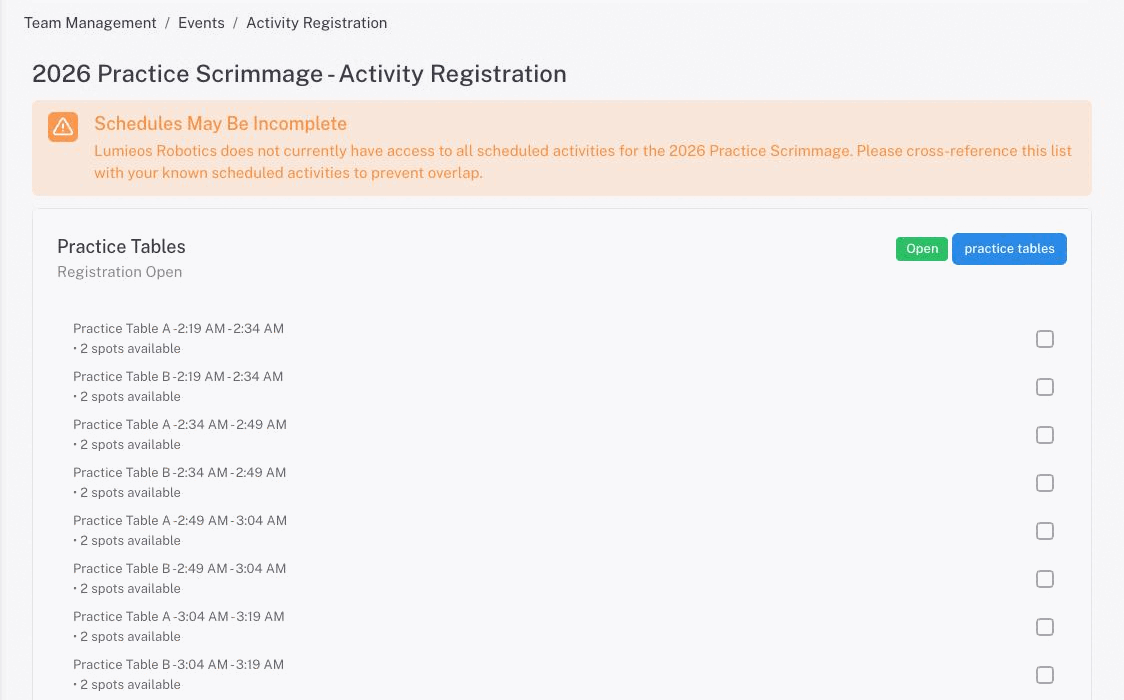
Each activity lists its available sessions with the location, the time range, and how many places are left — either {N} spots available or Full. Tick the sessions you want, then use Submit Registration Request in the bar at the bottom.
Note: Times are shown in the event’s timezone. If your computer is set to a different timezone, a notice on the page says so — read the times as local to the event, not local to you.
A checkbox you cannot tick always explains itself on hover. The reasons are:
| Tooltip | What it means |
|---|---|
| Time conflict with scheduled activity | The session overlaps something you have already booked, or a match or judging session on your team’s schedule |
| Session is full | Every place is taken |
| Session time has passed | On event day you can only book sessions still to come |
| You may hold up to N {activity} sessions | A cap on how many upcoming sessions you can hold at once for that activity |
| You can only select N {activity} slots in advance | A cap on how many you may book ahead of the event |
If your team’s match and judging schedule has been published, the booking page overlays it, so required commitments show alongside the slots and cannot be double-booked.
Once you tick anything, a bar appears at the bottom with the count, a Clear button and Submit Registration Request.

Tip: Watch for the amber Close Timing Between Activities warning. It appears when two things you have booked are less than 15 minutes apart and names the gap. It does not stop you — it is there so you can decide whether you can actually get across the venue in time.
Changing or cancelling
While an activity’s booking window is still open, an existing booking has a trash icon. Clicking it asks “Are you sure you want to cancel this activity registration? This action cannot be undone.” and frees the place for another team.
Once the window closes, your bookings become read-only. They still show, marked Registered, but the trash icon is gone and no new sessions are offered.
If something goes wrong
Submission is immediate rather than queued, so you find out straight away:
- “Registration requests submitted successfully!” — everything went through.
- “Some registrations failed: …” — part of it did not. The message names the reason, usually that a session filled up between loading the page and submitting. Your successful bookings are kept; re-pick the ones that failed.
Add-Ons
Finding them
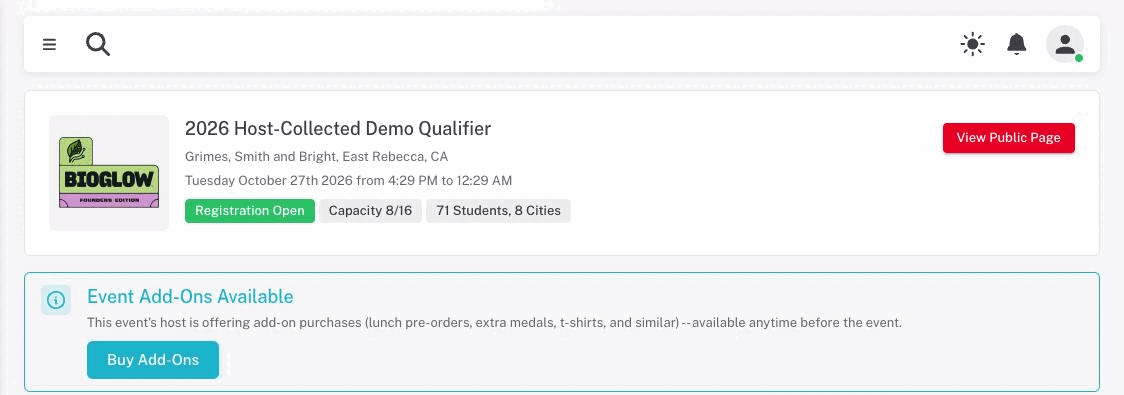
An event card shows an Event Add-Ons Available or Region Add-Ons Available alert when extras are on sale. The difference is who is selling:
- Event add-ons come from the event’s own host — “available anytime before the event”.
- Region add-ons come from your region — “available anytime after registering”.
Buy Add-Ons opens the purchase dialog. You can also reach every event’s add-ons from the Add-Ons tab on the Payments page.
Buying
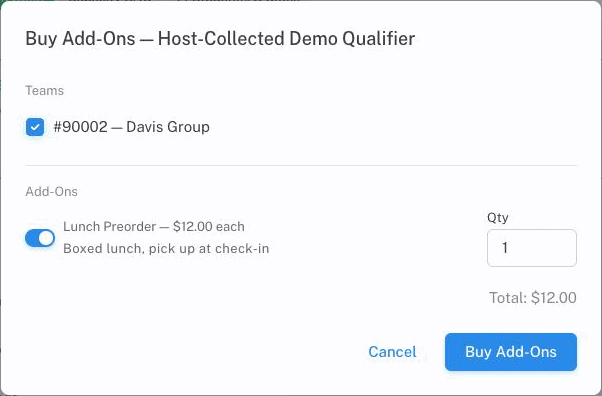
The dialog lists your teams registered for that event, pre-ticked, and the items on offer with a quantity for each.
Two things catch people out:
- The total is per team. Whatever you select is bought once for each team you have ticked, so two teams and three medals is six medals.
- A team that is not in Good status cannot be included. It shows a red Not Good chip with its checkbox disabled. Fix the team’s status first — see Team Status & Compliance.
Clicking Buy Add-Ons creates an invoice and takes you to it. Nothing is paid from the dialog itself.
Note: Add-ons never join your registration invoice — they always get their own. Host add-ons and region add-ons cannot be combined either; if an event offers both, buy them separately. Trying to mix them is refused with “Add-ons collected by the event host and by the region cannot be purchased together.”
Changing or cancelling
There is no edit or cancel in the add-on dialog. Once the invoice exists, manage it like any other — see Invoices & Receipts. If you need to change what you ordered after paying, contact the event host or your region.
Messages you might see
| Message | What to do |
|---|---|
| This event is no longer accepting add-on purchases. | The event has finished or been cancelled. |
| Team #N is not registered for this event. | Register the team for the event first. |
| Team #N must be in Good status to purchase add-ons. | Clear the team’s outstanding requirements. |
| Quantity for ”…” must be N-M for team #N. | Adjust the quantity into the allowed range. |
| This event’s host isn’t accepting payments yet. | The host has not finished their payment setup. Try later or contact them. |