Event Day: Check-In, Queuing, Practice Tables and Judging
For: Team check-in and volunteer check-in volunteers, Queuers, Pit admins at the practice tables, Judges
These pages are built for a tablet or a phone at one station. The status line, offline behaviour and “tap Home” rules are the same on every station: see Event-Day Quick Cards. Each station refreshes itself, so never reload the page. The header at the top is the same on every event-day page: see the header.
Under the header of every station, Now and Next show what is running and what comes after it. When the schedule is running late or early, it says by how much (for example 4 min behind). Times may be off means the device has not heard the live schedule for a couple of minutes, so times come from the printed schedule.
Picking your place
The queuing, practice tables and judge stations work for one place: a queuing zone, a practice area or a judging room. The first time you open the station, it asks which one (Which judging room is this?). Tap yours. The device remembers it, even after a reload. To change it, tap the place name under the header.
If another device is set to the same practice area, a warning names it: Another device is also set to …. Check which one is right and change the other. Judging rooms and queuing zones never warn, because every judge in a room has a laptop and several queuers often share a zone.
Team check-in
The team check-in desk lists every team at the event behind a search field. Above the list, counts show the teams Checked in and Still expected. A Not attending count appears once a team is marked not attending.
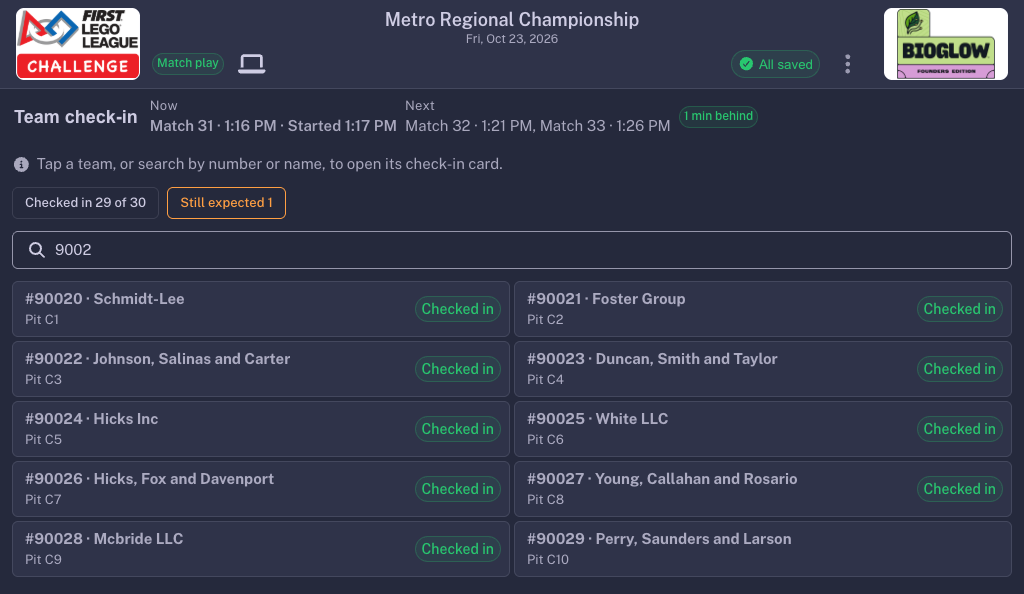
- Find the team: type its number or name in the search field (typing 12 lists 12, 120 and 123) and tap its row. If no team matches, check the number with the coach. Each row shows the team’s status: Checked in, Not attending, Not paid, or nothing while the team is still expected and clear to check in.
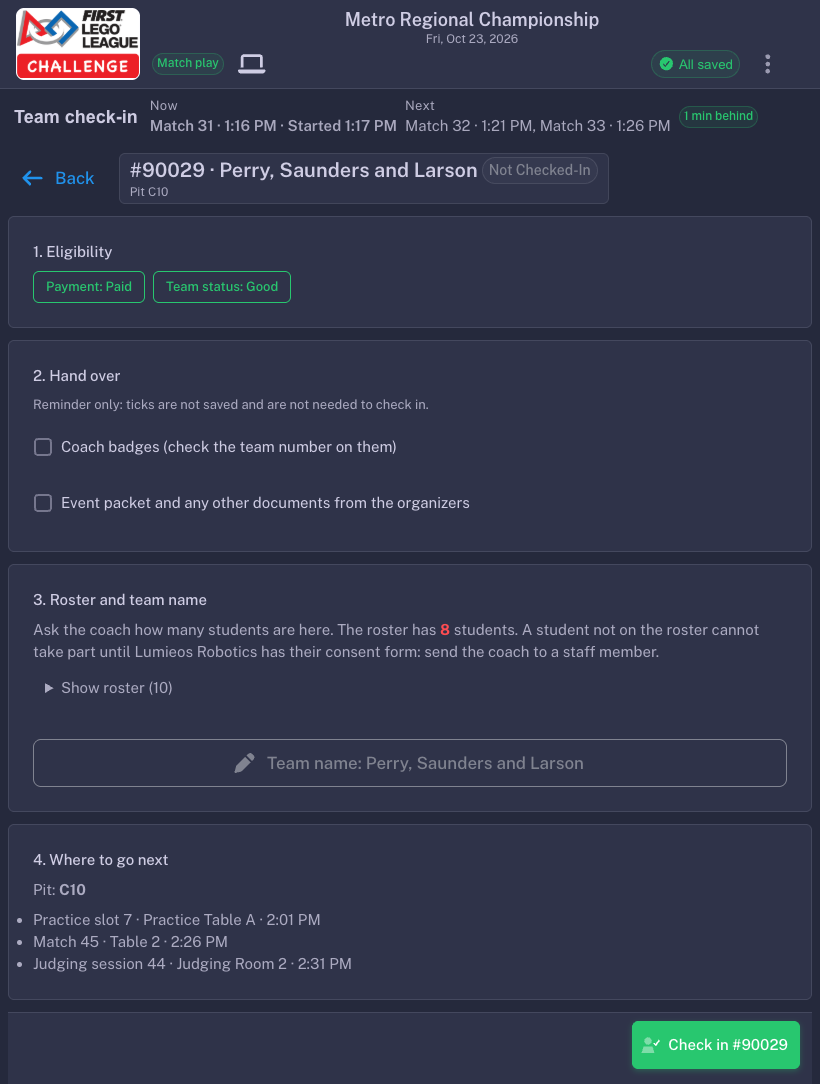
- The team’s card opens with four steps:
- 1. Eligibility: the payment and team status. If the team cannot check in yet, the reason is shown and Check in stays off. Not paid is settled at the staff desk: send the coach there. A team blocked on its team status also has Send to staff, which tells event staff the team and the reason.
- 2. Hand over: a reminder list of coach badges, medals (when the event hands them out here) and the event packet. The ticks are not saved and are not needed to check in.
- 3. Roster and team name: ask the coach how many students are here; the roster count is shown in red, and Show roster lists everyone on the team by role, coaches included. A student not on the roster cannot take part until the organizer has their consent form: send the coach to a staff member. Tap the team name to correct it before you check the team in.
- 4. Where to go next: the team’s pit, and its first practice-table slot, judging session and match that have not ended yet, soonest first, each with the place and time. Tell the coach where to go first.
- Tap Check in #… at the bottom.
Undo: after a check-in, the team’s row shows an Undo button for one minute on the device that checked it in. After that, only event staff can undo a check-in.
Before the event day teams cannot be checked in; the station says so.
After check-in: once the event moves past the check-in phase, volunteers at the desk see only Check-in complete! instead of the list. Event staff still see the list.
Event staff on the check-in station
Event staff see more on the card:
- Pit location: type the team’s pit and tap Save pit. Leave it empty to clear it. Pits can also come in with the schedule: see Pit Locations in the schedule CSV format.
- No show: marks the team as not attending, after a confirmation. This hides the team from all event-day activities and cancels its practice-table bookings. Undo no-show adds the team back; practice slots have to be booked again.
- Undo check-in: at any time, after a confirmation.
- A blocked team: fix the payment in the team’s event registration, or the status in its team record. The card updates within 15 seconds once it is fixed.
Volunteer check-in
The volunteer check-in desk is built for a phone. Each role’s arrivals are counted at the top (for example Referee 3/5); a role turns green once everyone has arrived.
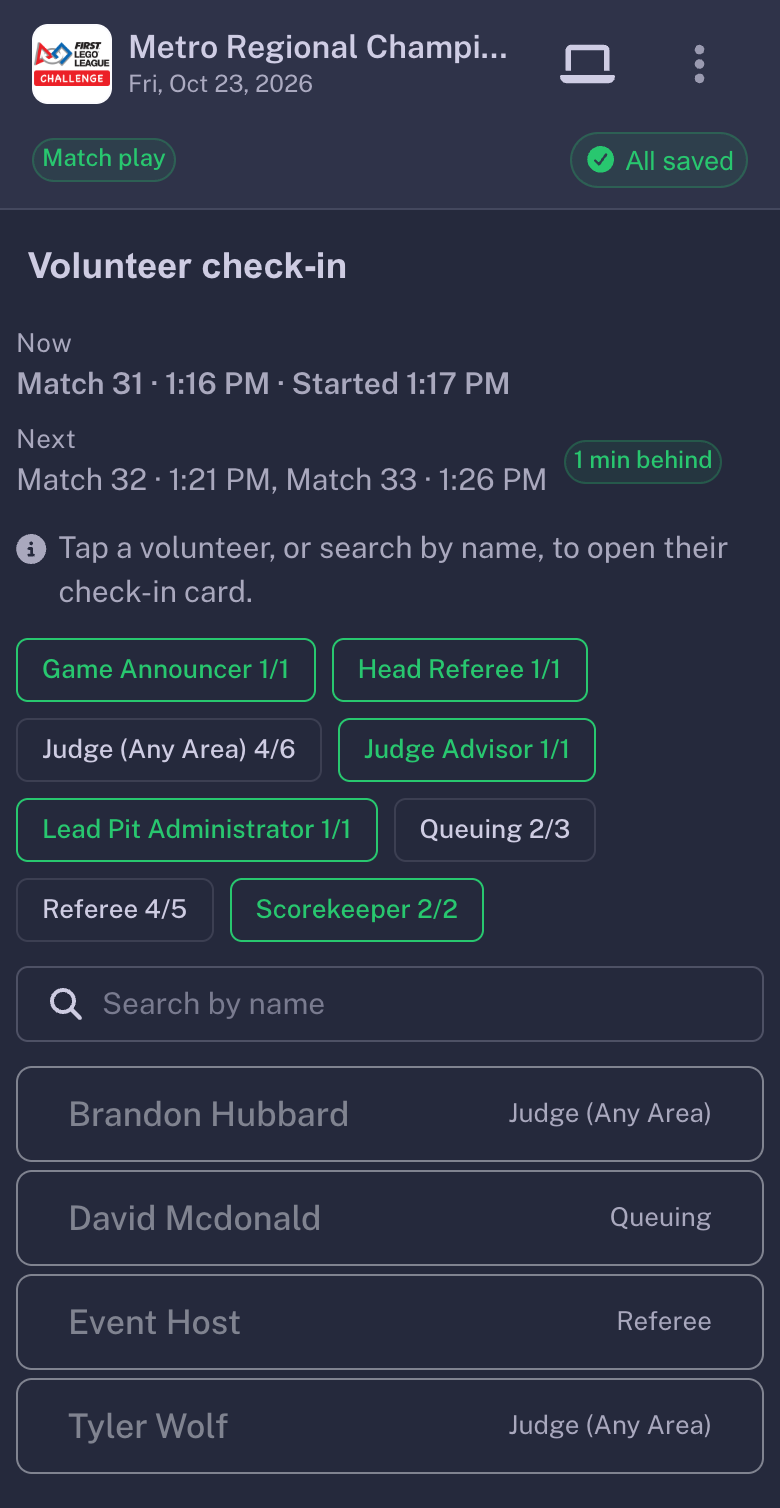
- Search by name. With nothing typed, the list shows the volunteers still to arrive.
- Tap the volunteer. Their card shows their shirt size and, for every role they hold, the role’s time, Report to <place> at <time>, and their lead.
- Hand over the badge and shirt, tap Check in <name>, and send them to their lead.
Walk-ins cannot be added at the desk. They sign up on their phone through the normal volunteer sign-up, and the volunteer coordinator assigns them. A volunteer with no role yet also goes to the volunteer coordinator.
For organizers: the report time and place come from the event’s volunteer agendas (the agenda’s call time and the room of its first item that names one). The lead is whoever is assigned at this event to the role that the volunteer’s role reports to.
Queuing
Queuers work one queuing zone: robot game tables or judging rooms.
What to call
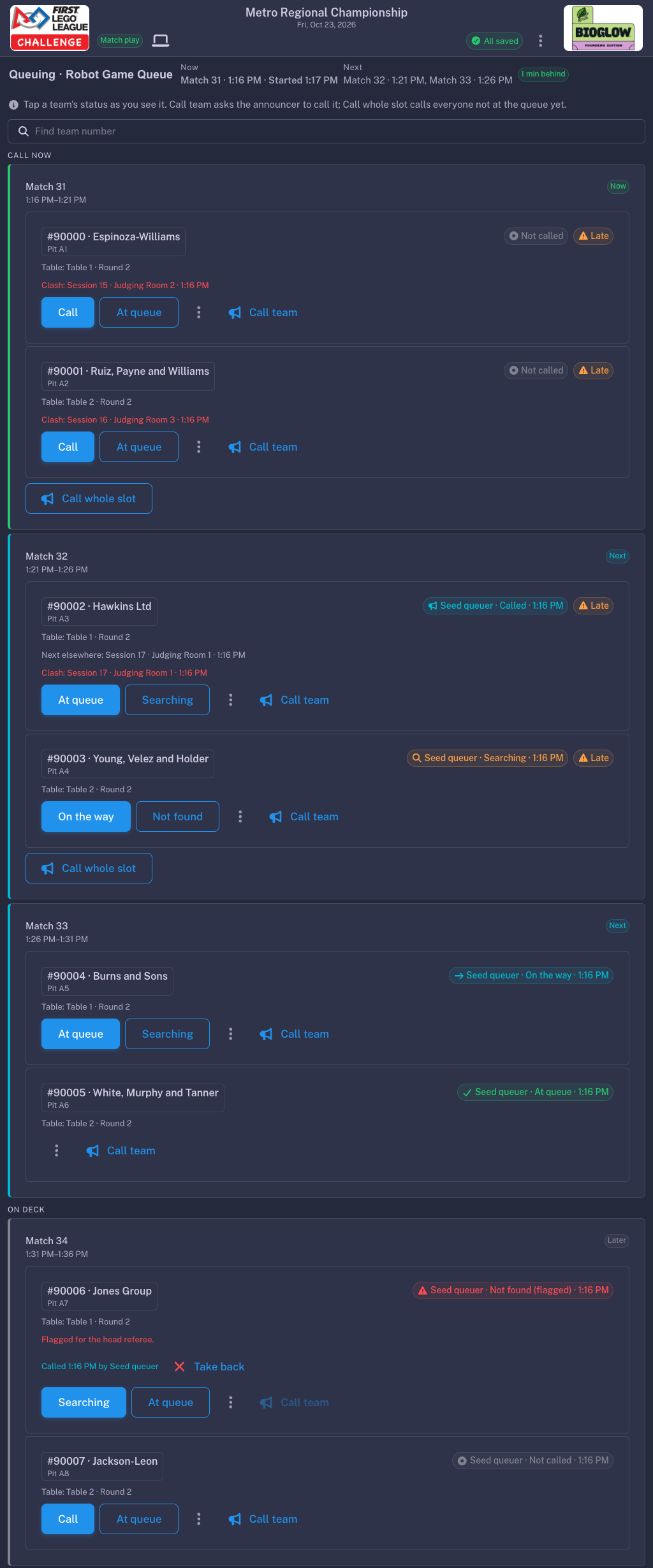
The zone’s matches or sessions are in three sections, timed against the live schedule, so a late-running field moves them along by itself:
- Call now: the match or session running now and the next two.
- On deck: the ones after that.
- Done: finished ones, folded away.
To find a team, type its number in Find team number.
Each team row shows the team, its shirt and pit, its table or room (and round), and its status with who set it and when. It also says when the team has Not checked in at the desk, where else it is due next, and any Clash with another match or session. Late appears from three minutes before the start while the team is not at the queue.
Statuses
Every queuer in the zone sees the same statuses. Tap the button for what you see:
| Status | Means |
|---|---|
| Called | You have called the team (tap Call). |
| Searching | The team is not where it should be; someone is looking. |
| On the way | The team is coming. |
| At queue | The team is in the queue. |
| Not found | You could not find the team. This is a flag, not a ruling: the head referee (robot game) or the Judge Advisor (judging) decides whether it is a No Show. |
| No show | The official ruling, made by the head referee or the Judge Advisor. |
If a team flagged Not found or ruled a No show turns up after all, move it on like any other team: the buttons and the ⋮ menu stay available. The ruling remains on record for the head referee or Judge Advisor.
The two most likely next statuses are buttons on the row; the ⋮ menu has the others. Each change offers Undo for about 10 seconds. If another queuer changed the same team a moment before you, a notice says so (for example Sam just set #123 to Searching.). Look at the row and change it again if needed.
Calling a team over the speakers
Call team asks the game announcer to call the team. Call whole slot does it for every team in the match or session that is not at the queue yet. The row then shows Called <time> by <name>, and nobody can call the same team again until the announcer clears it. To cancel a call, tap Take back on the row.
The Head Referee can call a team to its table too. That call shows on the team’s row with a note such as Head Referee needs #123 at Red 1: bring the team to that table.
Practice tables
The practice tables station runs the current slot in one practice area and keeps the rotation fair. Booking for a team comes second: most coaches book their own slot on their phone.
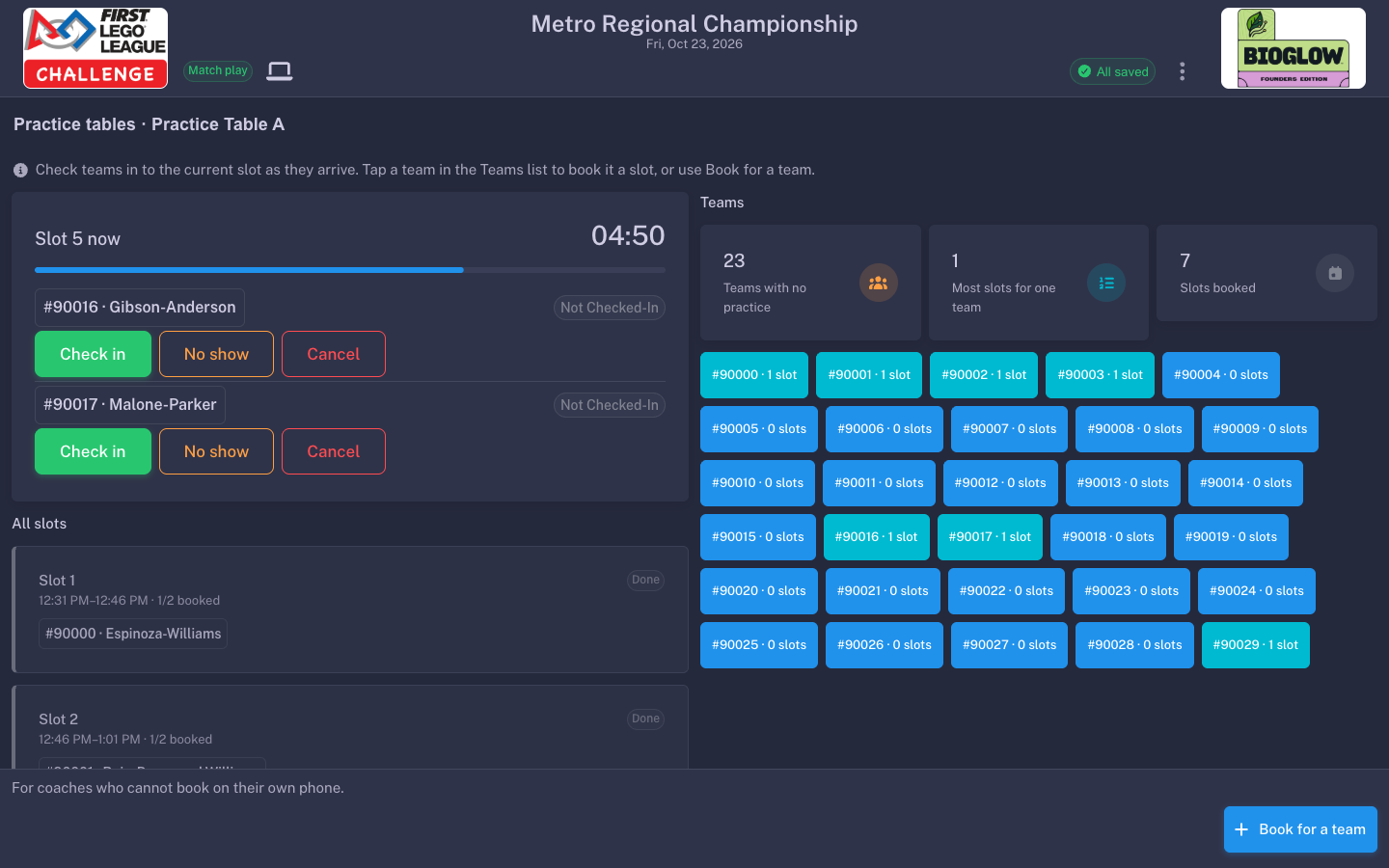
The current slot
- Slot N now counts down, and turns orange in its last two minutes. When the time is up, move the teams on, even if the next team is late.
- Each team booked in the slot has Check in, No show and Cancel; after one of them, Reset takes it back. Each change offers Undo for about 10 seconds.
- For the first three minutes of a slot, a notice names the teams from the slot before that should have left the table: Slot 4 has ended: make sure #123 has left the table.
- All slots lists every other slot of the day in order, past ones dimmed, each with how many places are booked and the teams in it (for a past slot, the teams that checked in).
Teams
Three counts show how fair the practice is: Teams with no practice, Most slots for one team and Slots booked. Below them, every team at the event has a chip with its number of slots, coloured as a heat map: blue for none, light blue for one, green for two, orange for three or four, red for more. Tap a team to book it a slot.
Booking for a team
- Tap Book for a team (or a team’s chip under Teams).
- Type the team number. The dialog shows Slots used so far and any slot the team already holds.
- Pick a slot. Free slots that fit the team’s day come first. Slots that clash are shown apart in orange, with the match or judging session they clash with. A slot clashes when it overlaps one of the team’s matches or judging sessions, or ends less than 10 minutes before one starts (time to get from the practice table to the queue). You can still book a clashing slot when the team asks for it. Full slots are not shown.
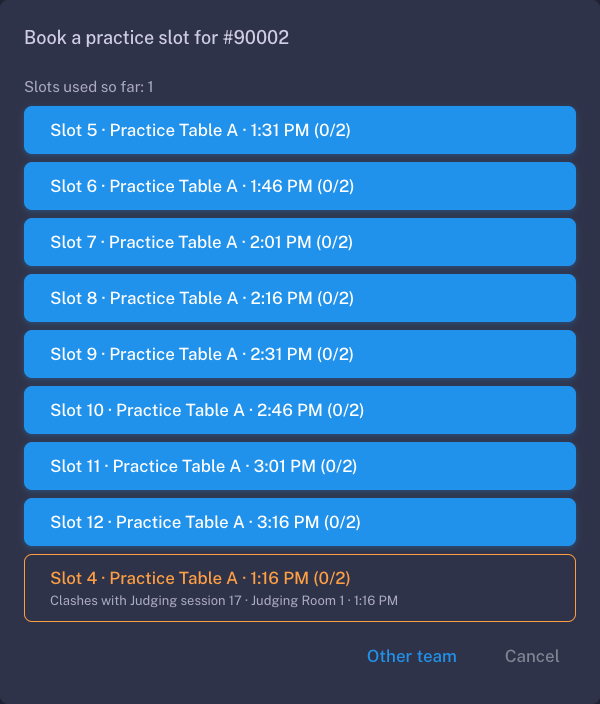
Practice slots cannot be booked from this station before the event day.
Judging
The judge station is the Judging tile on the event-day page. It is titled Judge at FIRST LEGO League Challenge events and Reviewer at others.
The room’s landing
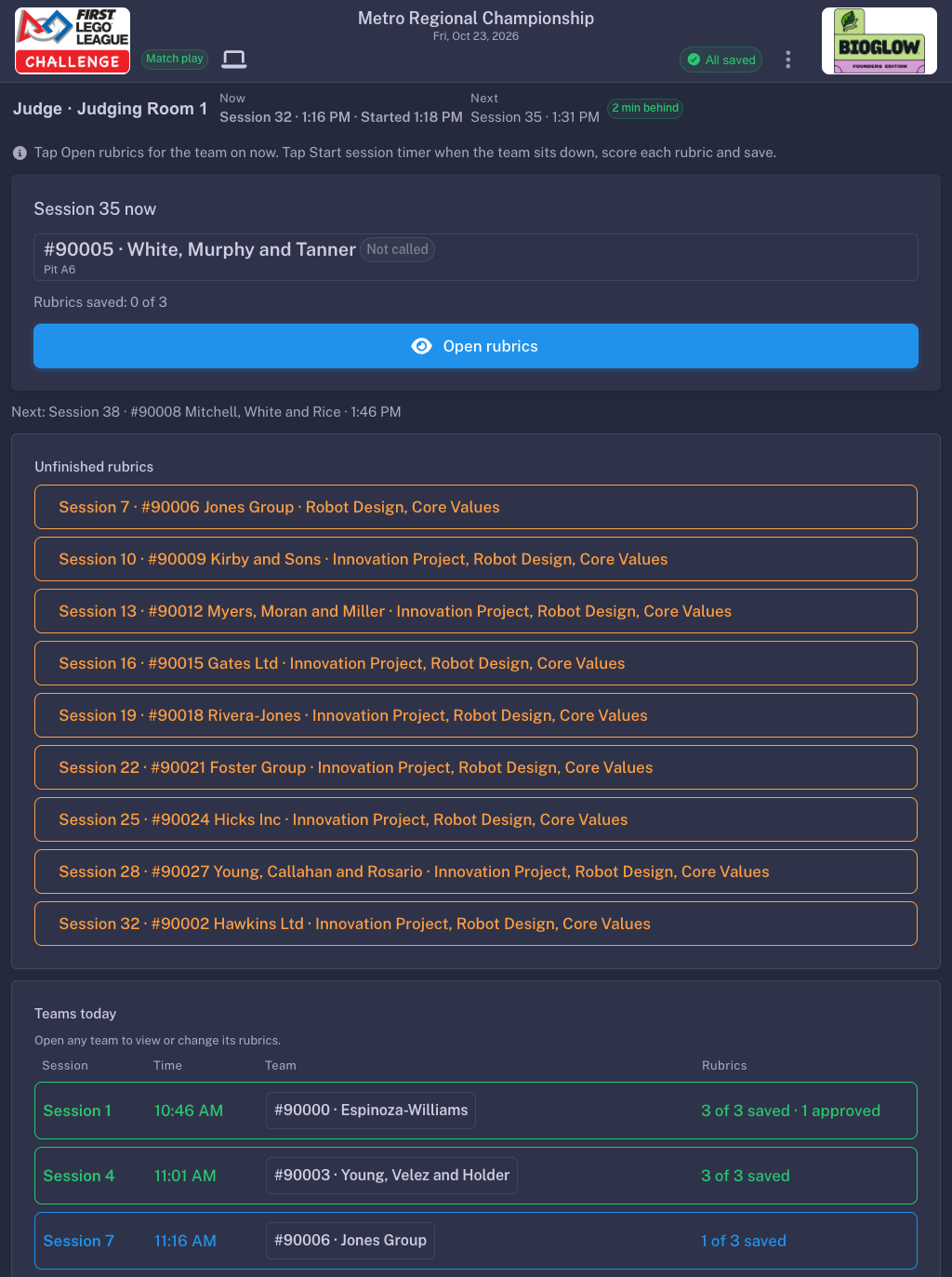
- Session N now: the team due in your room, with its pit and where it is (for example At queue, or not checked in yet), how many of its rubrics are saved, and Open rubrics.
- Next: the session after it.
- Unfinished rubrics: earlier teams in this room with a rubric still missing. Tap one to finish it.
- Teams today: every team in this room today, with its session, time and rubrics (for example 2 of 2 saved · 1 approved). Tap any team to view or change its rubrics.
The session timer
The timer sits at the top of the open rubrics and belongs to the team whose rubric is open: Session 3 · #123 <team name>.
- Open the team’s rubrics, and press Start session timer when the team sits down. If the team is not at the queue or not checked in yet, a warning says so; it never stops you starting.
- For 10 seconds after you press Start, Undo start takes it back with nothing sent. After that, every device in the room with that team open shows the same time (another window on the same tablet follows at once, other devices within about 20 seconds). Press Start on one device only. Started too early, or by mistake? Ask the Judge Advisor: they can cancel or restart the room’s timer, and your device follows.
- The timer walks through the parts of the session, and a short notice names each new part (Now: Robot Design · Explanation). At FIRST LEGO League Challenge events the parts follow the FIRST judging session flowchart: Team Welcome, Innovation Project presentation and Q&A, Robot Design explanation and Q&A, then Final Share & Feedback for the rest of the session. After the team leaves, Team has left shows and the clock counts down the judges’ discussion. Innovalda staff can set different parts for an event, for example a scrimmage.
The clock turns orange in the session’s last minute and red with a + once it runs over.
Filling in a rubric
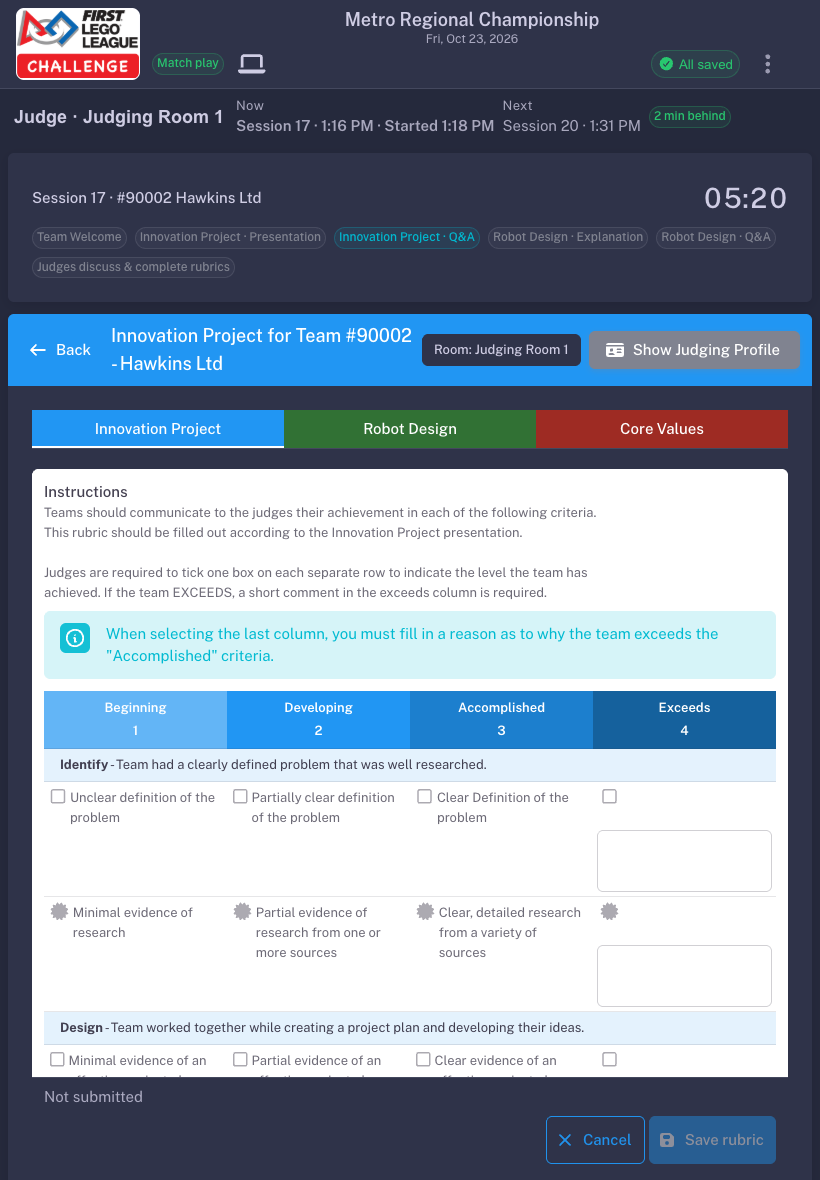
- Switch between the team’s rubrics with the tabs. The rubric is laid out like the paper one: a row per criterion and a column per level, with the write-in fields where the paper has them. Tap the level in each row; the feedback fields are at the bottom.
- Check the answers with the other judges, then tap Save rubric. If an upload fails, Retry upload sends it again.
Also open on <device>: another device has the same rubric open. You can both keep working: whoever saves second chooses Keep mine or Use theirs. It is a heads-up, not a lock.
During deliberations
Once the event moves to deliberations, the judge station shows three tabs: Deliberations (the deliberations table), My scripts (your award scripts, once they are released to you) and Sessions (the room’s landing, to finish a rubric). There is no separate Deliberations tile for judges.
If a station looks different
If your station looks different from this page, keep working and tell your lead; nothing you saved is lost.