Practice Tables — Quick Card
Device: the practice-area laptop or tablet · Ask: the pit admin lead
Your job: run the current practice slot on time, check teams in at the tables, keep the rotation fair, and book teams that can’t book themselves.
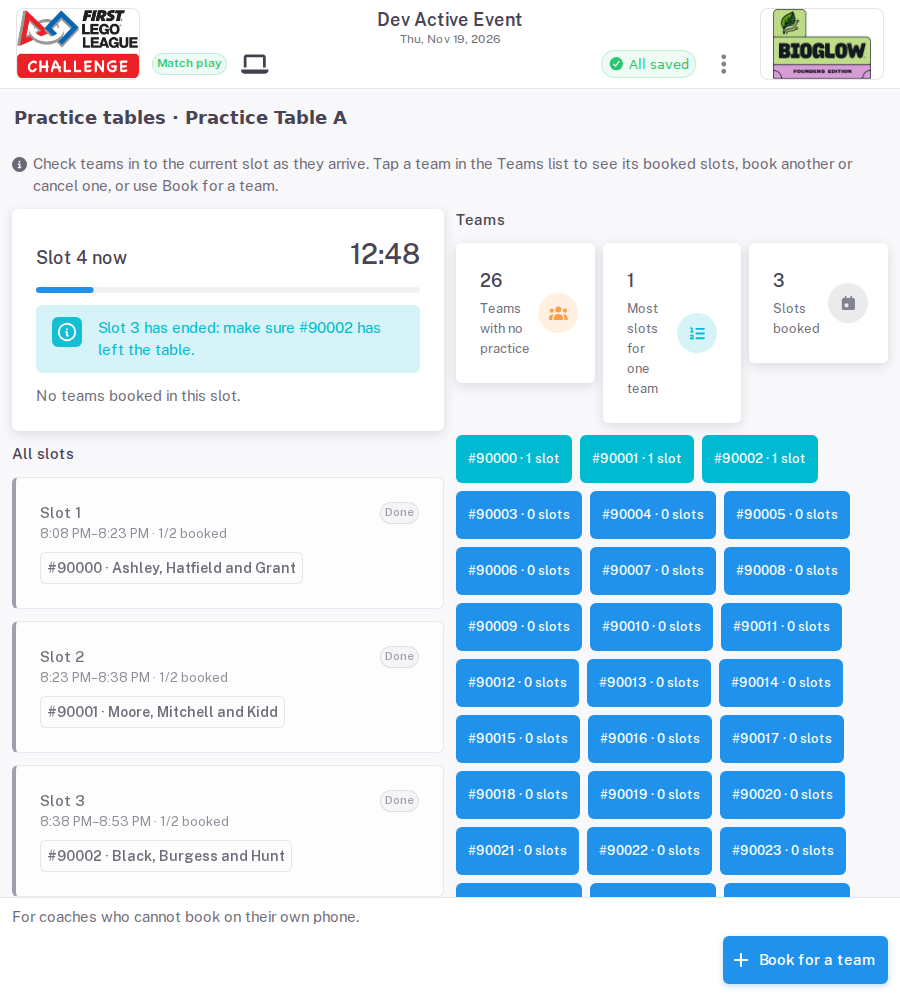
Start
Open Practice Tables from the event-day menu, then pick the practice room.
Each slot
- The current slot shows its countdown and the teams that should be at the tables now.
- Check each team in as it arrives at its table.
- When the countdown ends, move the teams on, even if the next team is late.
Booking or cancelling for a team
Most coaches book their own slot on their phone. For a coach who can’t, tap the team in the Teams list (or use Book for a team):
- Booked lists the team’s upcoming slots. To free one, tap Cancel and confirm. The place opens for other teams straight away, and Undo puts it back. A slot that is already running can’t be cancelled here; use the current slot’s buttons.
- Book a slot lists the free slots. You’re warned if a slot clashes with the team’s match or judging session. Slots at the same time as one the team already holds aren’t offered.
- Tap a slot to book it.
A team can’t be booked into the same slot twice, or into two slots at the same time. If two people try to take the last spot in a slot at the same time, only one gets it; the other sees that the slot is full.
If…
| Situation | Do |
|---|---|
| A team wants another slot | Check the rotation counts first. Teams with fewer slots go first. |
| A team was marked no-show at check-in | It drops out of its practice bookings by itself. |
| The status line shows pending | Keep going. It sends when the network is back. |
Last updated on